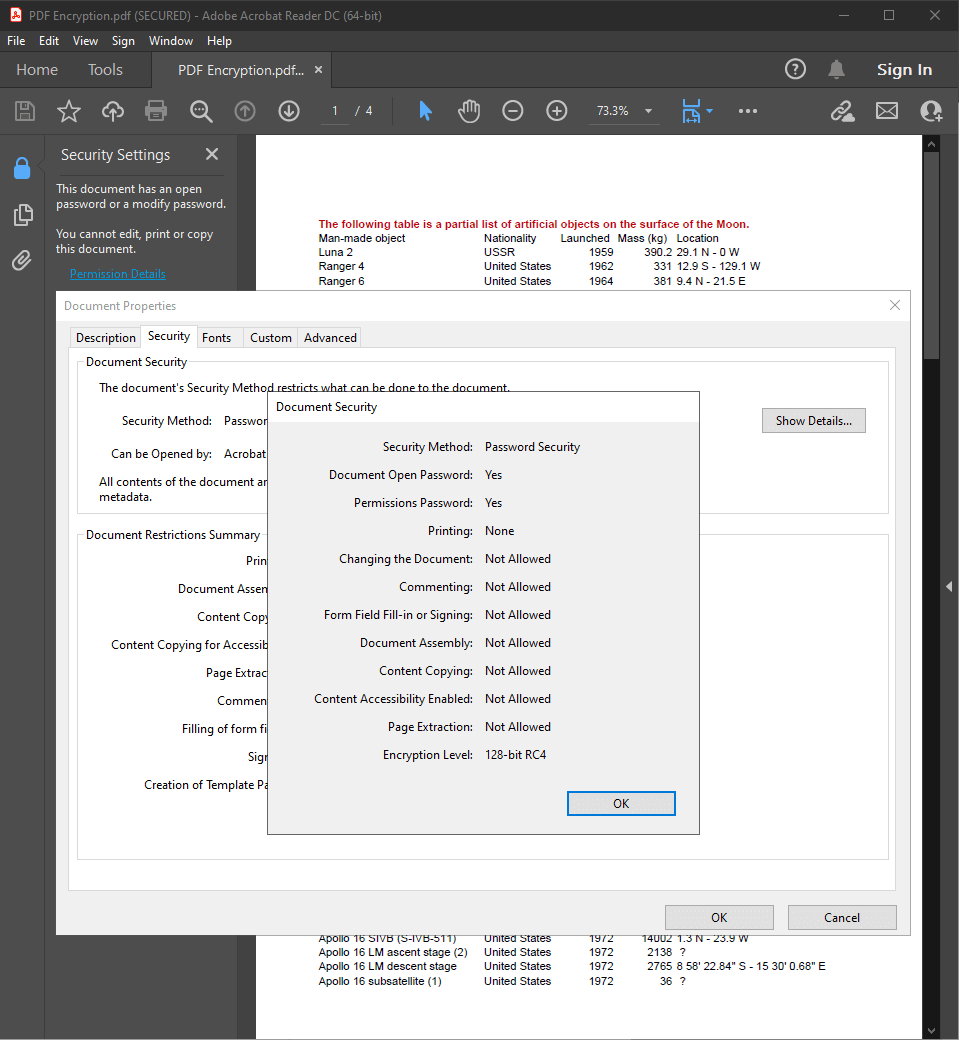
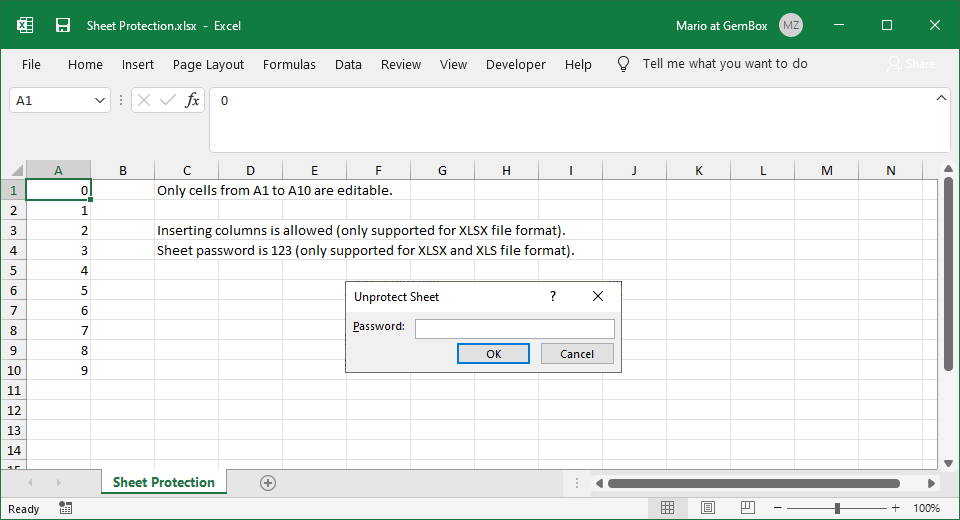
Create digitally signed PDFs from Excel files in C# and VB.NET
The following example shows how you can create a digitally signed PDF file from an Excel file with visual representation in C# and VB.NET with the GemBox.Spreadsheet library.
using GemBox.Spreadsheet;

// If using the Professional version, put your serial key below.
SpreadsheetInfo.SetLicense("FREE-LIMITED-KEY");

var workbook = ExcelFile.Load("SimpleTemplate.xlsx");

// Create a visual representation of digital signature at the beginning of the worksheet.
var signature = workbook.Worksheets[0].Pictures.Add("GemBoxSignature.png", "B2");

var options = new PdfSaveOptions()
{
    DigitalSignature =
    {
        CertificatePath = "GemBoxECDsa521.pfx",
        CertificatePassword = "GemBoxPassword",
        Signature = signature,
        IsAdvancedElectronicSignature = true
    }
};

workbook.Save("PDF Digital Signature.pdf", options);
Imports GemBox.Spreadsheet
Module Program
Sub Main()
' If using the Professional version, put your serial key below.
SpreadsheetInfo.SetLicense("FREE-LIMITED-KEY")
Dim workbook = ExcelFile.Load("SimpleTemplate.xlsx")
' Create a visual representation of digital signature at the beginning of the worksheet.
Dim signature = workbook.Worksheets(0).Pictures.Add("GemBoxSignature.png", "B2")
Dim options As New PdfSaveOptions() With
{
.DigitalSignature = New PdfDigitalSignatureSaveOptions() With
{
.CertificatePath = "GemBoxECDsa521.pfx",
.CertificatePassword = "GemBoxPassword",
.Signature = signature,
.IsAdvancedElectronicSignature = True
}
}
workbook.Save("PDF Digital Signature.pdf", options)
End Sub
End Module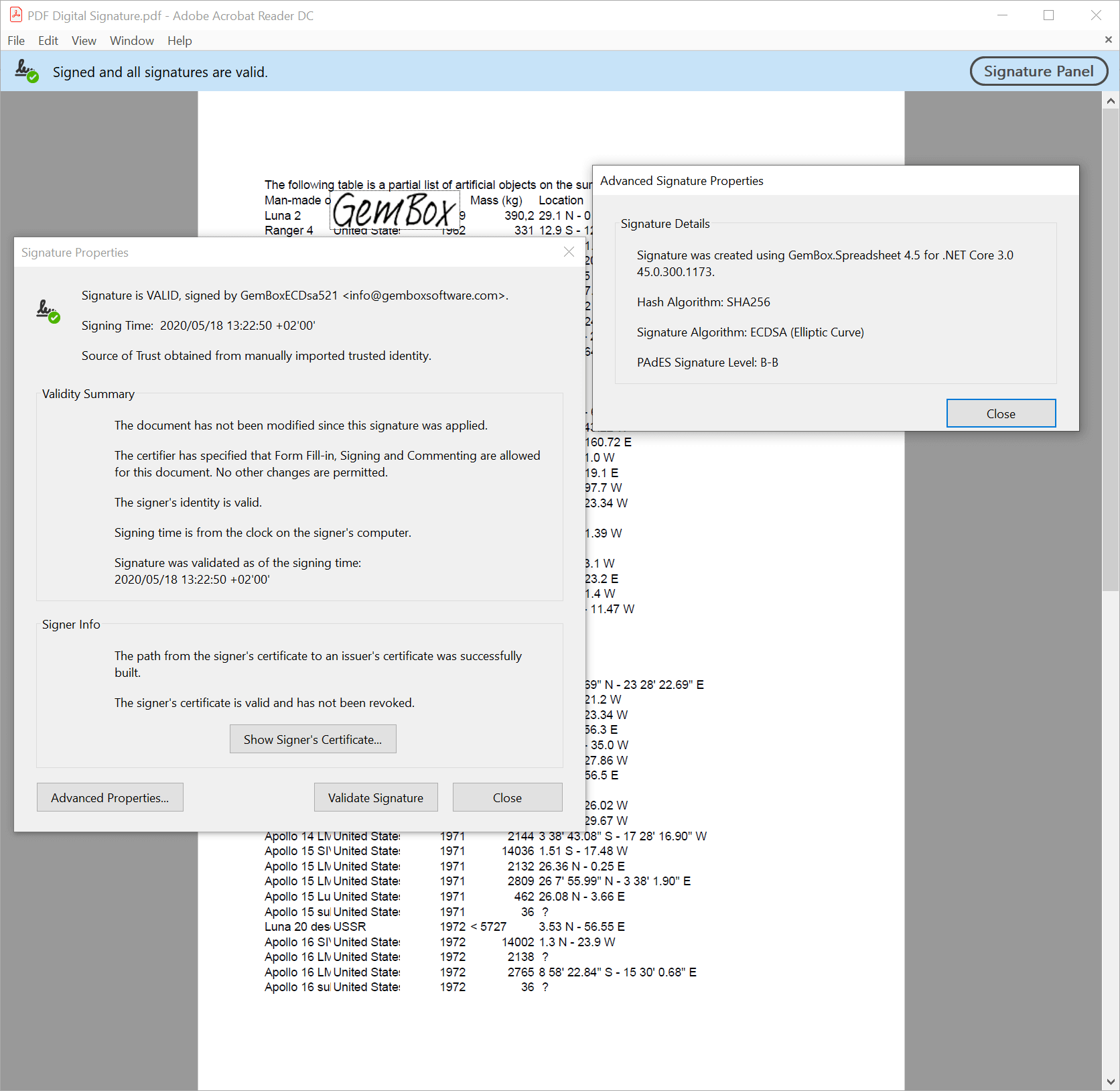
To get a valid signature in your Adobe Acrobat Reader as seen in the screenshot above, you will have to add either GemBoxRSA.crt or GemBoxECDsa.crt certificate to the list of Trusted Certificates as described in the Digital ID notes.
This is required because Adobe Acrobat Reader currently doesn't download certificate chains automatically.
PAdES signature (LTV enabled)
PDF Advanced Electronic Signature (PAdES) is an electronic signature in a PDF file that has met the requirements set forth by the eIDAS regulation on electronic identification and trust services for electronic transactions in the European Single Market.
The next example shows how to use the GemBox.Spreadsheet and GemBox.Pdf components together to create a digitally signed PDF file with a PAdES B-LTA level signature that embeds all validation-related information, thus making the signature LTV enabled.
using GemBox.Pdf.Forms;
using GemBox.Pdf.Security;
using GemBox.Spreadsheet;

// If using the Professional version, put your serial key below.
SpreadsheetInfo.SetLicense("FREE-LIMITED-KEY");

var workbook = ExcelFile.Load("SimpleTemplate.xlsx");

// Create a visual representation of the digital signature at the beginning of the first worksheet.
var signature = workbook.Worksheets[0].Pictures.Add("GemBoxSignature.png", "B2");

// If using the Professional version, put your serial key below.
GemBox.Pdf.ComponentInfo.SetLicense("FREE-LIMITED-KEY");

// Get a digital ID from PKCS#12/PFX file.
var digitalId = new PdfDigitalId("GemBoxECDsa521.pfx", "GemBoxPassword");

// Create a PDF signer that will create a PAdES B-LTA level signature.
var signer = new PdfSigner(digitalId);

// PdfSigner should create CAdES-equivalent signature.
signer.SignatureFormat = PdfSignatureFormat.CAdES;

// PdfSigner will embed a timestamp created by freeTSA.org Time Stamp Authority in the signature.
signer.Timestamper = new PdfTimestamper("https://freetsa.org/tsr");

// Make sure that all properties specified on PdfSigner are according to PAdES B-LTA level.
signer.SignatureLevel = PdfSignatureLevel.PAdES_B_LTA;

// Inject PdfSigner from GemBox.Pdf into
// PdfDigitalSignatureSaveOptions from GemBox.Spreadsheet.
var signatureOptions = PdfDigitalSignatureSaveOptions.FromSigner(
    () => signer.SignatureFormat.ToString(),
    () => signer.EstimatedSignatureContentsLength,
    signer.ComputeSignature);

signatureOptions.Signature = signature;

var options = new PdfSaveOptions()
{
    DigitalSignature = signatureOptions
};

workbook.Save("PAdES B-LTA.pdf", options);

using (var pdfDocument = GemBox.Pdf.PdfDocument.Load("PAdES B-LTA.pdf"))
{
    var signatureField = (PdfSignatureField)pdfDocument.Form.Fields[0];

    // Download validation-related information for the signature and the signature's timestamp and embed it in the PDF file.
    // This will make the signature "LTV enabled".
    pdfDocument.SecurityStore.AddValidationInfo(signatureField.Value);

    // Add an invisible signature field to the PDF document that will hold the document timestamp.
    var timestampField = pdfDocument.Form.Fields.AddSignature();

    // Initiate timestamping of a PDF file with the specified timestamper.
    timestampField.Timestamp(signer.Timestamper);

    // Save any changes done to the PDF file that were done since the last time Save was called and
    // finish timestamping of a PDF file.
    pdfDocument.Save();
}
Imports GemBox.Pdf.Forms
Imports GemBox.Pdf.Security
Imports GemBox.Spreadsheet
Module Program
Sub Main()
' If using the Professional version, put your serial key below.
SpreadsheetInfo.SetLicense("FREE-LIMITED-KEY")
Dim workbook = ExcelFile.Load("SimpleTemplate.xlsx")
' Create a visual representation of digital signature at the beginning of the first worksheet.
Dim signature = workbook.Worksheets(0).Pictures.Add("GemBoxSignature.png", "B2")
' If using the Professional version, put your serial key below.
GemBox.Pdf.ComponentInfo.SetLicense("FREE-LIMITED-KEY")
' Get a digital ID from PKCS#12/PFX file.
Dim digitalId = New PdfDigitalId("GemBoxECDsa521.pfx", "GemBoxPassword")
' Create a PDF signer that will create a PAdES B-LTA level signature.
Dim signer = New PdfSigner(digitalId)
' PdfSigner should create CAdES-equivalent signature.
signer.SignatureFormat = PdfSignatureFormat.CAdES
' PdfSigner will embed a timestamp created by freeTSA.org Time Stamp Authority in the signature.
signer.Timestamper = New PdfTimestamper("https://freetsa.org/tsr")
' Make sure that all properties specified on PdfSigner are according to PAdES B-LTA level.
signer.SignatureLevel = PdfSignatureLevel.PAdES_B_LTA
' Inject PdfSigner from GemBox.Pdf into
' PdfDigitalSignatureSaveOptions from GemBox.Spreadsheet.
Dim signatureOptions = PdfDigitalSignatureSaveOptions.FromSigner(
Function() signer.SignatureFormat.ToString(),
Function() signer.EstimatedSignatureContentsLength,
Function(pdfFileStream) signer.ComputeSignature(pdfFileStream))
signatureOptions.Signature = signature
Dim options = New PdfSaveOptions() With
{
.DigitalSignature = signatureOptions
}
workbook.Save("PAdES B-LTA.pdf", options)
Using pdfDocument = GemBox.Pdf.PdfDocument.Load("PAdES B-LTA.pdf")
Dim signatureField = CType(pdfDocument.Form.Fields(0), PdfSignatureField)
' Download validation-related information for the signature and the signature's timestamp and embed it in the PDF file.
' This will make the signature "LTV enabled".
pdfDocument.SecurityStore.AddValidationInfo(signatureField.Value)
' Add an invisible signature field to the PDF document that will hold the document timestamp.
Dim timestampField = pdfDocument.Form.Fields.AddSignature()
' Initiate timestamping of a PDF file with the specified timestamper.
timestampField.Timestamp(signer.Timestamper)
' Save any changes done to the PDF file that were done since the last time Save was called and
' finish timestamping of a PDF file.
pdfDocument.Save()
End Using
End Sub
End Module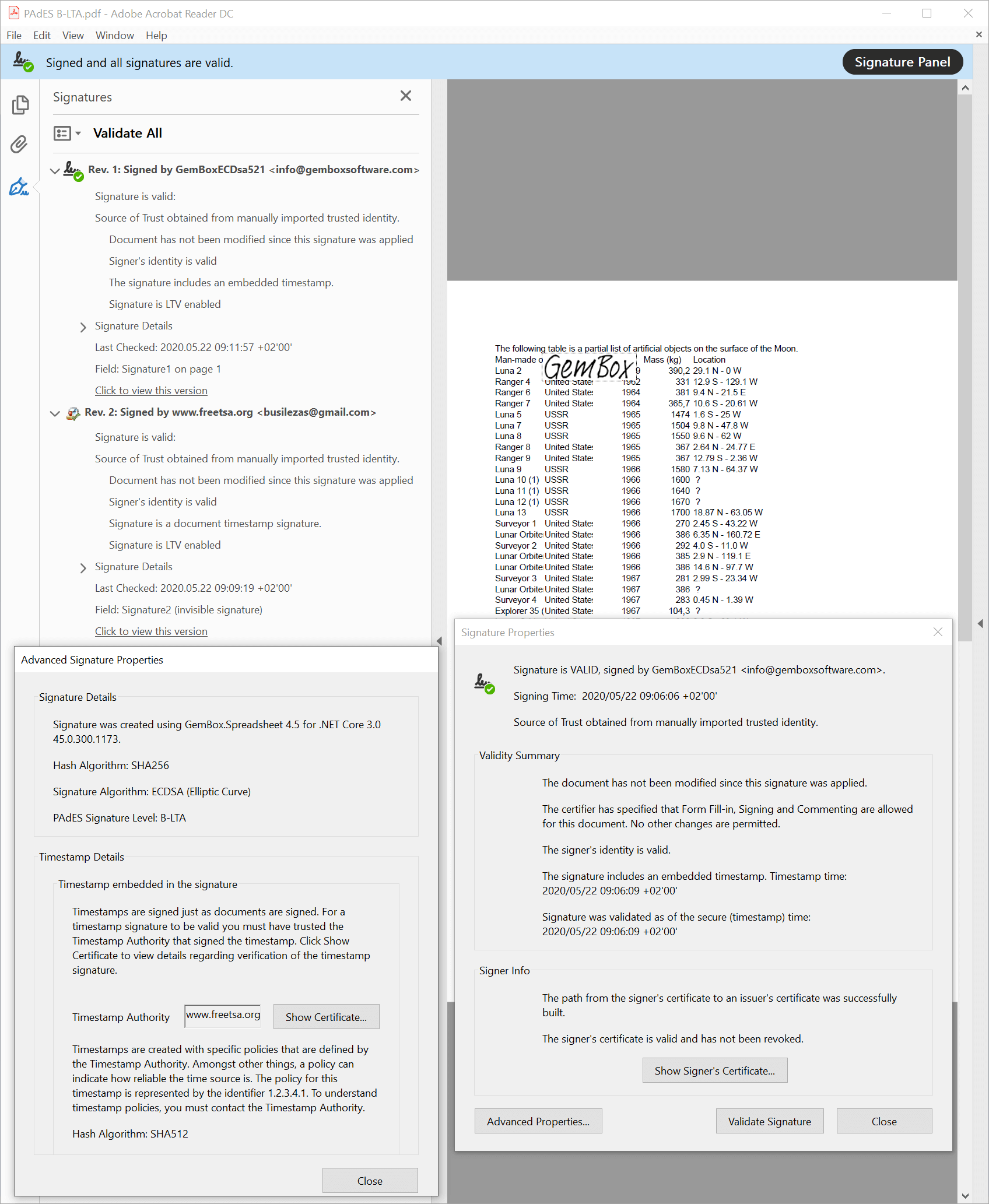
The PAdES B-LTA level signature has the following characteristics:
PDF digital signature is an advanced electronic signature, and includes the signer's certificate.
PDF digital signature has a time stamp, respectively a time-mark that proves that the signature existed at a certain date and time.
Validation-related information (OCSP responses or CRLs and all certificates of the certificate chain, from the signer's certificate to the root CA certificate) for the signature is added to the Document Security Store (DSS) of a PDF document.
Validation-related information for the signature's time-stamp is added to the DSS and a document time stamp to the PDF document.
PAdES B-LTA level may help to validate the signature beyond any event that may limit its validity. This level is recommended for Qualified Electronic Signatures.
Digital ID notes
Digital ID files used in the preceding examples are part of a simple Public Key Infrastructure (PKI) created just for this demonstration which contains the following hierarchy of certificates and CRLs:
Root Certificate Authority certificate GemBoxCA.crt
Intermediate Certificate Authority certificate GemBoxRSA.crt
Digital ID GemBoxRSA1024.pfx and its certificate GemBoxRSA1024.crt
Digital ID GemBoxRSA2048.pfx and its certificate GemBoxRSA2048.crt(revoked)
Digital ID GemBoxRSA4096.pfx and its certificate GemBoxRSA4096.crt
CRL GemBoxRSA.crl that revokes the certificate with the serial number 02 (GemBoxRSA2048.crt)
Intermediate Certificate Authority certificate GemBoxECDsa.crt
Digital ID GemBoxECDsa192.pfx and its certificate GemBoxECDsa192.crt
Digital ID GemBoxECDsa224.pfx and its certificate GemBoxECDsa224.crt (revoked)
Digital ID GemBoxECDsa521.pfx and its certificate GemBoxECDsa521.crt
CRL GemBoxECDsa.crl that revokes the certificate with the serial number 02 (GemBoxECDsa224.crt)
CRL GemBoxCA.crl that doesn't revoke any certificate
To get a valid signature in your Adobe Acrobat Reader as seen in the screenshots above, you will have to add GemBoxCA.crt certificate to the list of Trusted Certificates using the following steps:
Download GemBoxCA.crt certificate.
Open Adobe Acrobat Reader, select Edit>Preferences>Signatures. In Identities & Trusted Certificates click More.
Select Trusted Certificates and click Import. Browse to the downloaded GemBoxCA.crt certificate and click Import.
Select the imported GemBoxCA info@gemboxsofware.com certificate, click Edit Trust and add a check-mark next to Use this certificate as a trusted root.
You can now delete the downloaded GemBoxCA.crt certificate. You can always later remove GemBoxCA info@gemboxsofware.com from Trusted Certificates by selecting it from the list of Trusted Certificates and clicking Remove.
Otherwise, to get a valid signature in any Adobe Acrobat Reader, your digital ID would have to be an AATL-enabled signing credential.
Time-stamp notes
The Time Stamp Authority used in the preceding example is freeTSA.org.
The root certificate of the freeTSA.org Public Key Infrastructure (PKI) is tsa.crt.
To get a valid signature timestamp in your Adobe Acrobat Reader as seen in the screenshot above, you will have to add the tsa.crt certificate to the list of Trusted Certificates using the same steps as in the previous subsection.