Excel workbook protection in C# and VB.NET
The following example shows how to protect an Excel workbook programmatically using C# and VB.NET with the GemBox.Spreadsheet library.
using GemBox.Spreadsheet;

class Program
{
    static void Main()
    {
        // If using the Professional version, put your serial key below.
        SpreadsheetInfo.SetLicense("FREE-LIMITED-KEY");

        var workbook = new ExcelFile();
        var worksheet = workbook.Worksheets.Add("Workbook Protection");

        var protectionSettings = workbook.ProtectionSettings;
        protectionSettings.ProtectStructure = true;

        worksheet.Cells[0, 0].Value = "Workbook password is 123 (only supported for XLSX file format).";
        protectionSettings.SetPassword("123");

        workbook.Save("Workbook Protection.xlsx");
    }
}
Imports GemBox.Spreadsheet

Module Program

    Sub Main()

        ' If using the Professional version, put your serial key below.
        SpreadsheetInfo.SetLicense("FREE-LIMITED-KEY")

        Dim workbook As New ExcelFile()
        Dim worksheet = workbook.Worksheets.Add("Workbook Protection")

        Dim protectionSettings = workbook.ProtectionSettings
        protectionSettings.ProtectStructure = True

        worksheet.Cells(0, 0).Value = "Workbook password is 123 (only supported for XLSX file format)."
        protectionSettings.SetPassword("123")

        workbook.Save("Workbook Protection.xlsx")
    End Sub
End Module
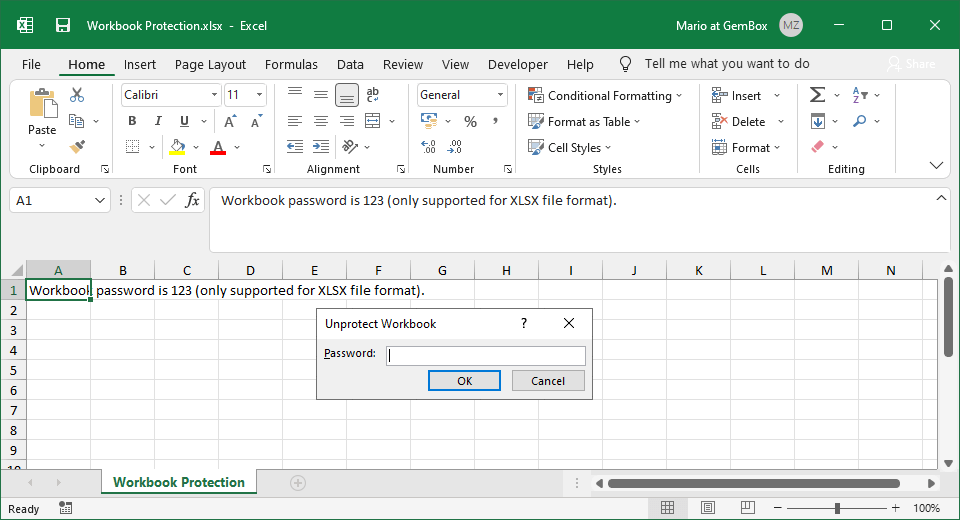
Please note that the protection of Excel workbooks does not affect the functionality of GemBox.Spreadsheet. In other words, you can edit the structure of protected workbooks just as you would with unprotected ones.
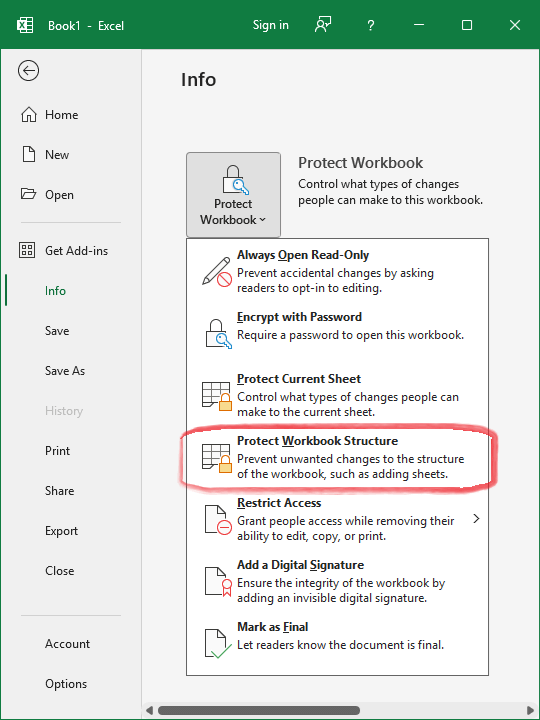
The workbook protection feature is only available for XLSX files. To activate this feature, you must set the ExcelFile.Protected property to true, and you may also set a password using the WorkbookProtection.SetPassword method. In Microsoft Excel, that would be the following option:
To unprotect the protected workbook, just set the ExcelFile.Protected property to false. Note that GemBox.Spreadsheet can unprotect a workbook without requiring its password.
To check if the protected worksheet has a password, use WorkbookProtection.HasPassword property.
To remove the password, provide null to the WorkbookProtection.SetPassword method.