Excel worksheet protection in C# and VB.NET
The following example shows how you can protect an Excel worksheet and specify which cells are excluded (not protected) using the GemBox.Spreadsheet .NET library in C# and VB.NET.
using GemBox.Spreadsheet;

// If using the Professional version, put your serial key below.
SpreadsheetInfo.SetLicense("FREE-LIMITED-KEY");

var workbook = new ExcelFile();
var worksheet = workbook.Worksheets.Add("Sheet Protection");

worksheet.Cells[0, 2].Value = "Only cells from A1 to A10 are editable.";

for (int i = 0; i < 10; i++)
{
    var cell = worksheet.Cells[i, 0];
    cell.SetValue(i);
    cell.Style.Locked = false;
}

worksheet.Protected = true;

var protectionSettings = worksheet.ProtectionSettings;
worksheet.Cells[3, 2].Value = "Sheet password is 123 (only supported for XLSX and XLS file format).";
protectionSettings.SetPassword("123");

worksheet.Cells[2, 2].Value = "Inserting columns is allowed (only supported for XLSX file format).";
protectionSettings.AllowInsertingColumns = true;

workbook.Save("Sheet Protection.xlsx");
Imports GemBox.Spreadsheet
Module Program
Sub Main()
' If using the Professional version, put your serial key below.
SpreadsheetInfo.SetLicense("FREE-LIMITED-KEY")
Dim workbook As New ExcelFile()
Dim worksheet = workbook.Worksheets.Add("Sheet Protection")
worksheet.Cells(0, 2).Value = "Only cells from A1 to A10 are editable."
For i = 0 To 9 Step 1
Dim cell = worksheet.Cells(i, 0)
cell.SetValue(i)
cell.Style.Locked = False
Next
worksheet.Protected = True
Dim protectionSettings = worksheet.ProtectionSettings
worksheet.Cells(3, 2).Value = "Sheet password is 123 (only supported for XLSX and XLS file format)."
protectionSettings.SetPassword("123")
worksheet.Cells(2, 2).Value = "Inserting columns is allowed (only supported for XLSX file format)."
protectionSettings.AllowInsertingColumns = True
workbook.Save("Sheet Protection.xlsx")
End Sub
End Module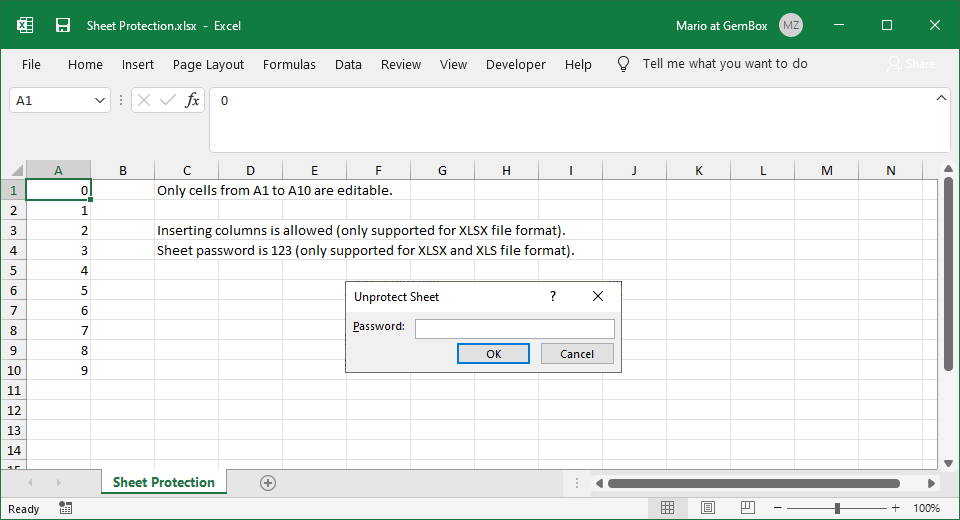
Note that this protection doesn't have any effect on the behavior of GemBox.Spreadsheet, you can modify any protected worksheet just like the unprotected ones. The protection is only valid in Excel.
To enable the protection, you need to set the ExcelWorksheet.Protected property to true and optionally set the password using the WorksheetProtection.SetPassword method. In Microsoft Excel, that would be the following option: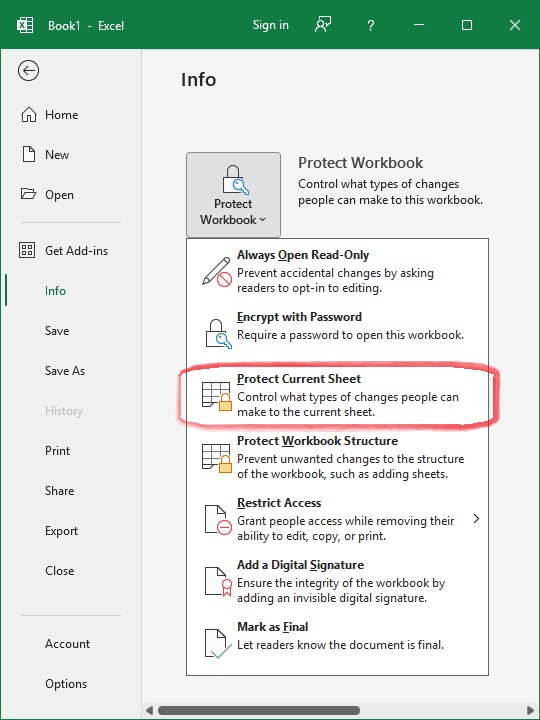
When the worksheet is protected, the cells that are locked (have the CellStyle.Locked property set to true) have restrictions that are specified in WorksheetProtection. The protection is not enforced on unlocked cells.
Also, the advanced options available in WorksheetProtection are only supported in XLSX and XLS file formats. Additionally, the ability to edit specific objects within the worksheet is limited to XLSX files.
To remove protection from a protected worksheet, set the ExcelWorksheet.Protected property to false. It's worth noting that GemBox.Spreadsheet can unprotect a worksheet without requiring a password.
To check if a protected worksheet has a password, use the WorksheetProtection.HasPassword property. To remove the password, provide a null value to the WorksheetProtection.SetPassword method.