Progress reporting and cancellation in Excel files in C# and VB.NET
The following example demonstrates how to output the save progress of a large Excel file to the console in C# and VB.NET, using the GemBox.Spreadsheet library.
using GemBox.Spreadsheet;
using System;

class Program
{
    static void Main()
    {
        // If using the Professional version, put your serial key below.
        SpreadsheetInfo.SetLicense("FREE-LIMITED-KEY");

        Console.WriteLine("Creating file");

        // Create large workbook.
        var workbook = new ExcelFile();
        var worksheet = workbook.Worksheets.Add("sheet");
        for (int i = 0; i < 1000000; i++)
            worksheet.Cells[i, 0].Value = i;

        // Create save options.
        var saveOptions = new XlsxSaveOptions();
        saveOptions.ProgressChanged += (eventSender, args) =>
        {
            Console.WriteLine($"Progress changed - {args.ProgressPercentage}%");
        };

        // Save file.
        workbook.Save("file.xlsx", saveOptions);
    }
}
Imports GemBox.Spreadsheet
Imports System
Module Program
Sub Main()
' If using the Professional version, put your serial key below.
SpreadsheetInfo.SetLicense("FREE-LIMITED-KEY")
Console.WriteLine("Creating file")
' Create large workbook.
Dim workbook = New ExcelFile()
Dim worksheet = workbook.Worksheets.Add("sheet")
For i As Integer = 0 To 1000000
worksheet.Cells(i, 0).Value = i
Next
' Create save options.
Dim saveOptions = New XlsxSaveOptions()
AddHandler saveOptions.ProgressChanged,
Sub(eventSender, args)
Console.WriteLine($"Progress changed - {args.ProgressPercentage}%")
End Sub
' Save file.
workbook.Save("file.xlsx", saveOptions)
End Sub
End Module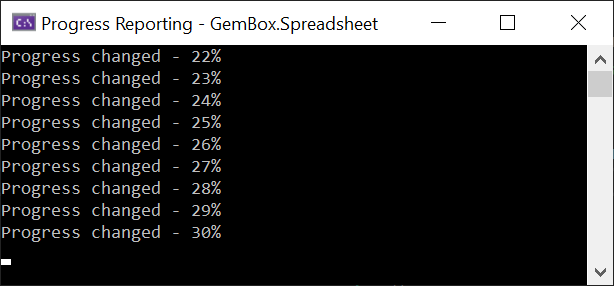
GemBox.Spreadsheet supports tracking the progress of long-running operations, with the option to cancel them. Currently, the supported operations are loading XLSX files and saving XLSX, PDF, and image files by handling the XlsxLoadOptions.ProgressChanged, XlsxSaveOptions.ProgressChanged, PdfSaveOptions.ProgressChanged, and ImageSaveOptions.ProgressChanged events.
Progress reporting in WPF
The ProgressChanged event is triggered on the thread that initiates the operation so if the operation is launched on the UI thread of a WPF application, the thread gets blocked and any changes resulting from the event will not be displayed.
To address this issue, you can use Tasks to execute the load operation on a separate thread and SynchronizationContext to modify the progress bar on the UI thread. The following example illustrates how this can be done.
<Window x:Class="MainWindow"
        xmlns="http://schemas.microsoft.com/winfx/2006/xaml/presentation"
        xmlns:x="http://schemas.microsoft.com/winfx/2006/xaml"
        Title="Progress reporting in WPF" Height="150" Width="300">
    <Grid>
        <ProgressBar HorizontalAlignment="Left" Height="32" Margin="27,73,0,0" VerticalAlignment="Top" Width="200" Name="progressBar"/>
        <Button x:Name="button" Content="Load" HorizontalAlignment="Left" Margin="27,19,0,0" VerticalAlignment="Top" Width="236" Height="36" Click="loadButton_Click"/>
        <Label x:Name="percentageLabel" Content="" HorizontalAlignment="Left" Margin="239,77,0,0" VerticalAlignment="Top" RenderTransformOrigin="0.867,0.59"/>
    </Grid>
</Window>
using GemBox.Spreadsheet;
using System.Threading;
using System.Threading.Tasks;
using System.Windows;
public partial class MainWindow : Window
{
public MainWindow()
{
// If using the Professional version, put your serial key below.
SpreadsheetInfo.SetLicense("FREE-LIMITED-KEY");
InitializeComponent();
}
private async void loadButton_Click(object sender, RoutedEventArgs e)
{
// Capture the current context on the UI thread.
var context = SynchronizationContext.Current;
// Create load options.
var loadOptions = new XlsxLoadOptions();
loadOptions.ProgressChanged += (eventSender, args) =>
{
var percentage = args.ProgressPercentage;
// Invoke on the UI thread.
context.Post(progressPercentage =>
{
// Update UI.
this.progressBar.Value = (int)progressPercentage;
this.percentageLabel.Content = progressPercentage.ToString() + "%";
}, percentage);
};
this.percentageLabel.Content = "0%";
// Use tasks to run the load operation in a new thread.
var file = await Task.Run(() => ExcelFile.Load("LargeFile.xlsx", loadOptions));
}
}Imports GemBox.Spreadsheet
Imports System.Threading
Imports System.Threading.Tasks
Imports System.Windows
Class MainWindow
Public Sub New()
' If using the Professional version, put your serial key below.
SpreadsheetInfo.SetLicense("FREE-LIMITED-KEY")
InitializeComponent()
End Sub
Private Async Sub loadButton_Click(sender As Object, e As RoutedEventArgs)
' Capture the current context on the UI thread.
Dim context = SynchronizationContext.Current
' Create load options.
Dim loadOptions = New XlsxLoadOptions()
AddHandler loadOptions.ProgressChanged,
Sub(eventSender, args)
Dim percentage = args.ProgressPercentage
' Invoke on the UI thread.
context.Post(
Sub(progressPercentage)
' Update UI.
Me.progressBar.Value = CType(progressPercentage, Integer)
Me.percentageLabel.Content = progressPercentage.ToString() & "%"
End Sub, percentage)
End Sub
Me.percentageLabel.Content = "0%"
' Use tasks to run the load operation in a new thread.
Await Task.Run(
Sub()
ExcelFile.Load("LargeFile.xlsx", loadOptions)
End Sub)
End Sub
End Class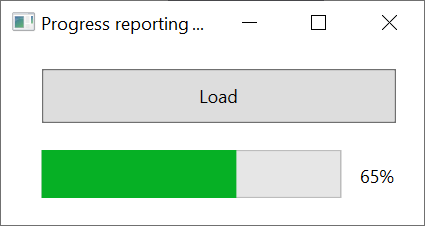
Progress reporting in Windows Forms
Similarly to WPF, to show the progress of an operation in the Windows Forms UI, it is necessary to run the process in a separate thread and report the changes on the UI thread.
The following example shows how to display the progress of a load operation in the progress bar.
using GemBox.Spreadsheet;
using System;
using System.Threading;
using System.Threading.Tasks;
using System.Windows.Forms;

public partial class MainForm : Form
{
    public MainForm()
    {
        // If using the Professional version, put your serial key below.
        SpreadsheetInfo.SetLicense("FREE-LIMITED-KEY");
        InitializeComponent();
    }

    private async void loadButton_Click(object sender, EventArgs e)
    {
        // Capture the current context on the UI thread.
        var context = SynchronizationContext.Current;

        // Create load options.
        var loadOptions = new XlsxLoadOptions();
        loadOptions.ProgressChanged += (eventSender, args) =>
        {
            var percentage = args.ProgressPercentage;
            // Invoke on the UI thread.
            context.Post(progressPercentage =>
            {
                // Update UI.
                this.progressBar.Value = (int)progressPercentage;
                this.percentageLabel.Text = progressPercentage.ToString() + "%";
            }, percentage);
        };

        this.percentageLabel.Text = "0%";
        // Use tasks to run the load operation in a new thread.
        var file = await Task.Run(() => ExcelFile.Load("LargeFile.xlsx", loadOptions));
    }
}
Imports GemBox.Spreadsheet
Imports System
Imports System.Threading
Imports System.Threading.Tasks
Imports System.Windows.Forms
Public Class MainForm
Public Sub New()
' If using the Professional version, put your serial key below.
SpreadsheetInfo.SetLicense("FREE-LIMITED-KEY")
InitializeComponent()
End Sub
Private Async Sub LoadButton_Click(sender As Object, e As EventArgs) Handles LoadButton.Click
' Capture the current context on the UI thread.
Dim context = SynchronizationContext.Current
' Create load options.
Dim loadOptions = New XlsxLoadOptions()
AddHandler loadOptions.ProgressChanged,
Sub(eventSender, args)
Dim percentage = args.ProgressPercentage
' Invoke on the UI thread.
context.Post(
Sub(progressPercentage)
' Update UI.
Me.ProgressBar.Value = CType(progressPercentage, Integer)
Me.PercentageLabel.Text = progressPercentage.ToString() & "%"
End Sub, percentage)
End Sub
Me.PercentageLabel.Text = "0%"
' Use tasks to run the load operation in a new thread.
Await Task.Run(
Sub()
ExcelFile.Load("LargeFile.xlsx", loadOptions)
End Sub)
End Sub
End Class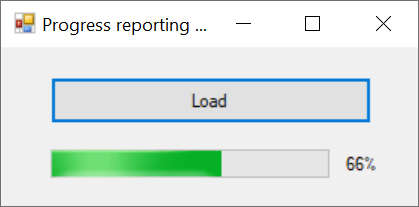
Cancellation
GemBox.Spreadsheet supports canceling long-running operations when handling the ProgressChanged events, by calling the CancelOperation method.
The following example demonstrates how to cancel a save operation after a specified amount of time.
using GemBox.Spreadsheet;
using System;
using System.Diagnostics;

class Program
{
    static void Main()
    {
        // If using the Professional version, put your serial key below.
        SpreadsheetInfo.SetLicense("FREE-LIMITED-KEY");

        // Create workbook.
        var workbook = new ExcelFile();
        var worksheet = workbook.Worksheets.Add("sheet");
        for (int i = 0; i < 1000000; i++)
            worksheet.Cells[i, 0].Value = i;

        var stopwatch = new Stopwatch();
        stopwatch.Start();

        // Create save options.
        var saveOptions = new XlsxSaveOptions();
        saveOptions.ProgressChanged += (sender, args) =>
        {
            // Cancel operation after five seconds.
            if (stopwatch.Elapsed.Seconds >= 5)
                args.CancelOperation();
        };

        try
        {
            workbook.Save("Cancellation.xlsx", saveOptions);
            Console.WriteLine("Operation fully finished");
        }
        catch (OperationCanceledException)
        {
            Console.WriteLine("Operation was cancelled");
        }
    }
}
Imports GemBox.Spreadsheet
Imports System
Imports System.Diagnostics
Module Program
Sub Main()
' If using the Professional version, put your serial key below.
SpreadsheetInfo.SetLicense("FREE-LIMITED-KEY")
' Create workbook.
Dim workbook = New ExcelFile()
Dim worksheet = workbook.Worksheets.Add("sheet")
For i As Integer = 0 To 1000000
worksheet.Cells(i, 0).Value = i
Next
Dim stopwatch = New Stopwatch()
stopwatch.Start()
' Create save options.
Dim saveOptions = New XlsxSaveOptions()
AddHandler saveOptions.ProgressChanged,
Sub(eventSender, args)
' Cancel operation after five seconds.
If stopwatch.Elapsed.Seconds >= 5 Then
args.CancelOperation()
End If
End Sub
Try
workbook.Save("Cancellation.xlsx", saveOptions)
Console.WriteLine("Operation fully finished")
Catch ex As OperationCanceledException
Console.WriteLine("Operation was cancelled")
End Try
End Sub
End ModuleCancellation in WPF
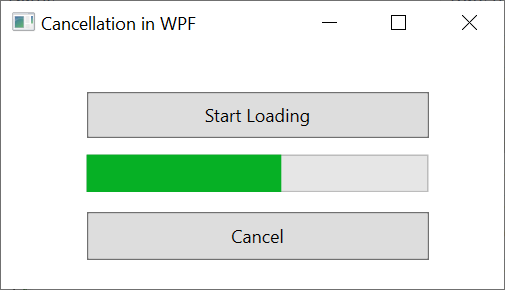
The following example shows how to implement a 'Cancel' button in a WPF application.
<Window x:Class="MainWindow"
        xmlns="http://schemas.microsoft.com/winfx/2006/xaml/presentation"
        xmlns:x="http://schemas.microsoft.com/winfx/2006/xaml"
        Title="Cancellation in WPF" Height="200" Width="350">
    <Grid>
        <Button x:Name="loadButton" Content="Start Loading" HorizontalAlignment="Left" Margin="57,31,0,0" VerticalAlignment="Top" Width="228" Height="31" Click="loadButton_Click" />
        <Button x:Name="cancelButton" Content="Cancel" HorizontalAlignment="Left" Margin="57,111,0,0" VerticalAlignment="Top" Width="228" Height="32" Click="cancelButton_Click" />
        <ProgressBar HorizontalAlignment="Left" Height="25" Margin="57,73,0,0" VerticalAlignment="Top" Width="228" Name="progressBar" />
    </Grid>
</Window>
using GemBox.Spreadsheet;
using System;
using System.Threading;
using System.Threading.Tasks;
using System.Windows;
public partial class MainWindow : Window
{
private volatile bool cancellationRequested;
public MainWindow()
{
// If using the Professional version, put your serial key below.
SpreadsheetInfo.SetLicense("FREE-LIMITED-KEY");
InitializeComponent();
}
private async void loadButton_Click(object sender, RoutedEventArgs e)
{
// Capture the current context on the UI thread.
var context = SynchronizationContext.Current;
var loadOptions = new XlsxLoadOptions();
loadOptions.ProgressChanged += (eventSender, args) =>
{
// Show progress.
context.Post(progressPercentage => this.progressBar.Value = (int)progressPercentage, args.ProgressPercentage);
// Cancel if requested.
if (this.cancellationRequested)
args.CancelOperation();
};
try
{
var file = await Task.Run(() => ExcelFile.Load("LargeFile.xlsx", loadOptions));
}
catch (OperationCanceledException)
{
// Operation cancelled.
}
}
private void cancelButton_Click(object sender, RoutedEventArgs e)
{
this.cancellationRequested = true;
}
}Imports GemBox.Spreadsheet
Imports System
Imports System.Threading
Imports System.Threading.Tasks
Imports System.Windows
Class MainWindow
Private Property cancellationRequested As Boolean
Public Sub New()
' If using the Professional version, put your serial key below.
SpreadsheetInfo.SetLicense("FREE-LIMITED-KEY")
InitializeComponent()
End Sub
Private Async Sub loadButton_Click(sender As Object, e As RoutedEventArgs) Handles loadButton.Click
' Capture the current context on the UI thread.
Dim context = SynchronizationContext.Current
' Create load options.
Dim loadOptions = New XlsxLoadOptions()
AddHandler loadOptions.ProgressChanged,
Sub(eventSender, args)
' Show progress.
context.Post(
Sub(progressPercentage)
Me.progressBar.Value = CType(progressPercentage, Integer)
End Sub, args.ProgressPercentage)
' Cancel if requested.
If Me.cancellationRequested Then
args.CancelOperation()
End If
End Sub
Try
Dim file = Await Threading.Tasks.Task.Run(
Function() As ExcelFile
Return ExcelFile.Load("LargeFile.xlsx", loadOptions)
End Function)
Catch ex As OperationCanceledException
' Operation cancelled.
End Try
End Sub
Private Sub cancelButton_Click(sender As Object, e As RoutedEventArgs) Handles cancelButton.Click
Me.cancellationRequested = True
End Sub
End Class