Preservation of unsupported features in Excel files in C# and VB.NET
GemBox.Spreadsheet supports many Microsoft Excel, LibreOffice, and Open Office features, but not all. You can preserve unsupported features when reading an Excel workbook so that they are not lost when writing to a workbook of the same format.
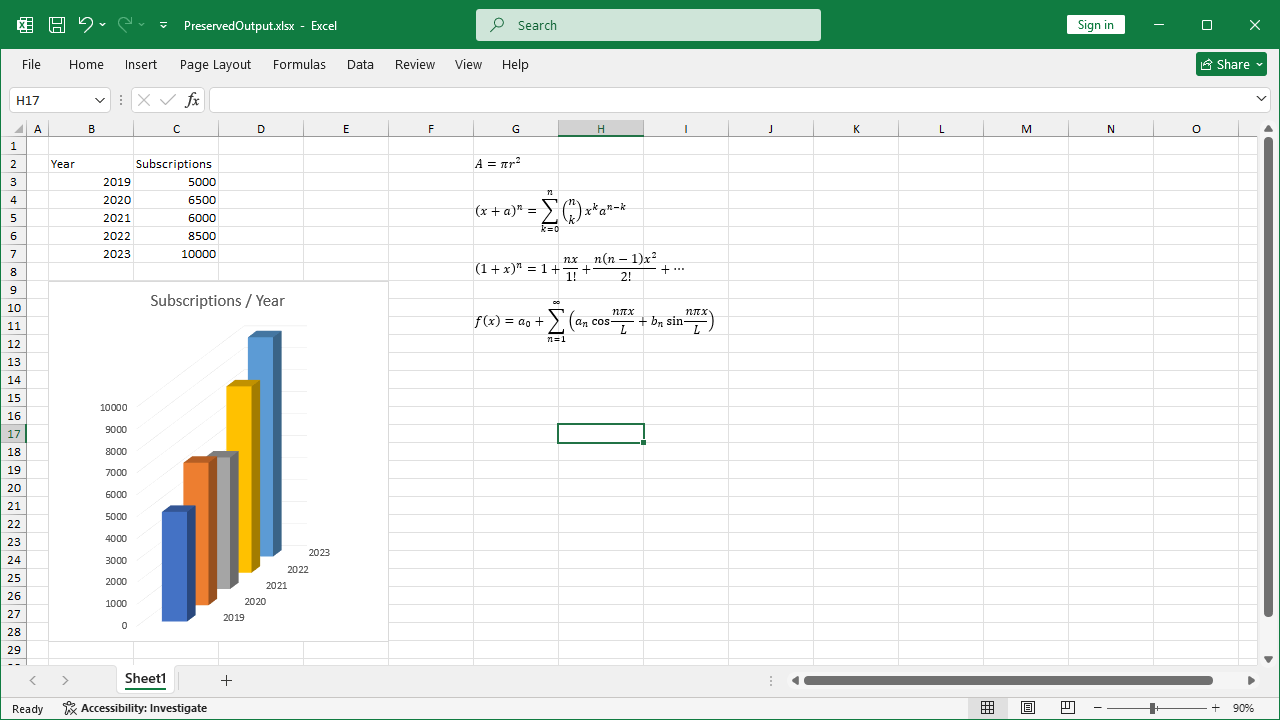
The following example shows how to preserve unsupported features like equations and 3D charts in an Excel workbook from input to output, using C# and VB.NET.
using GemBox.Spreadsheet;

class Program
{
    static void Main()
    {
        // If using the Professional version, put your serial key below.
        SpreadsheetInfo.SetLicense("FREE-LIMITED-KEY");

        // Load Excel workbook, preservation feature is enabled by default.
        var workbook = ExcelFile.Load("%#Preservation.xlsx%");
        var worksheet = workbook.Worksheets[0];

        // Modify the worksheet.
        worksheet.Cells["C6"].Value = 8500;
        worksheet.Cells["C7"].Value = 10000;

        // Save Excel worksheet to an output file of the same format together with
        // preserved information (unsupported features) from the input file.
        workbook.Save("PreservedOutput.xlsx");
    }
}
Imports GemBox.Spreadsheet

Module Program

    Sub Main()

        ' If using the Professional version, put your serial key below.
        SpreadsheetInfo.SetLicense("FREE-LIMITED-KEY")

        ' Load Excel workbook, preservation feature is enabled by default.
        Dim workbook = ExcelFile.Load("%#Preservation.xlsx%")
        Dim worksheet = workbook.Worksheets(0)

        ' Modify the worksheet.
        worksheet.Cells("C6").Value = 8500
        worksheet.Cells("C7").Value = 10000

        ' Save Excel worksheet to an output file of the same format together with
        ' preserved information (unsupported features) from the input file.
        workbook.Save("PreservedOutput.xlsx")

    End Sub
End Module
You can read more about GemBox.Spreadsheet's preservation feature on the Preservation help page.