Digitally sign PPTX files in C# and VB.NET
Learn how to create a digitally signed PPTX file in C# and VB.NET with the GemBox.Presentation .NET library by following the example below:
using GemBox.Presentation;

class Program
{
    static void Main()
    {
        // If using the Professional version, put your serial key below.
        ComponentInfo.SetLicense("FREE-LIMITED-KEY");

        var presentation = PresentationDocument.Load("%InputFileName%");

        var saveOptions = new PptxSaveOptions();
        saveOptions.DigitalSignatures.Add(new PptxDigitalSignatureSaveOptions()
        {
            CertificatePath = "%InputDigitalId%",
            CertificatePassword = "GemBoxPassword"
        });

        presentation.Save("PPTX Digital Signature.pptx", saveOptions);
    }
}
Imports GemBox.Presentation

Module Program

    Sub Main()

        ' If using the Professional version, put your serial key below.
        ComponentInfo.SetLicense("FREE-LIMITED-KEY")

        Dim presentation = PresentationDocument.Load("%InputFileName%")

        Dim saveOptions As New PptxSaveOptions()
        saveOptions.DigitalSignatures.Add(New PptxDigitalSignatureSaveOptions() With
        {
            .CertificatePath = "%InputDigitalId%",
            .CertificatePassword = "GemBoxPassword"
        })

        presentation.Save("PPTX Digital Signature.pptx", saveOptions)
    End Sub
End Module
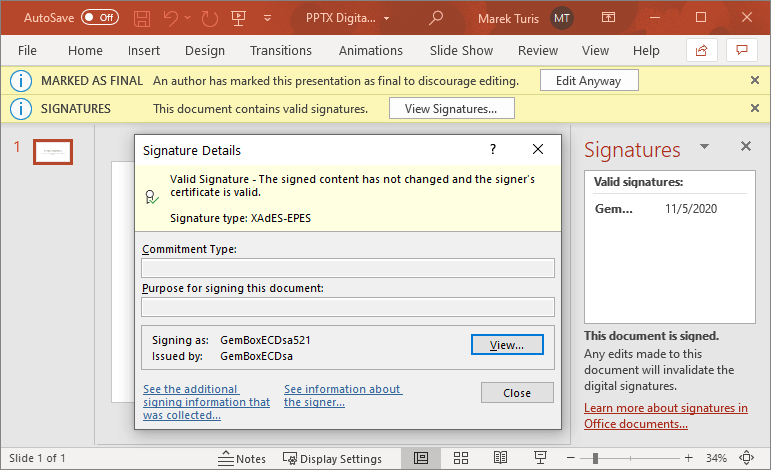
To get a valid signature in MS PowerPoint, as seen in the screenshot above, you will have to install the GemBoxCA.crt certificate as a trusted root certification authority and install either the GemBoxRSA.crt or GemBoxECDsa.crt certificate as an Intermediate Certification Authority, as described in the Digital ID notes.
To avoid installing the whole certificate chain, you can embed certificates in the signature. With this approach only the root certificate (GemBoxCA.crt) needs to be installed. The following example shows how to add multiple digital signatures, set additional signature properties, and embed an intermediate certificate. The following example shows how to remove a digital signature from a PowerPoint presentation. Digital ID files used in the preceding example are part of a simple Public Key Infrastructure (PKI) created just for this demonstration which contains the following hierarchy of certificates and CRLs: To get a valid signature in an MS Office Application, as seen in the screenshot above, you will have to add the GemBoxCA.crt certificate to the list of Trusted Certificates on your machine using the following steps:Add Multiple Digital Signatures
using GemBox.Presentation;
using GemBox.Presentation.Security;

class Program
{
    static void Main()
    {
        // If using the Professional version, put your serial key below.
        ComponentInfo.SetLicense("FREE-LIMITED-KEY");

        var presentation = PresentationDocument.Load("%InputFileName%");

        var signature1 = new PptxDigitalSignatureSaveOptions()
        {
            CertificatePath = "%#GemBoxECDsa521.pfx%",
            CertificatePassword = "GemBoxPassword",
            CommitmentType = DigitalSignatureCommitmentType.Created,
            SignerRole = "Developer"
        };
        // Embed intermediate certificate.
        signature1.Certificates.Add(new Certificate("%#GemBoxECDsa.crt%"));

        var signature2 = new PptxDigitalSignatureSaveOptions()
        {
            CertificatePath = "%#GemBoxRSA4096.pfx%",
            CertificatePassword = "GemBoxPassword",
            CommitmentType = DigitalSignatureCommitmentType.Approved,
            SignerRole = "Manager"
        };
        // Embed intermediate certificate.
        signature2.Certificates.Add(new Certificate("%#GemBoxRSA.crt%"));

        var saveOptions = new PptxSaveOptions();
        saveOptions.DigitalSignatures.Add(signature1);
        saveOptions.DigitalSignatures.Add(signature2);

        presentation.Save("PPTX Digital Signatures.pptx", saveOptions);
    }
}
Imports GemBox.Presentation
Imports GemBox.Presentation.Security

Module Program

    Sub Main()

        ' If using the Professional version, put your serial key below.
        ComponentInfo.SetLicense("FREE-LIMITED-KEY")

        Dim presentation = PresentationDocument.Load("%InputFileName%")

        Dim signature1 As New PptxDigitalSignatureSaveOptions() With
        {
            .CertificatePath = "%#GemBoxECDsa521.pfx%",
            .CertificatePassword = "GemBoxPassword",
            .CommitmentType = DigitalSignatureCommitmentType.Created,
            .SignerRole = "Developer"
        }
        ' Embed intermediate certificate.
        signature1.Certificates.Add(New Certificate("%#GemBoxECDsa.crt%"))

        Dim signature2 As New PptxDigitalSignatureSaveOptions() With
        {
            .CertificatePath = "%#GemBoxRSA4096.pfx%",
            .CertificatePassword = "GemBoxPassword",
            .CommitmentType = DigitalSignatureCommitmentType.Approved,
            .SignerRole = "Manager"
        }
        ' Embed intermediate certificate.
        signature2.Certificates.Add(New Certificate("%#GemBoxRSA.crt%"))

        Dim saveOptions As New PptxSaveOptions()
        saveOptions.DigitalSignatures.Add(signature1)
        saveOptions.DigitalSignatures.Add(signature2)

        presentation.Save("PPTX Digital Signatures.pptx", saveOptions)
    End Sub
End Module
Remove a PPTX Digital Signature
using GemBox.Presentation;

class Program
{
    static void Main()
    {
        // If using the Professional version, put your serial key below.
        ComponentInfo.SetLicense("FREE-LIMITED-KEY");

        // Load signed presentation file.
        var presentation = PresentationDocument.Load("%InputFileName%");

        // Signature is removed by simply saving the presentation with default save options.
        presentation.Save("Unsigned.pptx");
    }
}
Imports GemBox.Presentation

Module Program

    Sub Main()

        ' If using the Professional version, put your serial key below.
        ComponentInfo.SetLicense("FREE-LIMITED-KEY")

        ' Load signed presentation file.
        Dim presentation = PresentationDocument.Load("%InputFileName%")

        ' Signature is removed by simply saving the presentation with default save options.
        presentation.Save("Unsigned.pptx")
    End Sub
End Module
Digital ID notes