Load HTML content to PowerPoint presentations in C# and VB.NET
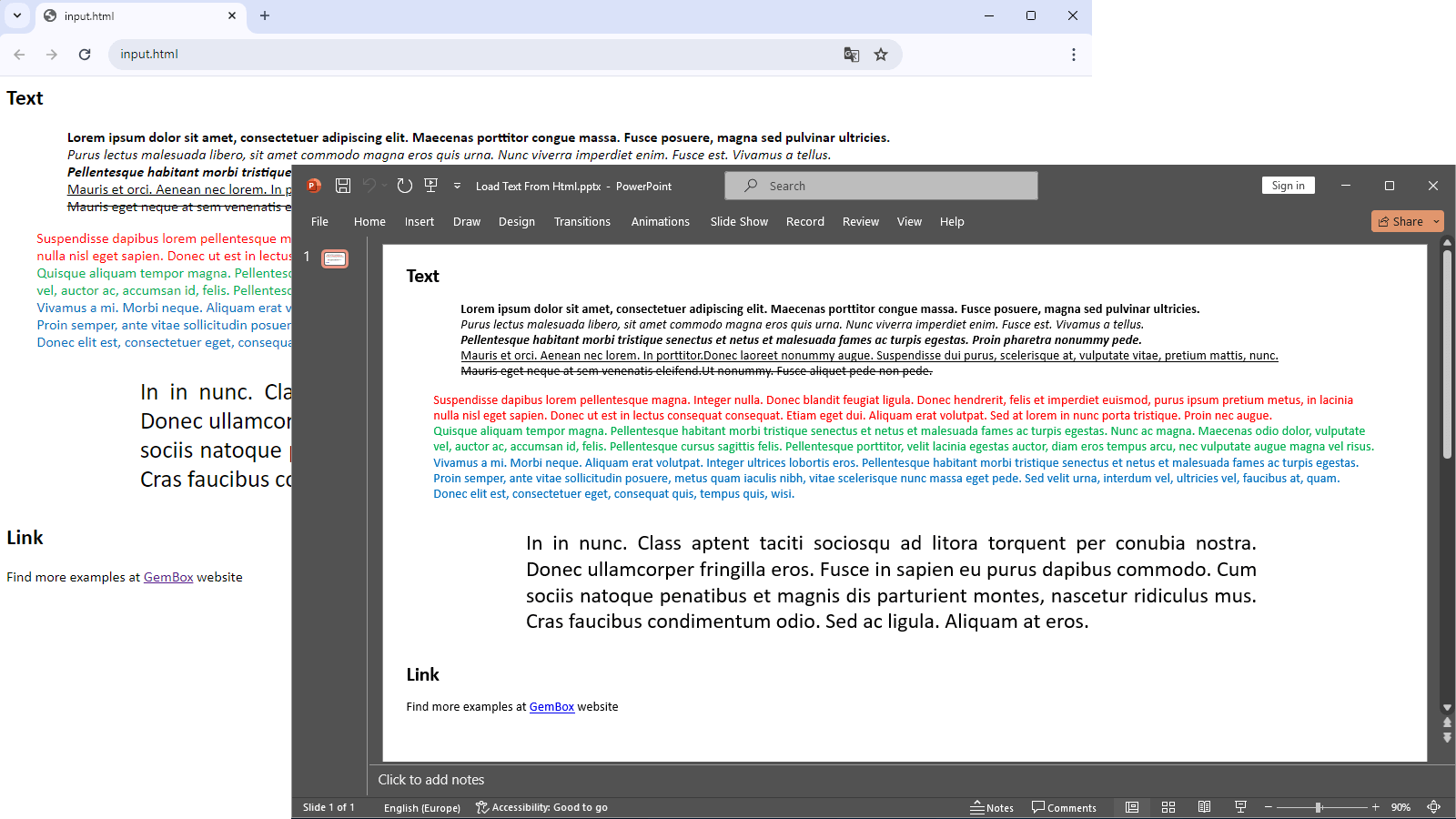
The following example shows how you can use the GemBox.Presentation library to load HTML content into a PowerPoint presentation slide in your C# and VB.NET applications.
using GemBox.Presentation;
using System.IO;

class Program
{
    static void Main()
    {
        // If using the Professional version, put your serial key below.
        ComponentInfo.SetLicense("FREE-LIMITED-KEY");

        // Load input HTML file.
        string html = File.ReadAllText("%InputFileName%");

        // Create a presentation and add a new slide with text box.
        var presentation = new PresentationDocument();
        var slide = presentation.Slides.AddNew(SlideLayoutType.Custom);
        var textBox = slide.Content.AddTextBox(ShapeGeometryType.Rectangle, 0.5, 0.5, 32, 15, LengthUnit.Centimeter);

        // Loads text and styling from provided html into textBox.
        textBox.Shape.TextContent.LoadText(html, LoadOptions.Html);

        // Save the presentation to a PPTX file.
        presentation.Save("Load Text From Html.pptx");
    }
}
Imports GemBox.Presentation
Imports System.IO

Module Program

    Sub Main()

        ' If using the Professional version, put your serial key below.
        ComponentInfo.SetLicense("FREE-LIMITED-KEY")

        ' Load input HTML file.
        Dim html As String = File.ReadAllText("%InputFileName%")

        ' Create a presentation and add a new slide with text box.
        Dim presentation = New PresentationDocument()
        Dim slide = presentation.Slides.AddNew(SlideLayoutType.Custom)
        Dim textBox = slide.Content.AddTextBox(ShapeGeometryType.Rectangle, 0.5, 0.5, 32, 15, LengthUnit.Centimeter)

        ' Loads text and styling from provided html into textBox.
        textBox.Shape.TextContent.LoadText(html, LoadOptions.Html)

        ' Save the presentation to a PPTX file.
        presentation.Save("Load Text From Html.pptx")

    End Sub

End Module
Load an HTML list into a presentation
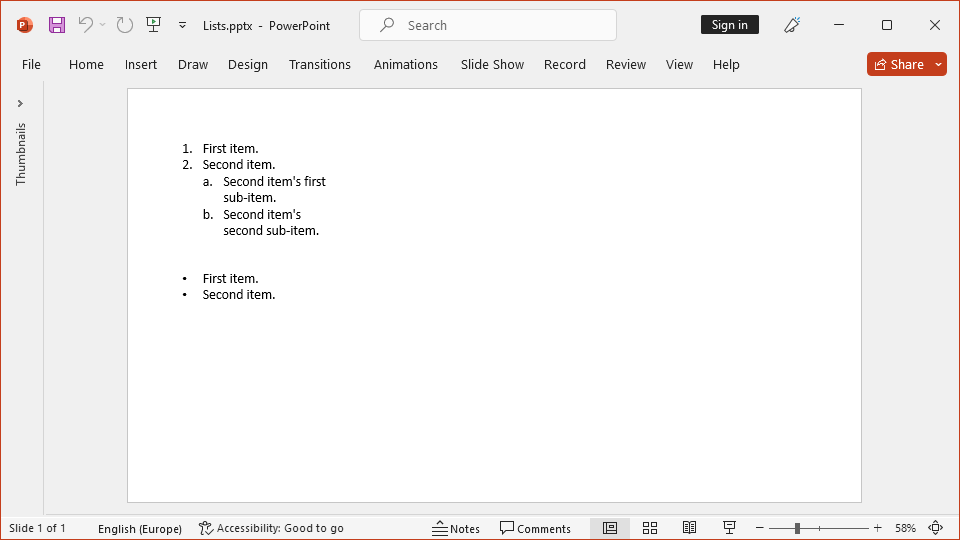
The following example shows how to load ordered and unordered lists from HTML into a presentation.
using GemBox.Presentation;

class Program
{
    static void Main()
    {
        // If using the Professional version, put your serial key below.
        ComponentInfo.SetLicense("FREE-LIMITED-KEY");

        // HTML content.
        string html =
@"<h2>Ordered list example</h2>
<ol style=""list-style-type: Decimal"">
    <li>First item</li>
    <li>Second item
        <ol style=""list-style-type: lower-alpha"">
            <li>Sub item 01
                <ol style=""list-style-type: lower-roman"">
                    <li>Sub item 01</li>
                    <li>Sub item 02</li>
                    <li>Sub item 03</li>
                </ol>
            </li>
            <li>Sub item 02</li>
            <li>Sub item 03</li>
        </ol>
    </li>
    <li>Third item</li>
    <li value=""50"">Arbitrary item</li>
    <li>Next item</li>
</ol>
<h2>Unordered list example</h2>
<ul style=""list-style-type: disc"">
    <li>First item</li>
    <li>Second item
        <ul style=""list-style-type: circle"">
            <li>Sub item 01
                <ul style=""list-style-type: square"">
                    <li>Sub item 01</li>
                    <li>Sub item 02</li>
                    <li>Sub item 02</li>
                </ul>
            </li>
            <li>Sub item 02</li>
            <li>Sub item 03</li>
        </ul>
    </li>
    <li>Third item</li>
</ul>";

        // Create a presentation and add a new slide with text box.
        var presentation = new PresentationDocument();
        var slide = presentation.Slides.AddNew(SlideLayoutType.Custom);
        var textBox = slide.Content.AddTextBox(ShapeGeometryType.Rectangle, 0.5, 0.5, 32, 15, LengthUnit.Centimeter);

        // Loads text and styling from provided html into textBox.
        textBox.Shape.TextContent.LoadText(html, LoadOptions.Html);

        // Save the presentation to a PPTX file.
        presentation.Save("Load Text From Html With List.pptx");
    }
}
Imports GemBox.Presentation

Module Program

    Sub Main()

        ' If using the Professional version, put your serial key below.
        ComponentInfo.SetLicense("FREE-LIMITED-KEY")

        ' HTML content.
        Dim html As String =
"<h2>Ordered list example</h2>
<ol style=""list-style-type: Decimal"">
    <li>First item</li>
    <li>Second item
        <ol style=""list-style-type: lower-alpha"">
            <li>Sub item 01
                <ol style=""list-style-type: lower-roman"">
                    <li>Sub item 01</li>
                    <li>Sub item 02</li>
                    <li>Sub item 03</li>
                </ol>
            </li>
            <li>Sub item 02</li>
            <li>Sub item 03</li>
        </ol>
    </li>
    <li>Third item</li>
    <li value=""50"">Arbitrary item</li>
    <li>Next item</li>
</ol>
<h2>Unordered list example</h2>
<ul style=""list-style-type: disc"">
    <li>First item</li>
    <li>Second item
        <ul style=""list-style-type: circle"">
            <li>Sub item 01
                <ul style=""list-style-type: square"">
                    <li>Sub item 01</li>
                    <li>Sub item 02</li>
                    <li>Sub item 02</li>
                </ul>
            </li>
            <li>Sub item 02</li>
            <li>Sub item 03</li>
        </ul>
    </li>
    <li>Third item</li>
</ul>"

        ' Create a presentation and add a new slide with text box.
        Dim presentation = New PresentationDocument()
        Dim slide = presentation.Slides.AddNew(SlideLayoutType.Custom)
        Dim textBox = slide.Content.AddTextBox(ShapeGeometryType.Rectangle, 0.5, 0.5, 32, 15, LengthUnit.Centimeter)

        ' Loads text and styling from provided html into textBox
        textBox.Shape.TextContent.LoadText(html, LoadOptions.Html)

        ' Save the presentation to a PPTX file.
        presentation.Save("Load Text From Html With List.pptx")

    End Sub

End Module
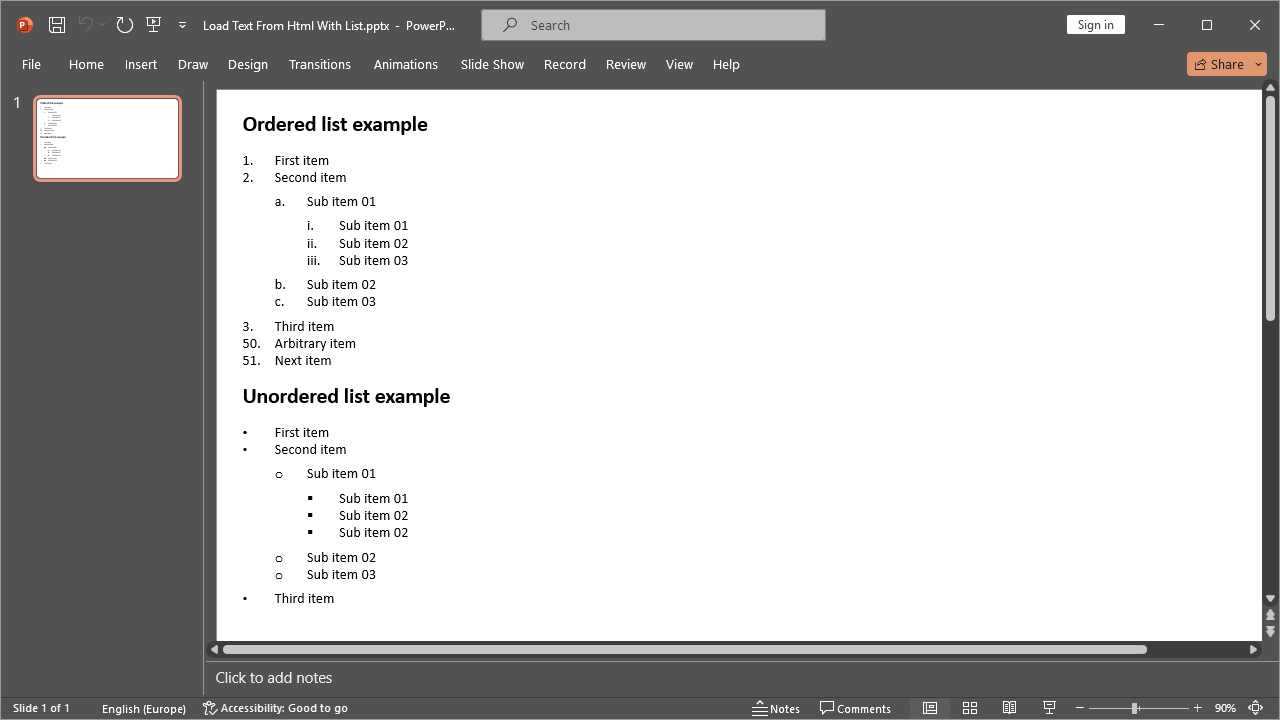
You can use <ol>, <ul> and <li> elements to create numbered and bulleted lists in your presentation, whose formatting will be represented by the TextListFormat class.
You can also use the list-style-type CSS property to customize the marker of your numbered and bulleted lists and use the CSS value property to define a specific number for an item of your ordered list.