Customization of User Interface in GemBox.PdfViewer
You can customize which UI components will be visible in the GemBox.PdfViewer's toolbar.
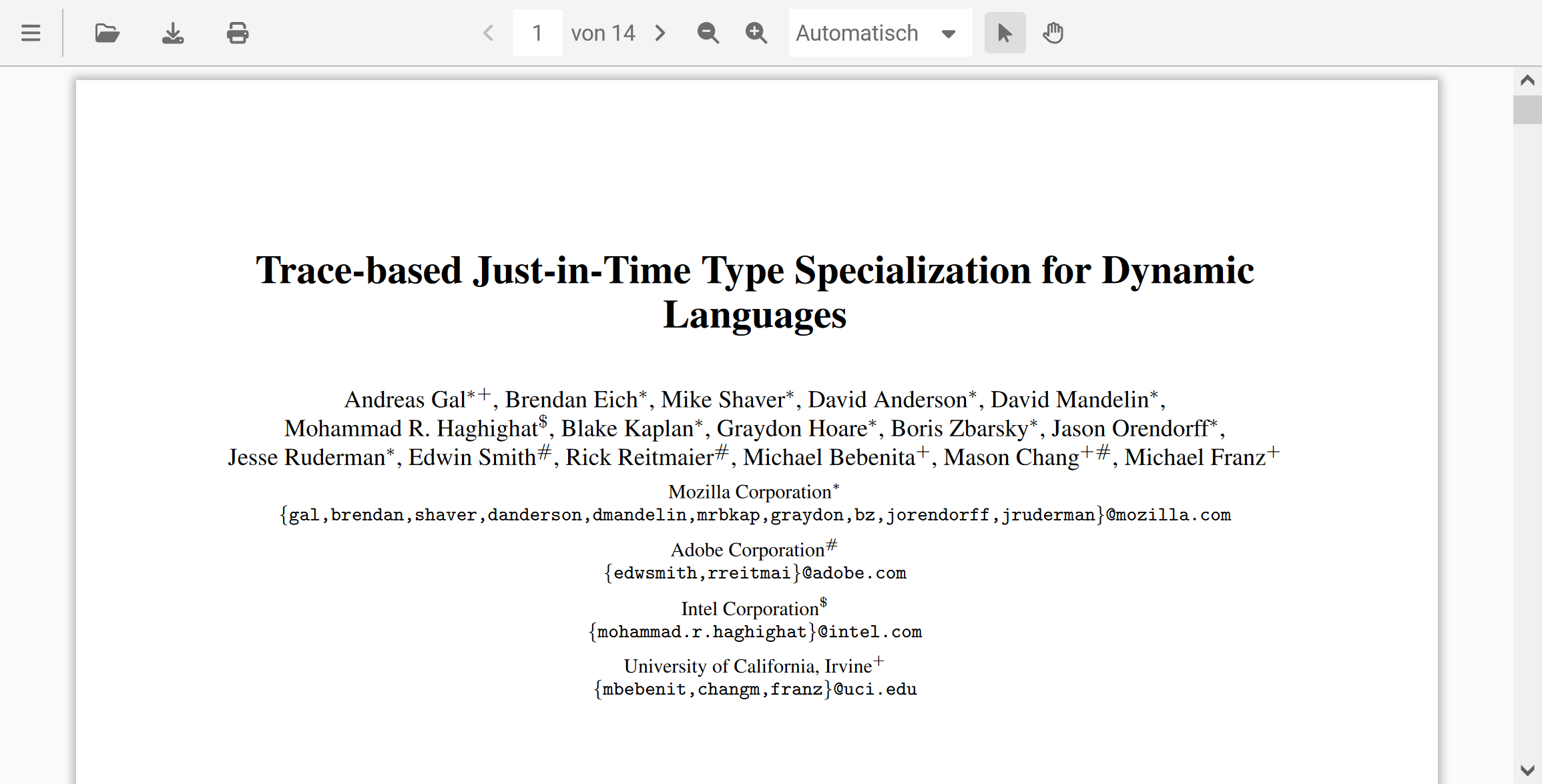
By default, all toolbar options are visible. You can customize the visibility of individual toolbar options. The following example demonstrates how to disable the document's search feature.
GemBoxPdfViewer.create({
    container: "#viewer",
    ui: {
        toolbar: {
            search: {
                isVisible: false,
            },
        },
    },
});
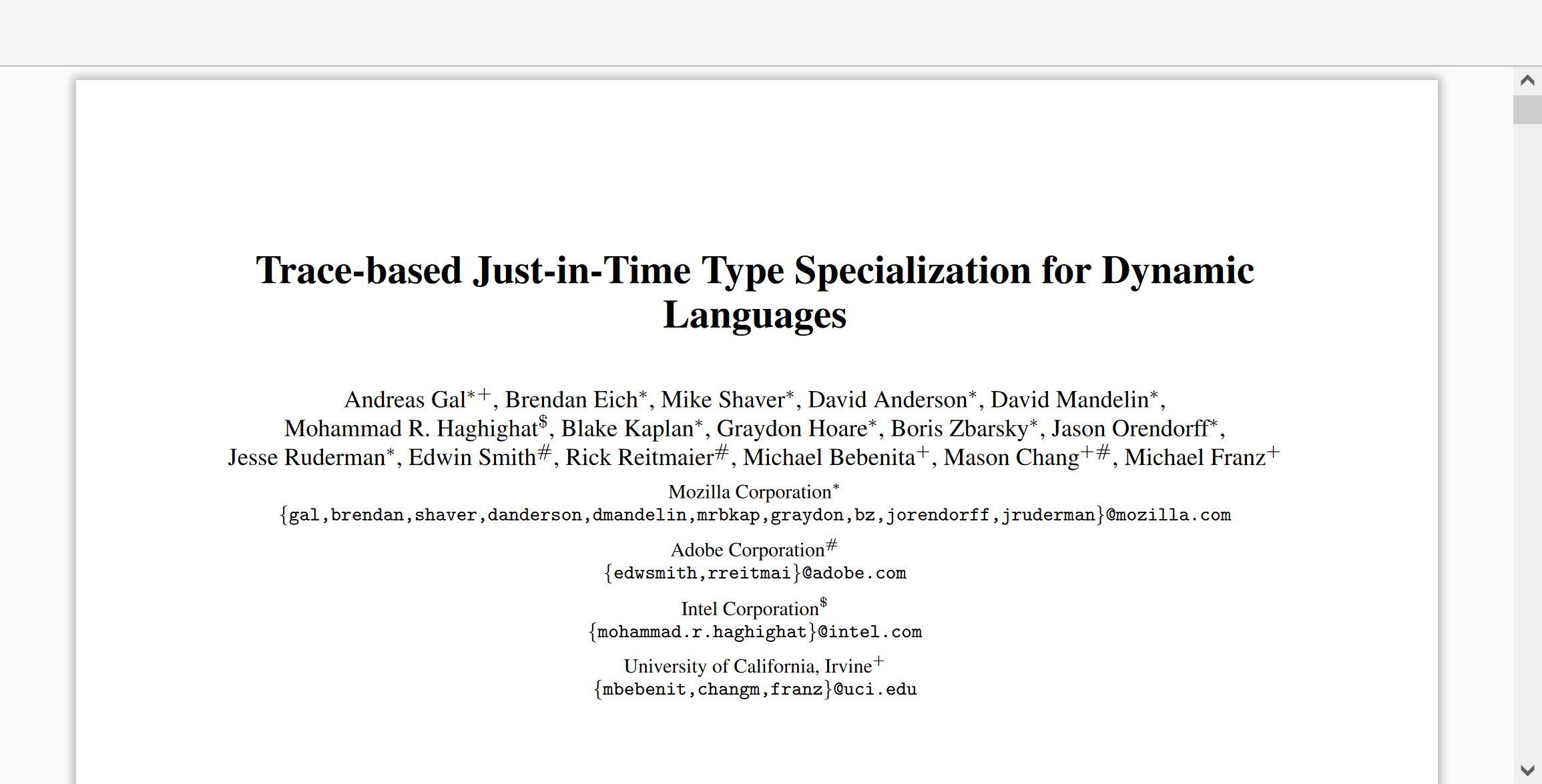
The following example shows how to hide all toolbar options and use GemBox.PdfViewer in its most basic form. The example also shows all properties that allow you to hide the corresponding toolbar options.
GemBoxPdfViewer.create({
    container: "#viewer",
    ui: {
        toolbar: {
            sidePanelButton: { isVisible: false },
            openButton: { isVisible: false },
            printButton: { isVisible: false },
            downloadButton: { isVisible: false },
            pageNavigation: { isVisible: false },
            panModeButton: { isVisible: false },
            zoom: { isVisible: false },
            search: { isVisible: false },
        },
    },
});
Toolbar customization when using ASP.NET Core tag helper
When using tag helper, you can customize the toolbar when initializing the PDF viewer:
<gembox-pdfviewer style="width:600px;height:350px;" initial-document="./document.pdf" license-key="FREE-LIMITED-KEY">
    <pdfviewer-visibility
        side-menu="false"
        open="false"
        print="false"
        page-navigation="false"
        zoom="false"
        pan-mode="false"
        search="false"/>
</gembox-pdfviewer>