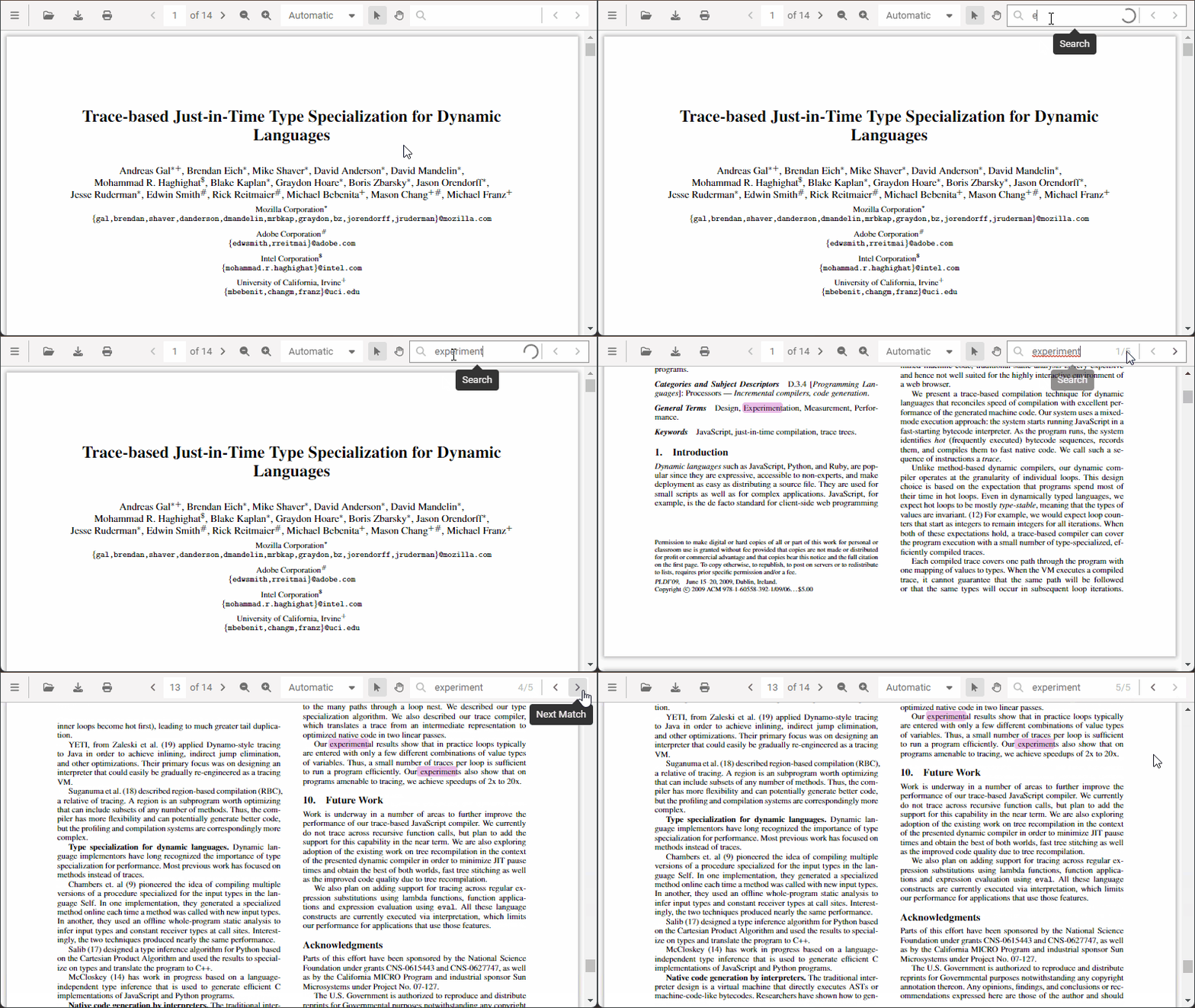
Navigating and zooming PDFs with GemBox.PdfViewer
GemBox.PdfViewer makes navigating through large PDF files seamless and intuitive. You can benefit from a variety of navigation tools that enhance the reading and browsing experience.
Page navigation
GemBox.PdfViewer provides straightforward options for moving through the document. You can jump to any page by entering the page number, using the next and previous buttons, or scrolling through the document. This makes it easier to handle documents of any length.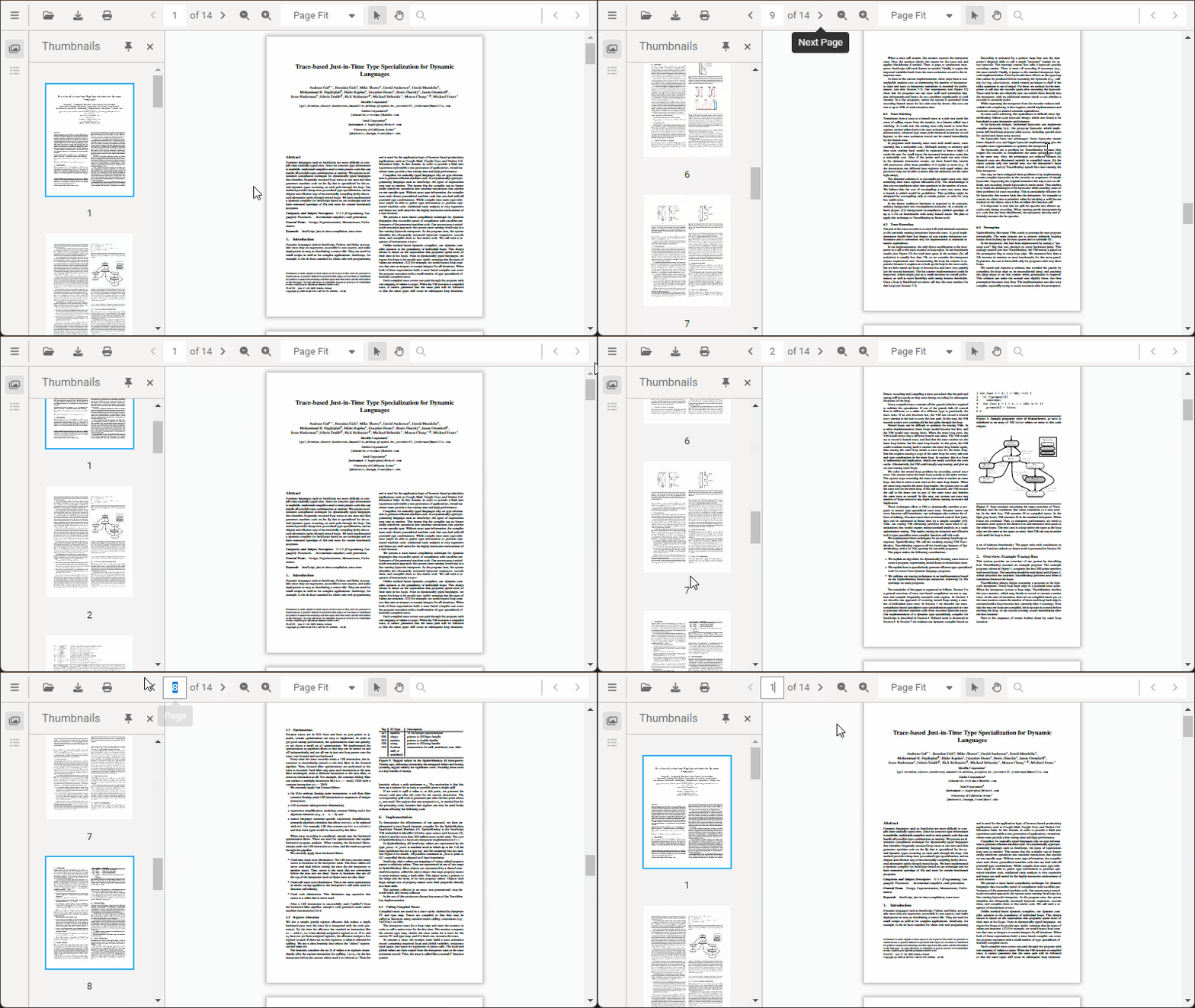
You can also navigate a PDF document programmatically using the API. The example below demonstrates how to navigate to the next page, if it's not the last one:
const viewer = await GemBoxPdfViewer.create({
    container: "#viewer",
    initialDocument: "/document.pdf",
});

let currentPage = viewer.features.page.currentPage;
if (currentPage < viewer.features.page.numberOfPages - 1) {
    viewer.features.page.setCurrentPage(currentPage + 1);
}
Thumbnails and Bookmarks
For quicker access, you can view thumbnails of each page or use bookmarks that take you directly to specific sections of the PDF. This feature is particularly useful for lengthy documents, allowing you to save time and improve efficiency.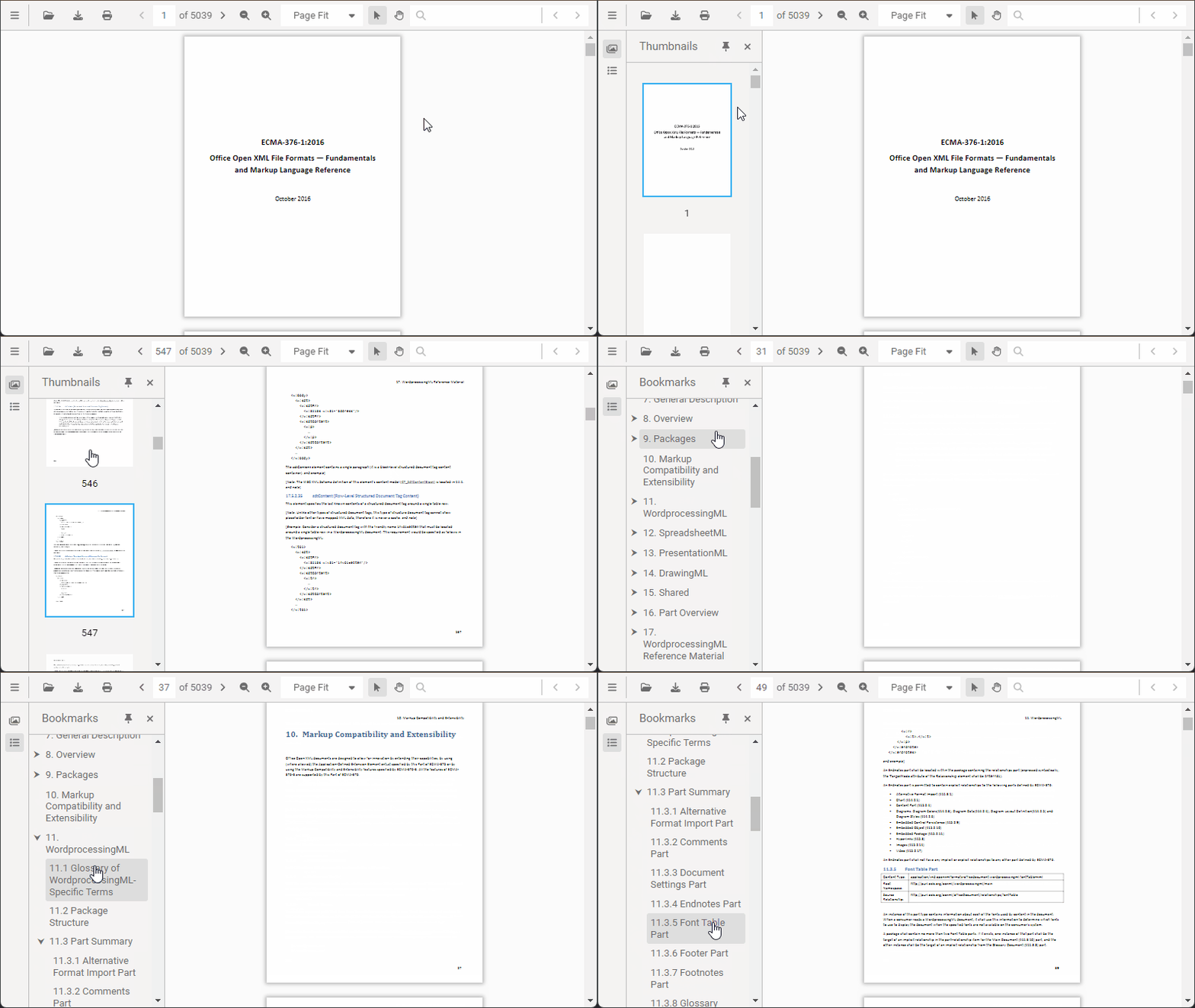
Zooming
The library allows you to zoom in and out of the document for better readability. You can choose to view the document in actual size, fit-to-page, or fit-to-width modes, adapting the PDF to the screen for optimal viewing.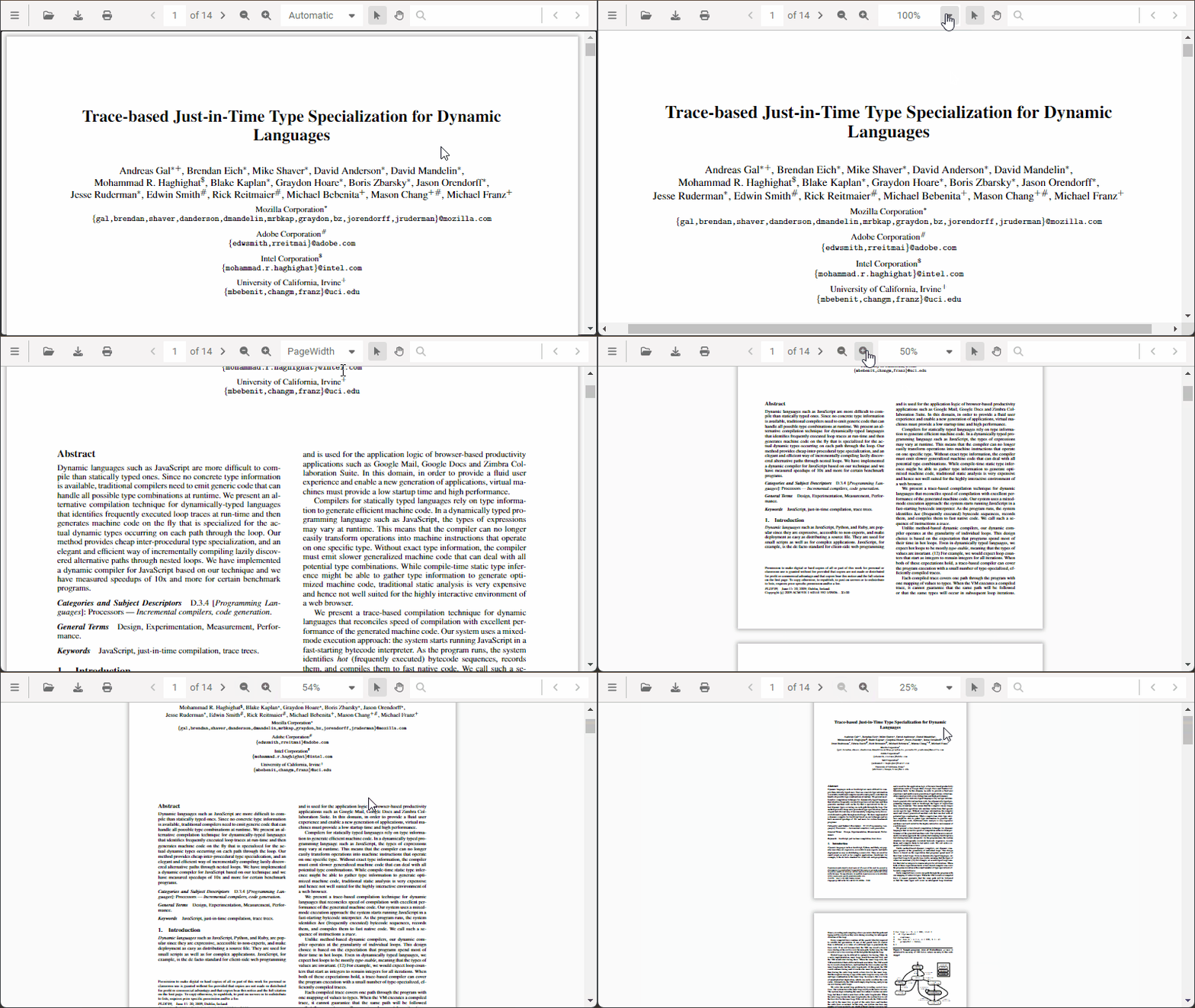
Zoom levels can also be set programmatically using the API. The example below illustrates how to set the zoom to 50%:
const viewer = await GemBoxPdfViewer.create({
    container: "#viewer",
    initialDocument: "/document.pdf",
});

viewer.features.zoom.zoomLevel = 50;
File manipulation
Apart from viewing and navigating PDFs, the library provides essential tools to manage PDF files:
Opening files: You can pick the file and open it in the viewer
Downloading: You can download the displayed file
Printing: The PDF viewer allows to print the file
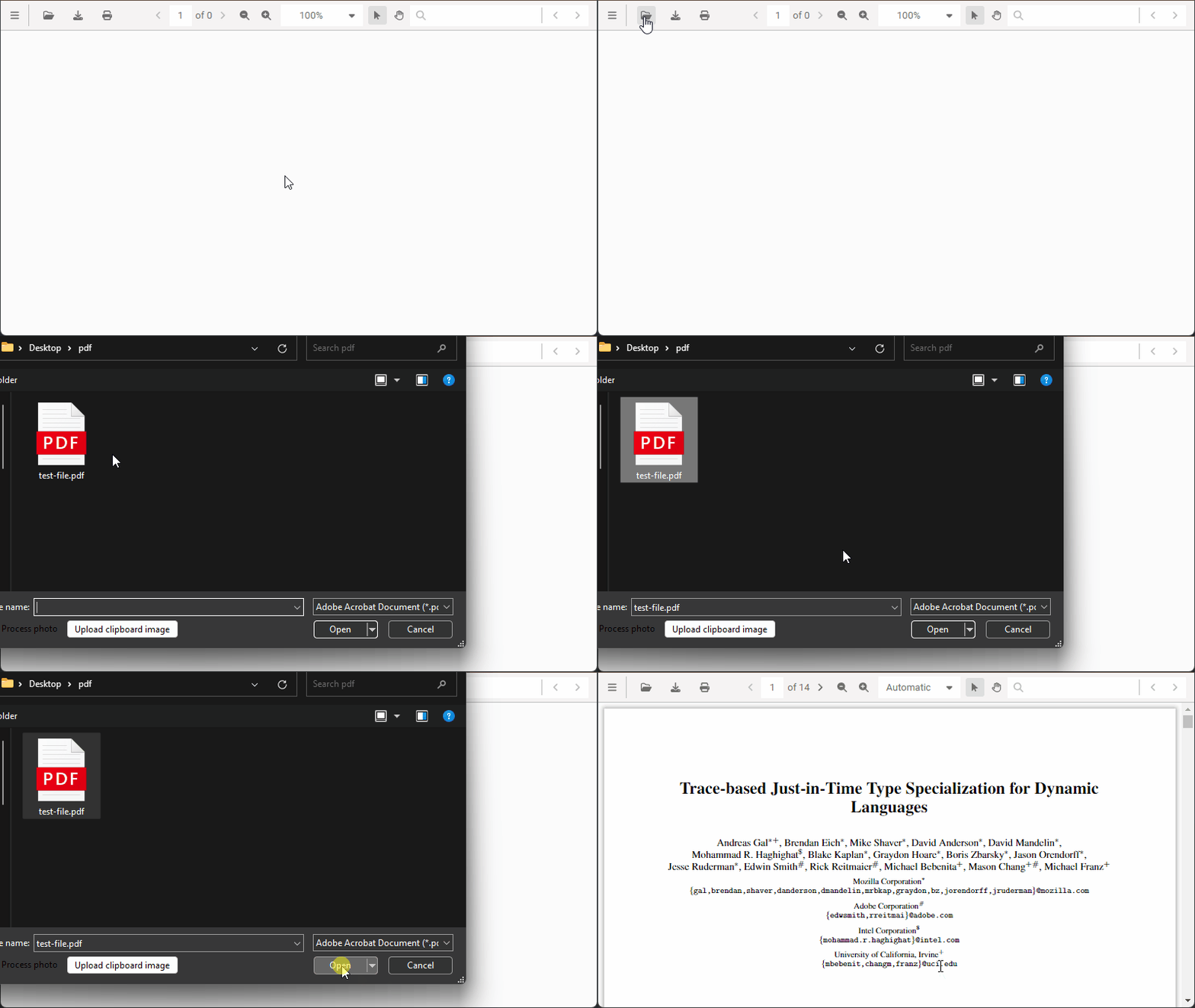
You can also open a new PDF file programmatically using the API. The example below demonstrates how to open a file from a specified URL:
const viewer = await GemBoxPdfViewer.create({
    container: "#viewer",
});

viewer.open("https://www.example.com/document.pdf");