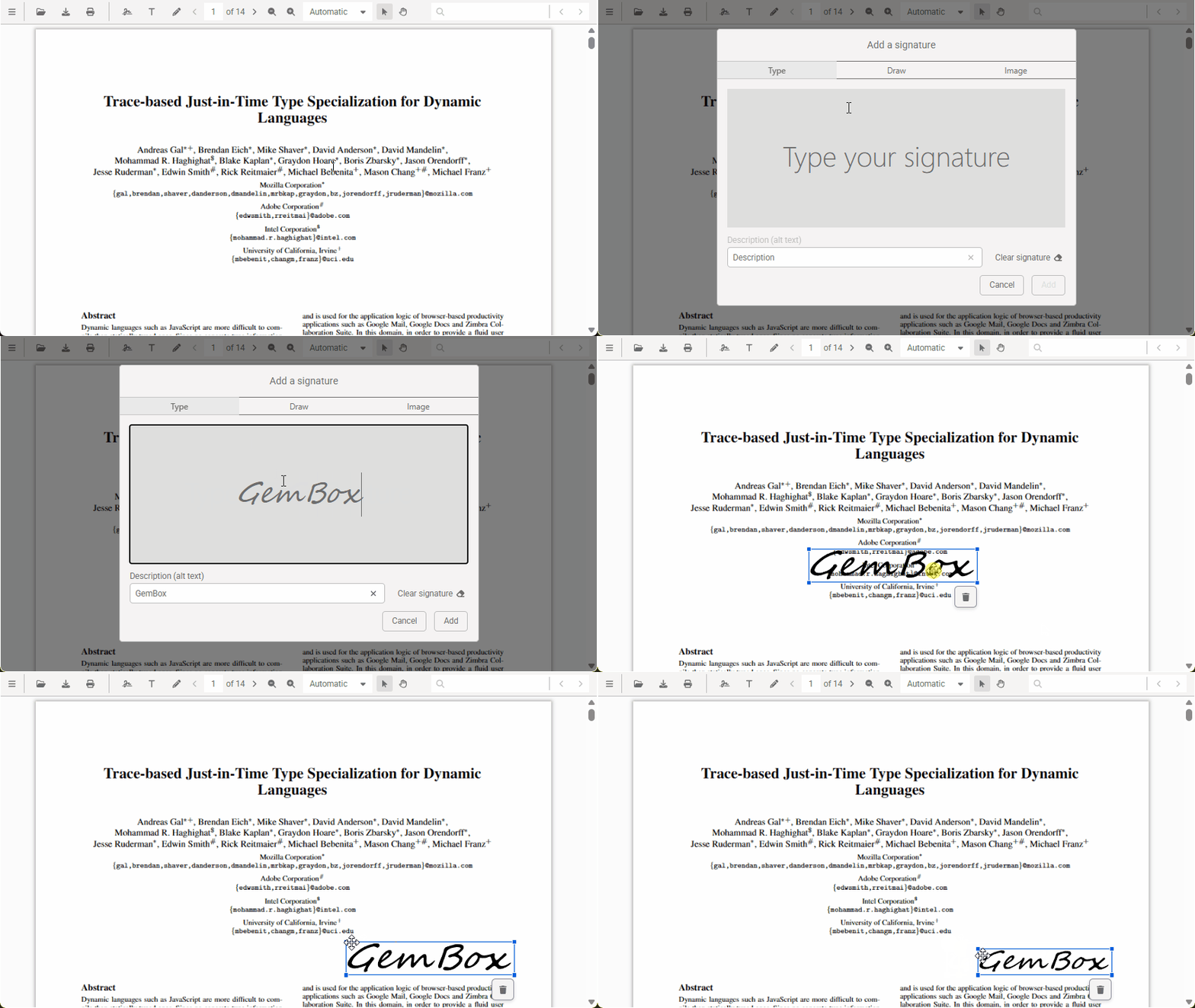
How to digitally sign a PDF with a JavaScript PDF viewer UI library
GemBox.PdfViewer supports digital signing, enabling you to enhance the security and authenticity of your PDF documents. This step-by-step guide shows how you can easily enable and configure digital signing in GemBox.PdfViewer using a backend service.
Digital signature vs electronic signature
A digital signature is a cryptographic mechanism used to validate the authenticity, integrity, and non-repudiation of a digital document. Unlike an electronic signature (eSignature or eSign), which is often a simple image or typed name, a digital signature relies on public key infrastructure (PKI) to create a unique, verifiable seal. This ensures that the document has not been altered since it was signed and confirms the signer's identity with high assurance.
The process of digitally signing a PDF document
Digital signing in GemBox.PdfViewer is implemented via a backend web service (provided as a Docker image) that uses GemBox.Pdf to create a digital signature and apply it to the document. In this case, there is no visible eSignature. It is embedded within the document and visible once the PDF is opened in Acrobat Reader, for example, in the Signature Panel.

The whole process can be summarized in the following steps:
- The user clicks the "Sign" button on the viewer.
- The user has to confirm by clicking "Sign" in the modal window which shows up.
- The PDF file is sent to the backend web service for signing.
- The web service signs the PDF file and returns it.
- The viewer updates to display the signed document to the user and downloads the PDF file if
autoDownloadis set to true.
If you have enabled request authentication on your digital signing web service instance, the user will be prompted to enter the password when they click on the "Sign" button. To prevent this, you can provide the password programmatically during the viewer's initialization. For more information on configuring web service please refer to Configuring the web service.
Below is a JavaScript code snippet that configures the PDF viewer and enables digital signing.
await GemBoxPdfViewer.create({
    ui: {
        sidePanel: {
            digitalSignature: {
                isVisible: true, // default
            },
        },
    },
    features: {
        digitalSigning: {
            serverUrl: "http://localhost:8000/",
            apiPassword: "<password>", // optional, prompts to the user if not defined
            autoDownload: true,
        },
    },
});
Digitally signing a PDF with an eSignature
GemBox.PdfViewer additionally allows you to digitally sign PDFs using a pre-added eSignature. Please keep in mind that the side panel must be visible for this setup. This provides a visual representation of the signature.
The JavaScript code below configures a viewer that contains both the eSignature and digital signature features. In order to configure the web service for the signing, please refer to the Configuring the web service section.
const viewer = await GemBoxPdfViewer.create({
    container: "#app",
    ui: {
        sidePanel: {
            eSignature: {
                isVisible: true, // default
            },
            digitalSignature: {
                isVisible: true, // default
            },
        },
    },
    features: {
        digitalSigning: {
            serverUrl: "http://localhost:8000/",
            apiPassword: "<password>", // optional
            autoDownload: true,
        },
    },
});
The eSignature will be used as a digital signature visual representation (appearance) by handling the annotationCreated event:
viewer.features.annotations.addEventListener("annotationCreated", function (event) {
    // Checking whether the created annotation is eSignature.
    const isEsignature = event.annotation.type == AnnotationType.ESIGNATURE;
    if (!isEsignature) {
        return;
    }
    // Setting the appearance of digital signature to the created eSignature annotation.
    viewer.features.digitalSigning!.appearance = event.annotation;
});
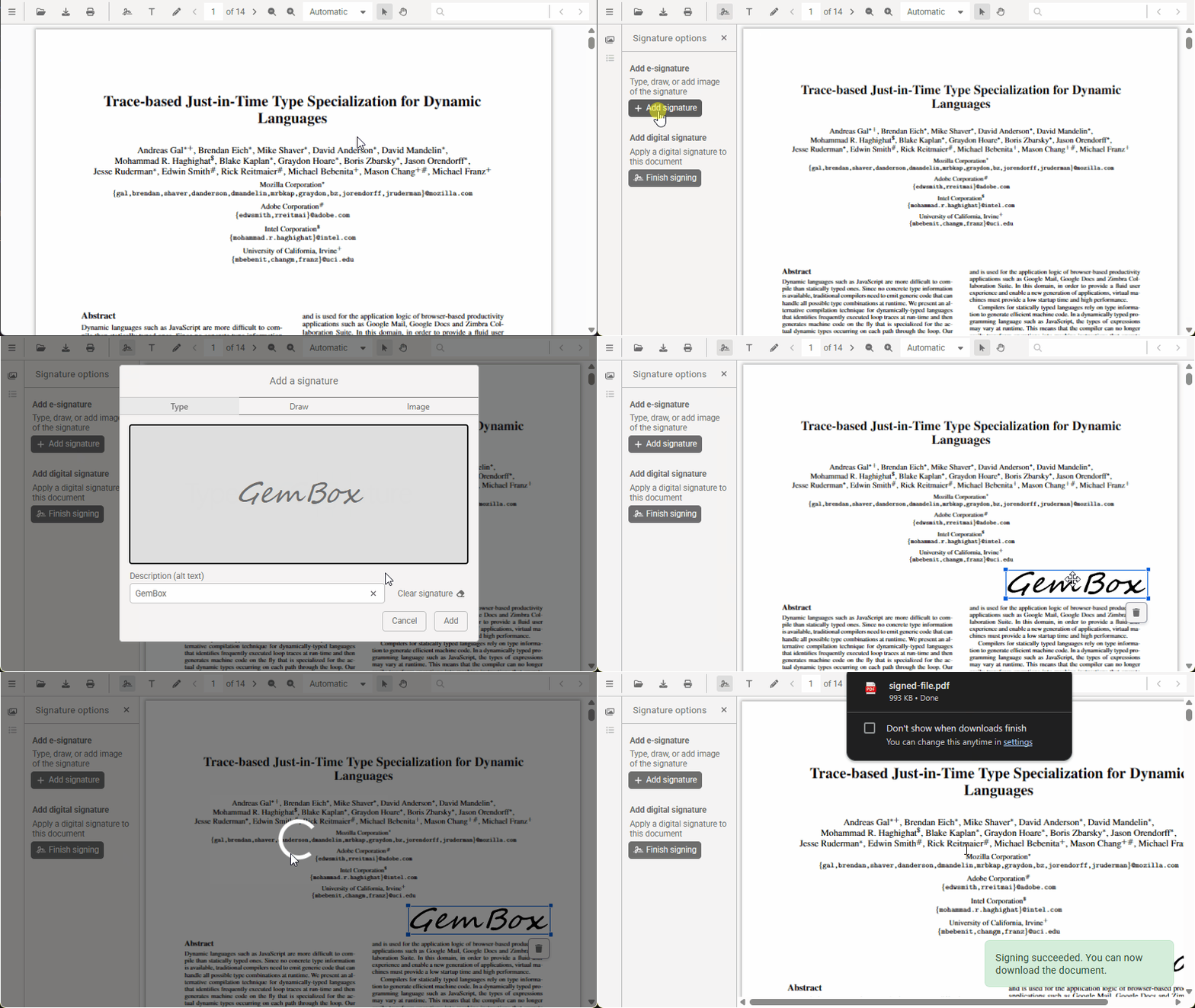
The process of adding an eSignature and digitally signing the document is as follows:
- Click on the "Sign" button on the toolbar to open the side panel.
- Click on the "Add signature" button to open the signature editor (a modal window will show up).
- Define the eSignature by typing, drawing, or uploading a signature image. Once done, click on "Add".
- When the signature editor closes you can resize and position the signature.
- When done with positioning the eSignature, click on the "Finish Signing" button in the side panel to digitally sign the PDF document.
Once you click on the "Finish Signing" button the following process is executed:
- The added eSignature is set as a Digital signature appearance via the event (please refer to the code example below).
- The PDF file is sent to the backend web service for signing along with the added eSignature annotation.
- The web service converts the created e-Signature annotation to eSignature, signs it, and returns the signed PDF file.
- The viewer updates to display the signed document to the user and downloads the PDF file if
autoDownloadis set to true.
You can also customize side panel elements to meet specific workflow requirements by using event listeners to dynamically update their text or visibility after each user interaction. For example, you might initially hide the digital signature button so users only see the adding eSignature button. Once a user adds an eSignature, an annotationCreated event listener can automatically hide that button and reveal the digital signing button for finishing the digital signing process.
const viewer = await GemBoxPdfViewer.create({
    container: "#app",
    ui: {
        sidePanel: {
            eSignature: {
                isVisible: true, // default
            },
            digitalSignature: {
                isVisible: false,
            },
        },
    },
    features: {
        digitalSigning: {
            serverUrl: "http://localhost:8000/",
            apiPassword: "<password>",
            autoDownload: true,
        },
    },
});

viewer.features.annotations.addEventListener("annotationCreated", function (event) {
    // Whether the created annotation is eSignature.
    const isEsignature = event.annotation.type == AnnotationType.ESIGNATURE;
    if (!isEsignature) {
        return;
    }

    // Switching the visibility for the next step.
    viewer.ui.sidePanel.eSignature.isVisible = false;
    viewer.ui.sidePanel.digitalSignature.isVisible = true;
    viewer.features.digitalSigning!.appearance = event.annotation;
});

viewer.features.digitalSigning?.addEventListener("digitallySigned", function () {
    // Resetting the visibility to initial values after digital signing is completed.
    viewer.ui.sidePanel.eSignature.isVisible = true;
    viewer.ui.sidePanel.digitalSignature.isVisible = false;
});
The integration between GemBox.PdfViewer and the web service is built-in. All you need to do is to deploy the backend web service using the provided Docker image or a Terraform template, and specify the URL of the running container in the GemBox.PdfViewer configuration.
Configuring the signing service using Docker
The GemBox.PdfViewer digital signing web service is provided as a Docker image on Docker Hub which makes deploying and running the web service very simple.
The service image can be downloaded and used for free, but with limitations. To remove the limitations, you need to purchase a GemBox.Pdf or a GemBox.Bundle license and replace "FREE-LIMITED-KEY" with your serial key.
In this section, we will explain how to pull, configure, and run the Docker image locally. You can customize this example to suit your requirements and deploy the image on your preferred platform or provider. As an alternative, in the following section you can find a Terraform template for deploying the service to Azure.
To set up the signing service using Docker, follow these steps:
1. Retrieve the latest version of the signing service image from Docker Hub:
docker pull gembox/signing-service:latest2. Run the Docker container with the default configuration
docker run -p 8000:80 -e HTTP_PORTS=80^
   -e GEMBOX_PDF_LICENSE_KEY="FREE-LIMITED-KEY"^
   gembox/signing-service
3. Verify that the service is running correctly:
curl http://localhost:8000/sign/pingThis will start the service with the default configuration:
- The service will use a GemBox-issued certificate for signing.
- Only the HTTP scheme is supported.
- No request authentication is included.
- CORS is not set, which means that only requests from the same domain are accepted.
In order to customize these configuration options, you need to provide additional environment variables as described below.
Custom signing certificate
To use a custom certificate for digital signing, you need to do the following:
- Ensure that the certificate file is stored in a designated folder.
- Mount the folder containing the certificate as a Docker volume.
- Set the appropriate environment variables to specify the certificate's file path and password.
For example, if you have a certificate file named signing.pfx stored in a certificates folder, you need to include the following parameters in your docker run command:
-v .\certificates:/certificates/^
-e SIGNING_CERTIFICATE_PATH="/certificates/signing.pfx"^
-e SIGNING_CERTIFICATE_PASSWORD="<password>"
HTTPS
To enable HTTPS, you need to:
- Ensure that the certificate file is stored in a designated folder.
- Mount the folder containing the certificate as a Docker volume.
- Set the appropriate environment variables to specify the certificate's file path and password.
- Specify a port mapping.
For example, if you have a certificate file named https.pfx stored in a certificates folder, you need to include the following parameters in your docker run command:
-p 8001:443^
-v .\certificates:/certificates/^
-e HTTPS_CERTIFICATE_PATH="/certificates/https.pfx"^
-e HTTPS_CERTIFICATE_PASSWORD="<password>"
Request authentication
You can secure the service by requesting an API password for authenticating incoming requests. The password is provided via the API_PASSWORD environment variable.
-e API_PASSWORD="<password>"CORS
In order to allow additional domains to be served by the service (CORS), you need to provide them via the ALLOW_ORIGINS environment variable. For example, to allow the domain "https://www.example.com", include the following variable in your docker run command:
-e ALLOW_ORIGINS="https://www.example.com"For example, a docker run command with all configuration options described above would be as follows:
docker run -p 8000:80 -p 8001:443^
   -e HTTPS_PORTS=443^
   -e HTTP_PORTS=80^
   -v .\certificates:/certificates/^
   -e HTTPS_CERTIFICATE_PATH="/certificates/https.pfx"^
   -e HTTPS_CERTIFICATE_PASSWORD="password"^
   -e SIGNING_CERTIFICATE_PATH="/certificates/signing.pfx"^
   -e SIGNING_CERTIFICATE_PASSWORD="password"^
   -e GEMBOX_PDF_LICENSE_KEY="FREE-LIMITED-KEY"^
   -e API_PASSWORD="password"^
   -e ALLOW_ORIGINS="https://www.example.com"^
   gembox/signing-service
Terraform Azure template
As an alternative to manual web service configuration, we provide a Terraform template for configuring and deploying to Azure. With this configuration, the Docker image will run as a Container Instance, and the certificates used for signing will be securely stored in the Azure Key Vault.
1. Clone the GitHub repository containing the Terraform template:
git clone https://github.com/GemBoxLtd/GemBox.PdfViewer.DigitalSignature2. Customize the deployment by modifying the variables.tf file. Be sure to update the gembox_pdf_license_key variable with your GemBox.Pdf license key if you have it.
variable "gembox_pdf_license_key" {
  type        = string
  description = "The license key for GemBox.Pdf."
  default     = "FREE-LIMITED-KEY"
}
3. Initialize Terraform:
terraform init -upgrade4. Create a Terraform execution plan.
terraform plan -out main.tfplan5. Apply the Terraform execution plan to deploy resources
terraform apply main.tfplanOnce the deployment is complete, the domain and IP address of the running service will be displayed. You can verify if the service is running correctly by executing the following command:
curl http://<DOMAIN>/sign/ping