Getting started with GemBox.PdfViewer - JavaScript PDF Viewer UI library
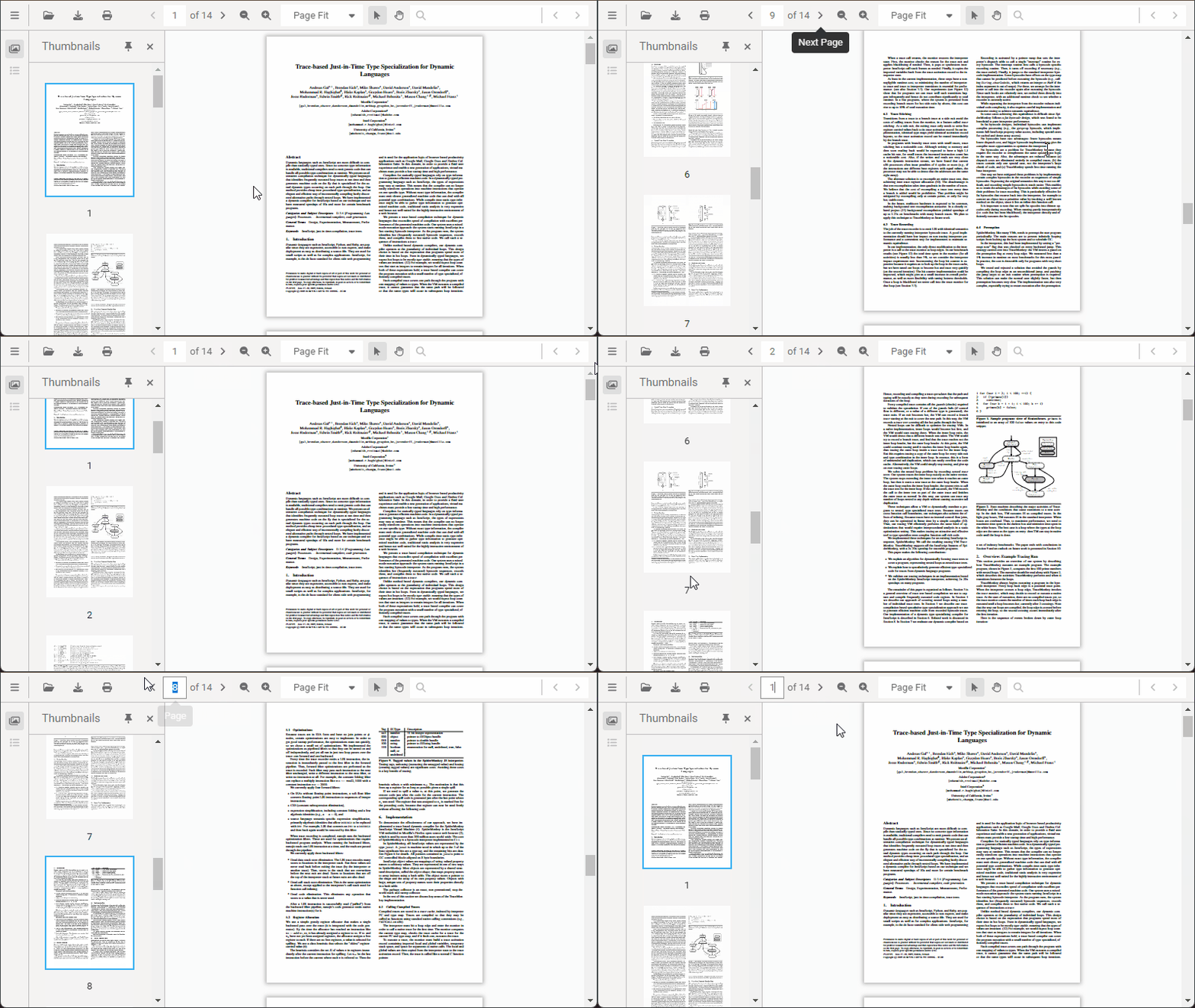
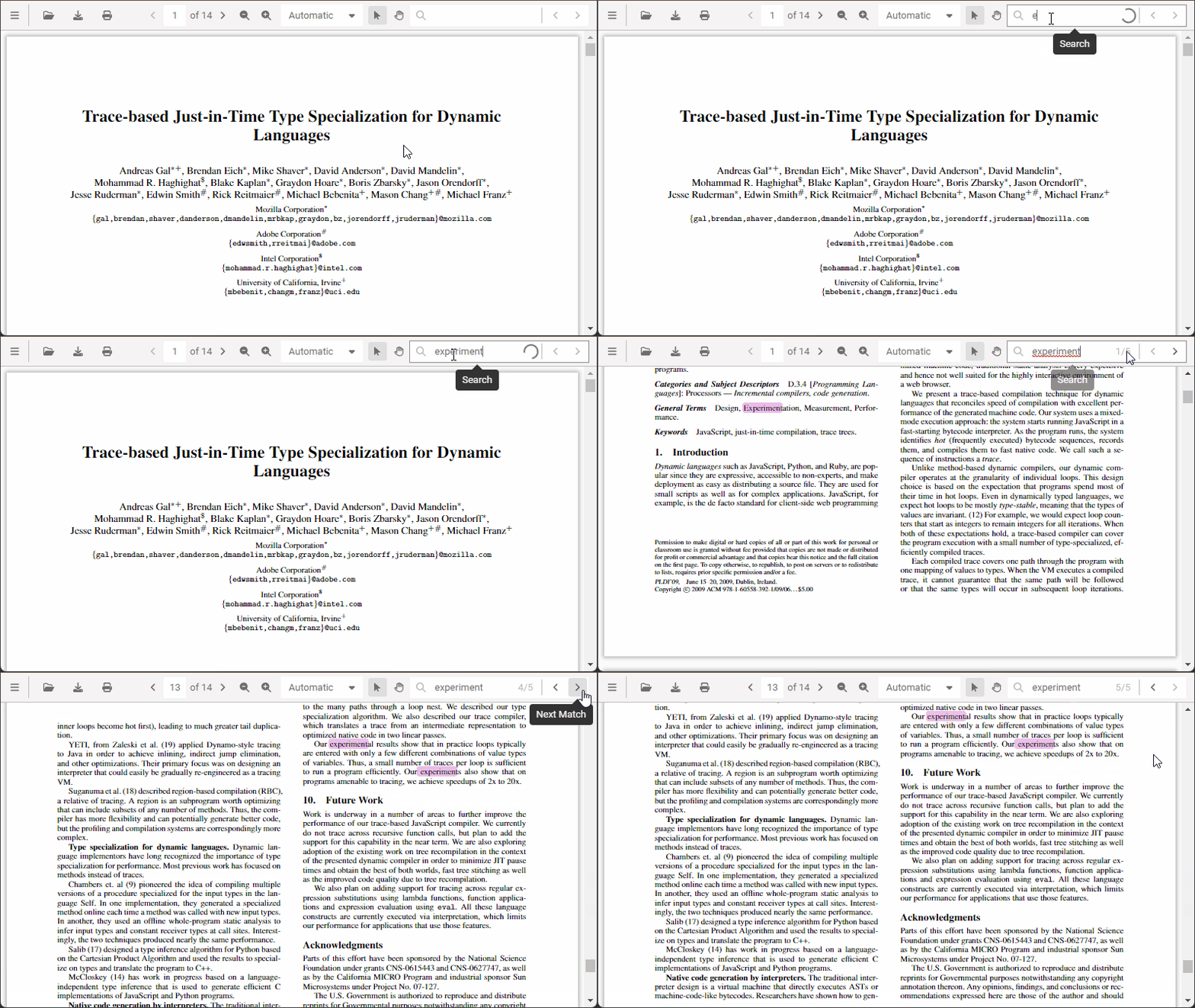
GemBox.PdfViewer is a JavaScript UI library that enables you to display PDF files in web applications. It is supported on all major browsers on both desktop and mobile devices.
JavaScript installation of the PDF viewer
GemBox.PdfViewer is a standalone JavaScript library. You can include it in your project using the package manager, or you can use a script tag. If you are using it from an ASP.NET Core application, see the ASP.NET Core section for details how to include it via NuGet.
Using the package manager
If you are using a package manager in your project, the simplest way is to install GemBox.PdfViewer using NPM or Yarn with one of the following commands:
npm install @gembox/pdfviewer
# or
yarn add @gembox/pdfviewer
After that, you can create a DIV element that will display the PDF Viewer and bind the viewer to it:
<div id="viewer" style="width:600px; height:350px"></div>

<script type="module">
	import { GemBoxPdfViewer} from '@gembox/pdfviewer';
	import '@gembox/pdfviewer/dist/es/pdfviewer.css';

	GemBoxPdfViewer.setLicense("FREE-LIMITED-KEY");
	GemBoxPdfViewer.create({
		container: "#viewer",
		initialDocument: "/document.pdf"
	});
</script>
Take a look at the Demo to see the PDF Viewer in action.
Using the script tag
If you are not using any package manager, you can include GemBox.PdfViewer in your project using a script HTML tag.
<link href="https://cdn.jsdelivr.net/npm/@gembox/pdfviewer/dist/iife/pdfviewer.css" rel="stylesheet" type="text/css"/>
<script src="https://cdn.jsdelivr.net/npm/@gembox/pdfviewer/dist/iife/pdfviewer.js"></script>
If you wish to host the assets yourself, you can download the JavaScript and CSS files from the downloads page and include them in your project:
<link href="/pdfviewer.css" rel="stylesheet" type="text/css"/>
<script src="/pdfviewer.js"></script>
After that, you can create a DIV element that will display the PDF Viewer and bind the viewer to it:
<div id="viewer" style="width:600px; height:350px"></div>

<script>
	GemBoxPdfViewer.setLicense("FREE-LIMITED-KEY");
	GemBoxPdfViewer.create({
		container: "#viewer",
		initialDocument: "/document.pdf"
	});
</script>
Using GemBox.PdfViewer in ASP.NET Core applications
If you are using GemBox.PdfViewer in an ASP.NET Core application, you can use tag helpers that will simplify the usage.
Installation
Before you can use GemBox.PdfViewer you need to install it in your project. You can either add GemBox.PdfViewer NuGet package via NuGet Package Manager in Visual Studio, or you can install it from the command line:
dotnet add package GemBox.PdfViewerTo use ASP.NET Core Tag Helper in your Razor views, you need to import the tag helper in your _ViewImports.cshtml file:
@addTagHelper *, GemBox.PdfViewerAfter that, you can use the <gembox-pdfviewer> tag in your Razor views:
<gembox-pdfviewer
    style="width:600px; height:350px;"
    license-key="FREE-LIMITED-KEY"
    initial-document="/document.pdf">
</gembox-pdfviewer>
The tag will automatically include the GemBox.PdfViewer assets from CDN. If you wish to host the assets yourself, you can download the JavaScript and CSS files and include them in your project.
<link href="/pdfviewer.css" rel="stylesheet" type="text/css"/>
<script src="/pdfviewer.js"></script>
The tag will automatically detect and use the included assets.