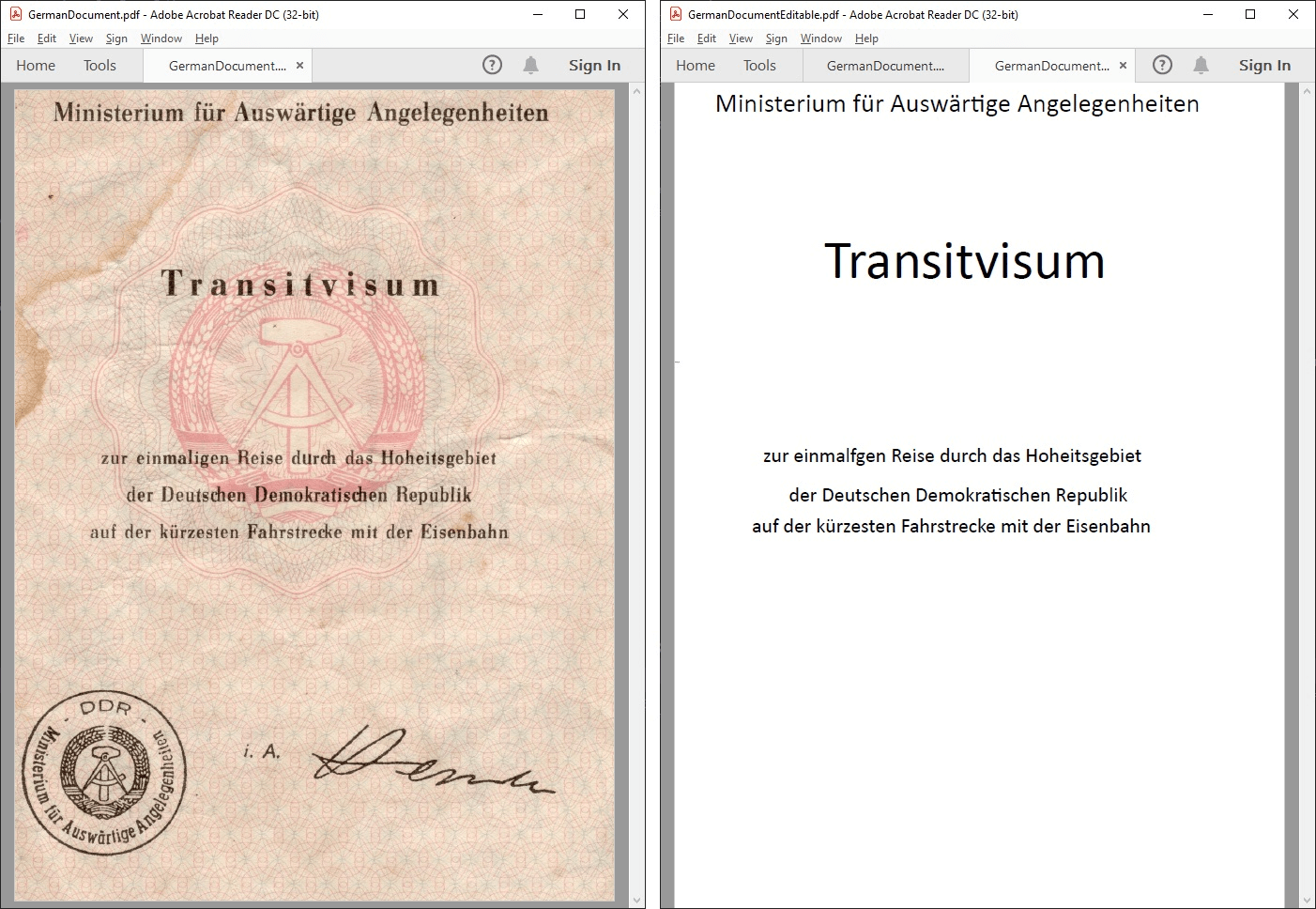
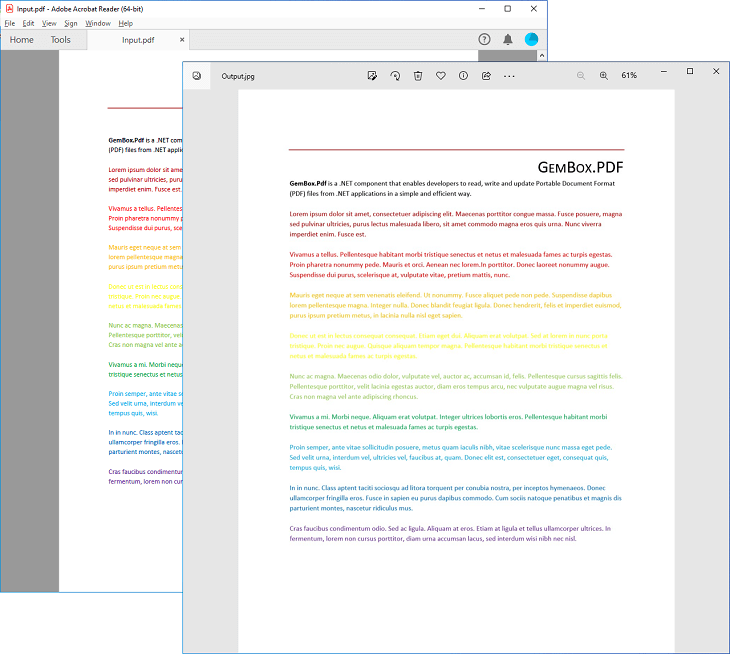
Convert images to PDFs in C# and VB.NET
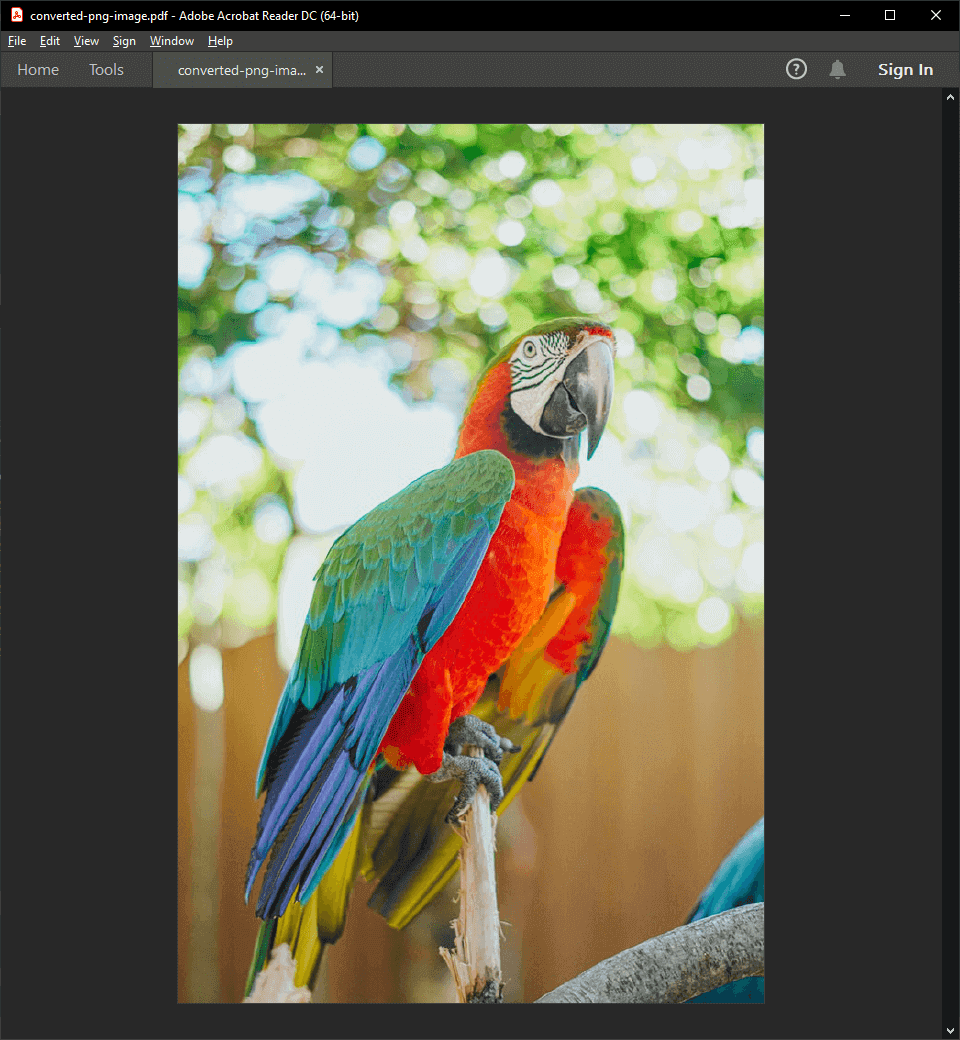
The following example shows how to use the GemBox.Pdf library to convert a PNG image to a PDF document.
using GemBox.Pdf;
using GemBox.Pdf.Content;

class Program
{
    static void Main()
    {
        // If using the Professional version, put your serial key below.
        ComponentInfo.SetLicense("FREE-LIMITED-KEY");

        // Create new document.
        using (var document = new PdfDocument())
        {
            // Add new page.
            var page = document.Pages.Add();

            // Add image from PNG file.
            var image = PdfImage.Load("%#parrot.png%");
            page.Content.DrawImage(image, new PdfPoint(0, 0));

            // Set page size.
            page.SetMediaBox(image.Width, image.Height);

            // Save as PDF file.
            document.Save("converted-png-image.pdf");
        }
    }
}
Imports GemBox.Pdf
Imports GemBox.Pdf.Content

Module Program
    Sub Main()

        ' If using the Professional version, put your serial key below.
        ComponentInfo.SetLicense("FREE-LIMITED-KEY")

        ' Create new document.
        Using document As New PdfDocument()

            ' Add new page.
            Dim page = document.Pages.Add()

            ' Add image from PNG file.
            Dim image = PdfImage.Load("%#parrot.png%")
            page.Content.DrawImage(image, New PdfPoint(0, 0))

            ' Set page size.
            page.SetMediaBox(image.Width, image.Height)

            ' Save as PDF file.
            document.Save("converted-png-image.pdf")

        End Using

    End Sub
End Module
How to convert multiple images to a PDF
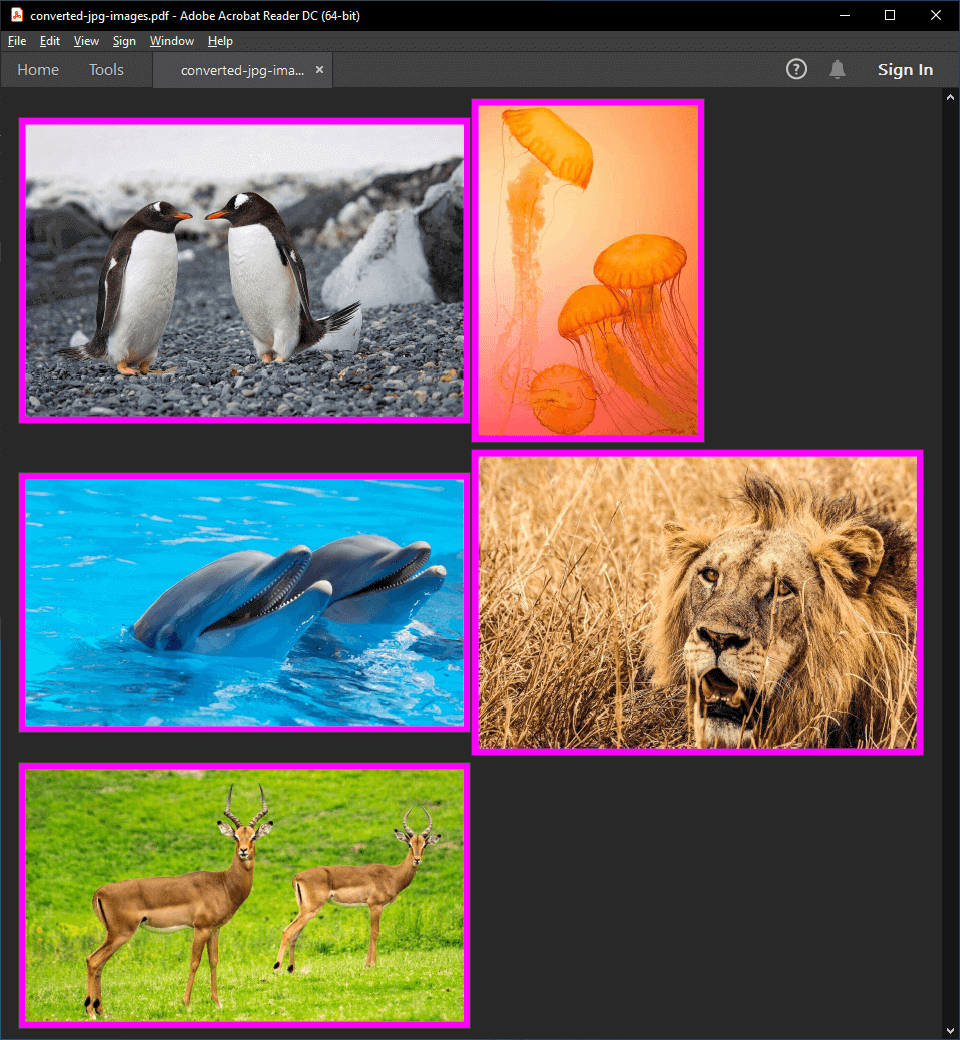
With the C# /VB.NET example below, you can see how to convert multiple JPG images to a single PDF document.
using GemBox.Pdf;
using GemBox.Pdf.Content;

class Program
{
    static void Main()
    {
        // If using the Professional version, put your serial key below.
        ComponentInfo.SetLicense("FREE-LIMITED-KEY");

        string[] jpgs = { "%#penguin.jpg%", "%#jellyfish.jpg%", "%#dolphin.jpg%", "%#lion.jpg%", "%#deer.jpg%" };

        // Create new document.
        using (var document = new PdfDocument())
        {
            // For each image add new page with margins.
            foreach (var jpg in jpgs)
            {
                var page = document.Pages.Add();
                double margins = 20;

                // Load image from JPG file.
                var image = PdfImage.Load(jpg);

                // Set page size.
                page.SetMediaBox(image.Width + 2 * margins, image.Height + 2 * margins);

                // Draw backgroud color.
                var backgroud = page.Content.Elements.AddPath();
                backgroud.AddRectangle(new PdfPoint(0, 0), page.Size);
                backgroud.Format.Fill.IsApplied = true;
                backgroud.Format.Fill.Color = PdfColor.FromRgb(1, 0, 1);

                // Draw image.
                page.Content.DrawImage(image, new PdfPoint(margins, margins));
            }

            // Save as PDF file.
            document.Save("converted-jpg-images.pdf");
        }
    }
}
Imports GemBox.Pdf
Imports GemBox.Pdf.Content

Module Program
    Sub Main()

        ' If using the Professional version, put your serial key below.
        ComponentInfo.SetLicense("FREE-LIMITED-KEY")

        Dim jpgs As String() = {"%#penguin.jpg%", "%#jellyfish.jpg%", "%#dolphin.jpg%", "%#lion.jpg%", "%#deer.jpg%"}

        ' Create New document.
        Using document As New PdfDocument()

            ' For each image add new page with margins.
            For Each jpg In jpgs
                Dim page = document.Pages.Add()
                Dim margins As Double = 20

                ' Load image from JPG file.
                Dim image = PdfImage.Load(jpg)

                ' Set page size.
                page.SetMediaBox(image.Width + 2 * margins, image.Height + 2 * margins)

                ' Draw backgroud color.
                Dim backgroud = page.Content.Elements.AddPath()
                backgroud.AddRectangle(New PdfPoint(0, 0), page.Size)
                backgroud.Format.Fill.IsApplied = True
                backgroud.Format.Fill.Color = PdfColor.FromRgb(1, 0, 1)

                ' Draw image.
                page.Content.DrawImage(image, New PdfPoint(margins, margins))
            Next

            ' Save as PDF file.
            document.Save("converted-jpg-images.pdf")
        End Using

    End Sub
End Module
Advanced options when converting images to a PDF
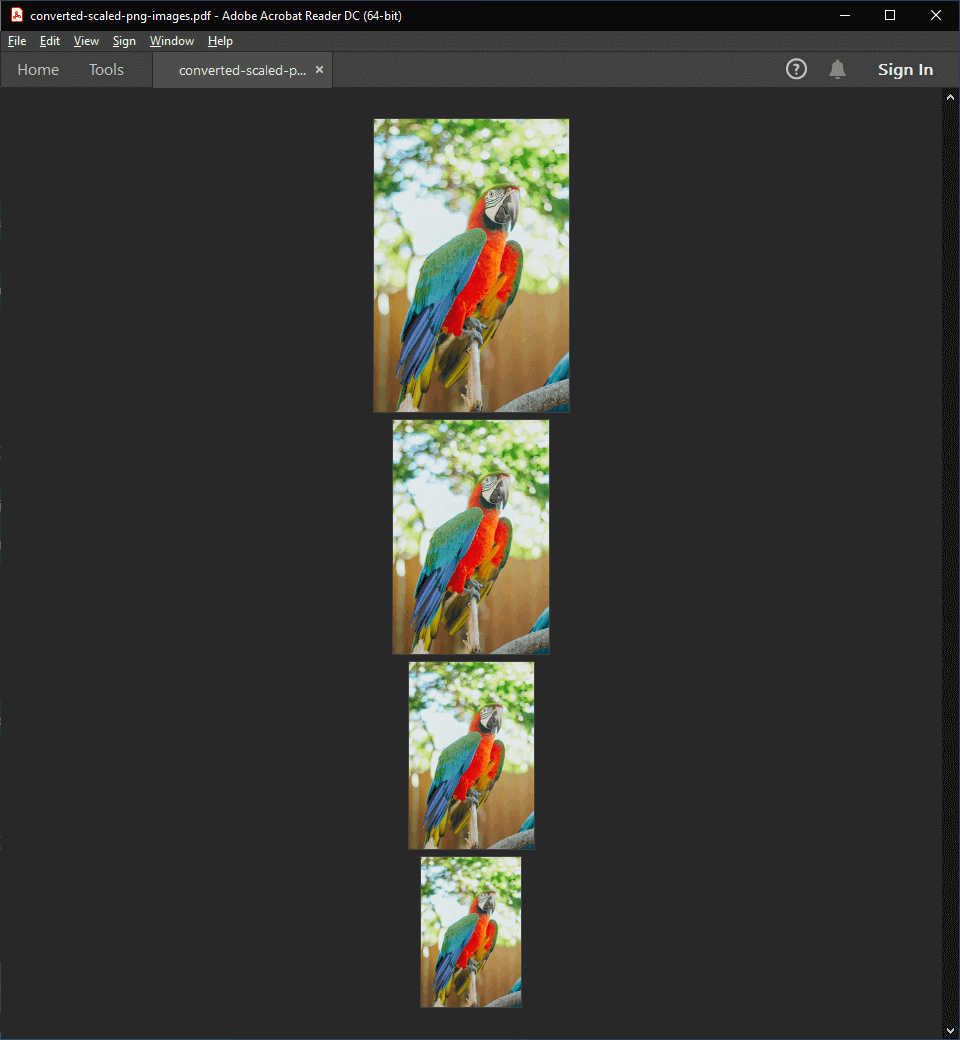
The following example shows how to convert a PNG image into multiple images of different sizes in a single PDF document. By proportionally changing the image's width and height, you can scale it.
using GemBox.Pdf;
using GemBox.Pdf.Content;

class Program
{
    static void Main()
    {
        // If using the Professional version, put your serial key below.
        ComponentInfo.SetLicense("FREE-LIMITED-KEY");

        // Create new document.
        using (var document = new PdfDocument())
        {
            // Load image from PNG file.
            var image = PdfImage.Load("%#parrot.png%");

            double width = image.Width;
            double height = image.Height;
            double ratio = width / height;

            // Add image four times, each time with 20% smaller size.
            for (int i = 0; i < 4; i++)
            {
                width *= 0.8;
                height = width / ratio;

                var page = document.Pages.Add();
                page.Content.DrawImage(image, new PdfPoint(0, 0), new PdfSize(width, height));
                page.SetMediaBox(width, height);
            }

            document.Save("converted-scaled-png-images.pdf");
        }
    }
}
Imports GemBox.Pdf
Imports GemBox.Pdf.Content

Module Program
    Sub Main()

        ' If using the Professional version, put your serial key below.
        ComponentInfo.SetLicense("FREE-LIMITED-KEY")

        ' Create new document.
        Using document As New PdfDocument()

            ' Load image from PNG file.
            Dim image = PdfImage.Load("%#parrot.png%")

            Dim width As Double = image.Width
            Dim height As Double = image.Height
            Dim ratio As Double = width / height

            ' Add image four times, each time with 20% smaller size.
            For i = 0 To 3
                width *= 0.8
                height = width / ratio

                Dim page = document.Pages.Add()
                page.Content.DrawImage(image, New PdfPoint(0, 0), New PdfSize(width, height))
                page.SetMediaBox(width, height)
            Next

            document.Save("converted-scaled-png-images.pdf")

        End Using

    End Sub
End Module