Get, create, or edit PDF interactive form actions in C# and VB.NET
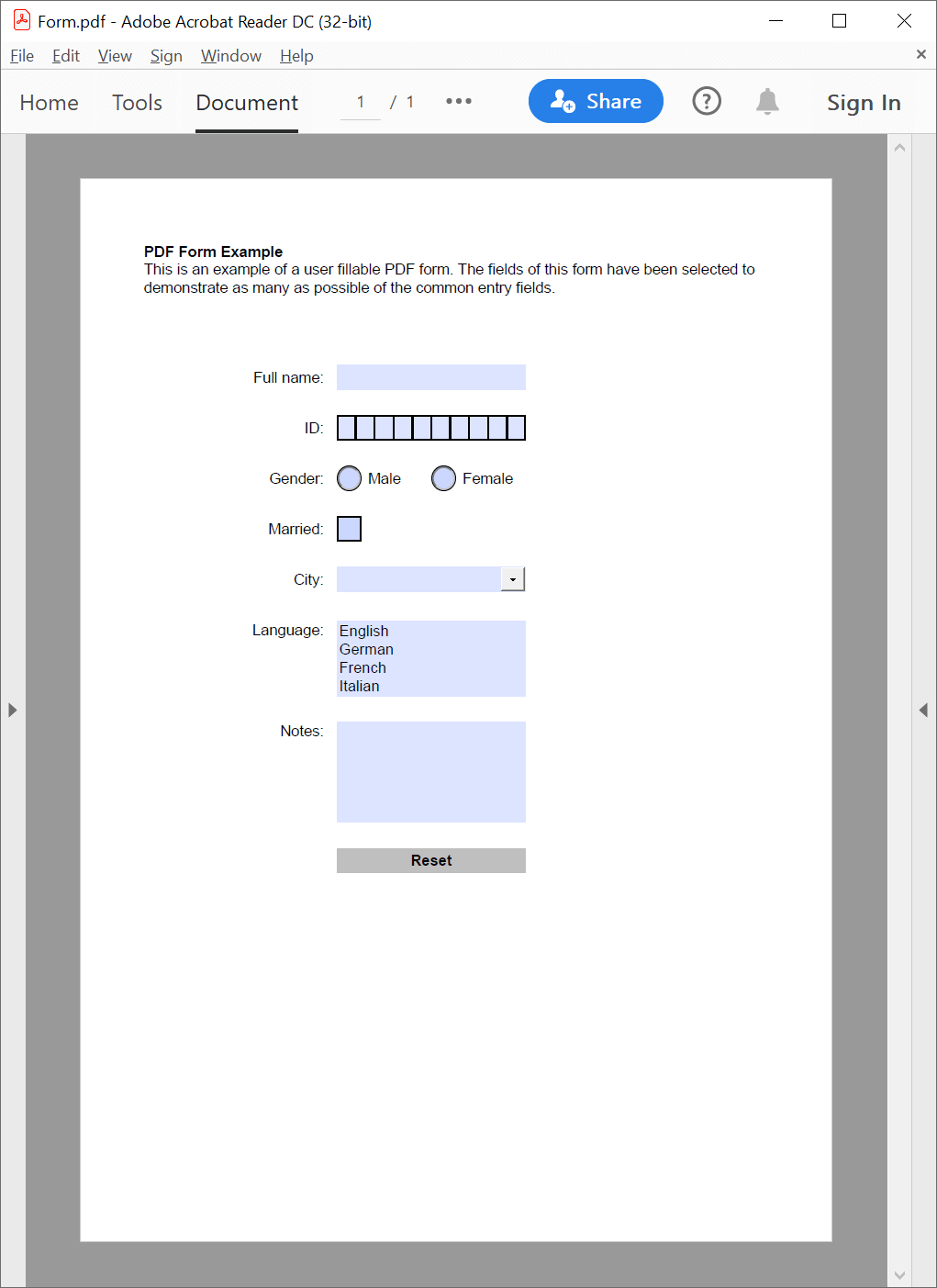
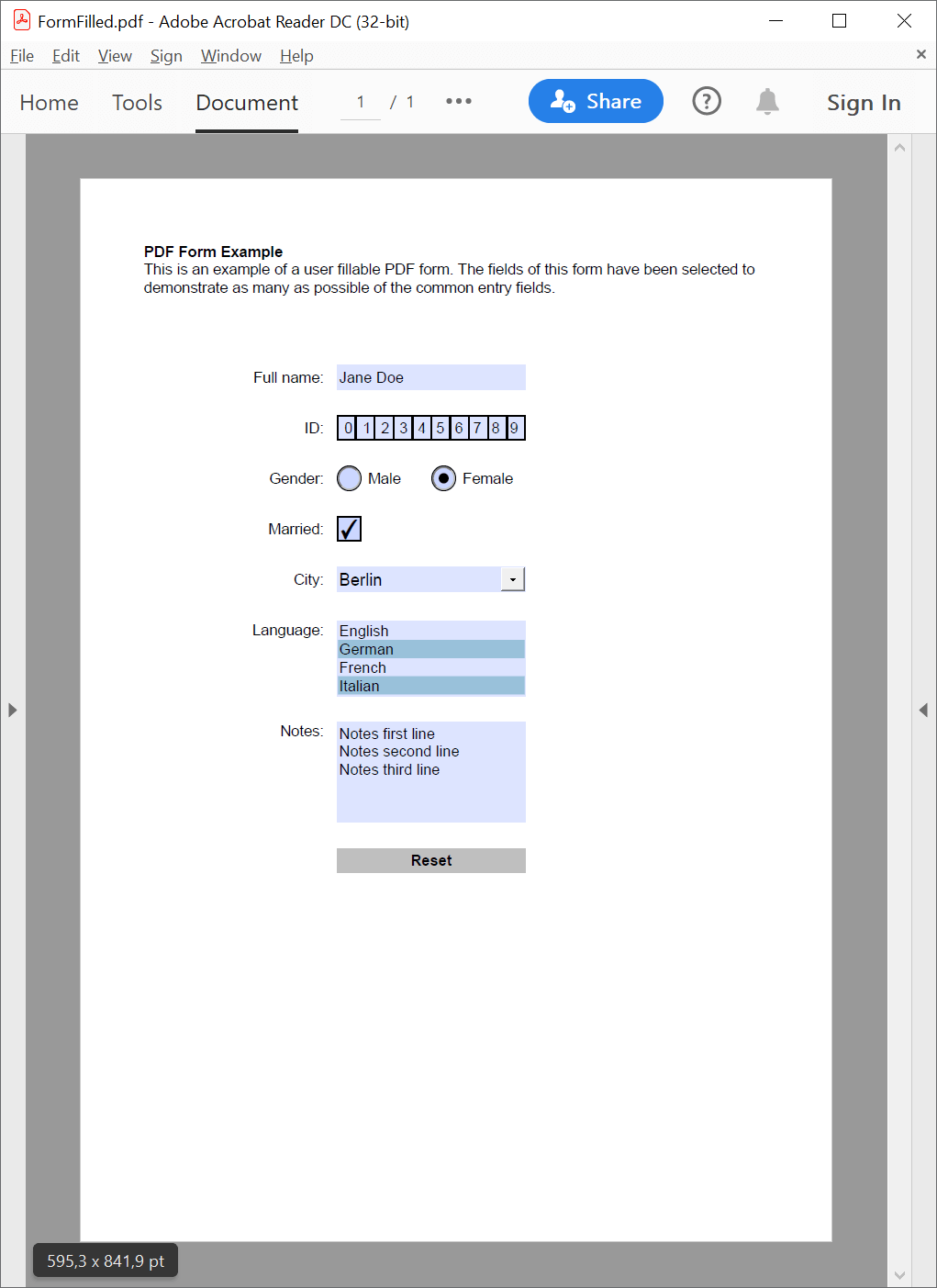
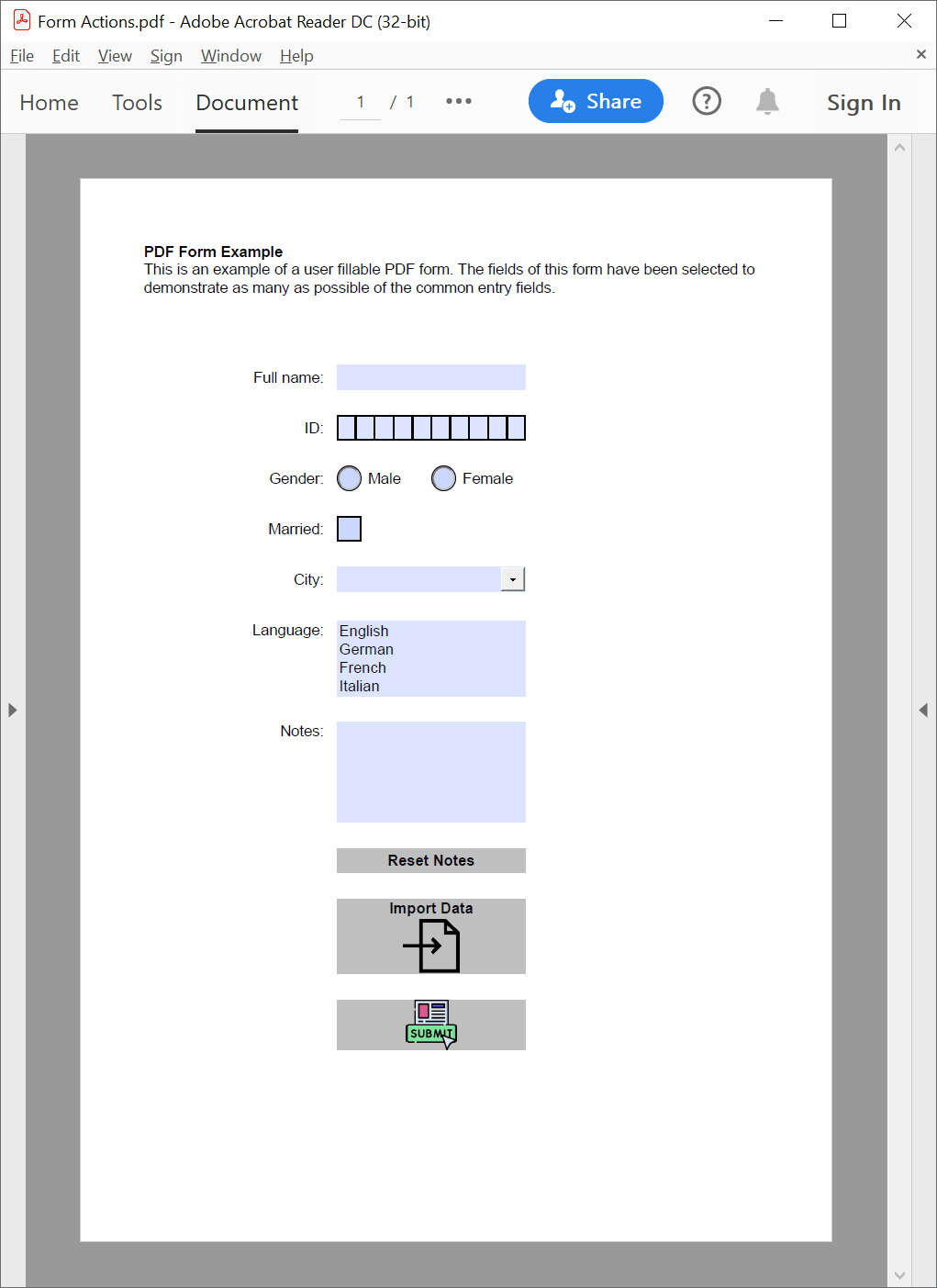
The following example shows how you can use the GemBox.Pdf library to edit and create buttons with interactive form field actions in C# and VB.NET. It also shows how to customize the buttons' appearance.
using GemBox.Pdf;
using GemBox.Pdf.Annotations;
using GemBox.Pdf.Content;
using GemBox.Pdf.Forms;

class Program
{
    static void Main()
    {
        // If using the Professional version, put your serial key below.
        ComponentInfo.SetLicense("FREE-LIMITED-KEY");

        using (var document = PdfDocument.Load("%#Form.pdf%"))
        {
            // Update the action and label of the 'ResetButton' field so that only the 'Notes' field is reset.
            var resetButtonField = (PdfButtonField)document.Form.Fields["ResetButton"];
            var resetFormAction = (PdfResetFormAction)resetButtonField.Actions[0];
            resetFormAction.SelectedFields.Excluded = false;
            resetFormAction.SelectedFields.Add("Notes");
            resetButtonField.Appearance.Label = "Reset Notes";

            var bounds = resetButtonField.Bounds;

            // Add an 'ImportButton' field with a label and icon that imports field values from the FDF (Forms Data Format) file.
            var importButtonField = document.Form.Fields.AddButton(document.Pages[0], bounds.Left, bounds.Bottom - 80, 150, 60);
            importButtonField.Name = "ImportButton";
            importButtonField.Actions.AddImportFormData("%#FormData.fdf%");
            var appearance = importButtonField.Appearance;
            appearance.LabelPlacement = PdfTextPlacement.TextAboveIcon;
            appearance.Label = "Import Data";
            var icon = new PdfForm(document, new PdfSize(128, 128));
            icon.Content.BeginEdit();
            icon.Content.DrawImage(PdfImage.Load("%#import.png%"), new PdfPoint(0, 0), new PdfSize(128, 128));
            icon.Content.EndEdit();
            appearance.Icon = icon;

            bounds = importButtonField.Bounds;

            // Add a 'SubmitButton' field with an icon that submits all field values to the URL in XFDF (XML Forms Data Format) format.
            var submitButtonField = document.Form.Fields.AddButton(document.Pages[0], bounds.Left, bounds.Bottom - 60, 150, 40);
            submitButtonField.Name = "SubmitButton";
            var submitFormAction = submitButtonField.Actions.AddSubmitForm("https://www.gemboxsoftware.com/");
            submitFormAction.ExportFormat = PdfFormDataFormat.XFDF;
            submitFormAction.SelectedFields.All = true;
            appearance = submitButtonField.Appearance;
            appearance.LabelPlacement = PdfTextPlacement.IconOnly;
            icon = new PdfForm(document, new PdfSize(128, 128));
            icon.Content.BeginEdit();
            icon.Content.DrawImage(PdfImage.Load("%#submit.png%"), new PdfPoint(0, 0), new PdfSize(128, 128));
            icon.Content.EndEdit();
            appearance.Icon = icon;

            document.Save("Form Actions.pdf");
        }
    }
}
Imports GemBox.Pdf
Imports GemBox.Pdf.Annotations
Imports GemBox.Pdf.Content
Imports GemBox.Pdf.Forms

Module Program

    Sub Main()

        ' If using the Professional version, put your serial key below.
        ComponentInfo.SetLicense("FREE-LIMITED-KEY")

        Using document = PdfDocument.Load("%#Form.pdf%")

            ' Update the action and label of the 'ResetButton' field so that only the 'Notes' field is reset.
            Dim resetButtonField = CType(document.Form.Fields("ResetButton"), PdfButtonField)
            Dim resetFormAction = CType(resetButtonField.Actions(0), PdfResetFormAction)
            resetFormAction.SelectedFields.Excluded = False
            resetFormAction.SelectedFields.Add("Notes")
            resetButtonField.Appearance.Label = "Reset Notes"

            Dim bounds = resetButtonField.Bounds

            ' Add an 'ImportButton' field with a label and icon that imports field values from the FDF (Forms Data Format) file.
            Dim importButtonField = document.Form.Fields.AddButton(document.Pages(0), bounds.Left, bounds.Bottom - 80, 150, 60)
            importButtonField.Name = "ImportButton"
            importButtonField.Actions.AddImportFormData("%#FormData.fdf%")
            Dim appearance = importButtonField.Appearance
            appearance.LabelPlacement = PdfTextPlacement.TextAboveIcon
            appearance.Label = "Import Data"
            Dim icon = New PdfForm(document, New PdfSize(128, 128))
            icon.Content.BeginEdit()
            icon.Content.DrawImage(PdfImage.Load("%#import.png%"), New PdfPoint(0, 0), New PdfSize(128, 128))
            icon.Content.EndEdit()
            appearance.Icon = icon

            bounds = importButtonField.Bounds

            ' Add a 'SubmitButton' field with an icon that submits all field values to the URL in XFDF (XML Forms Data Format) format.
            Dim submitButtonField = document.Form.Fields.AddButton(document.Pages(0), bounds.Left, bounds.Bottom - 60, 150, 40)
            submitButtonField.Name = "SubmitButton"
            Dim submitFormAction = submitButtonField.Actions.AddSubmitForm("https://www.gemboxsoftware.com/")
            submitFormAction.ExportFormat = PdfFormDataFormat.XFDF
            submitFormAction.SelectedFields.All = True
            appearance = submitButtonField.Appearance
            appearance.LabelPlacement = PdfTextPlacement.IconOnly
            icon = New PdfForm(document, New PdfSize(128, 128))
            icon.Content.BeginEdit()
            icon.Content.DrawImage(PdfImage.Load("%#submit.png%"), New PdfPoint(0, 0), New PdfSize(128, 128))
            icon.Content.EndEdit()
            appearance.Icon = icon

            document.Save("Form Actions.pdf")
        End Using
    End Sub
End Module
Icons used in the example above are made by Freepik from www.flaticon.com.