How to convert HTML to PDF in C# and VB.NET
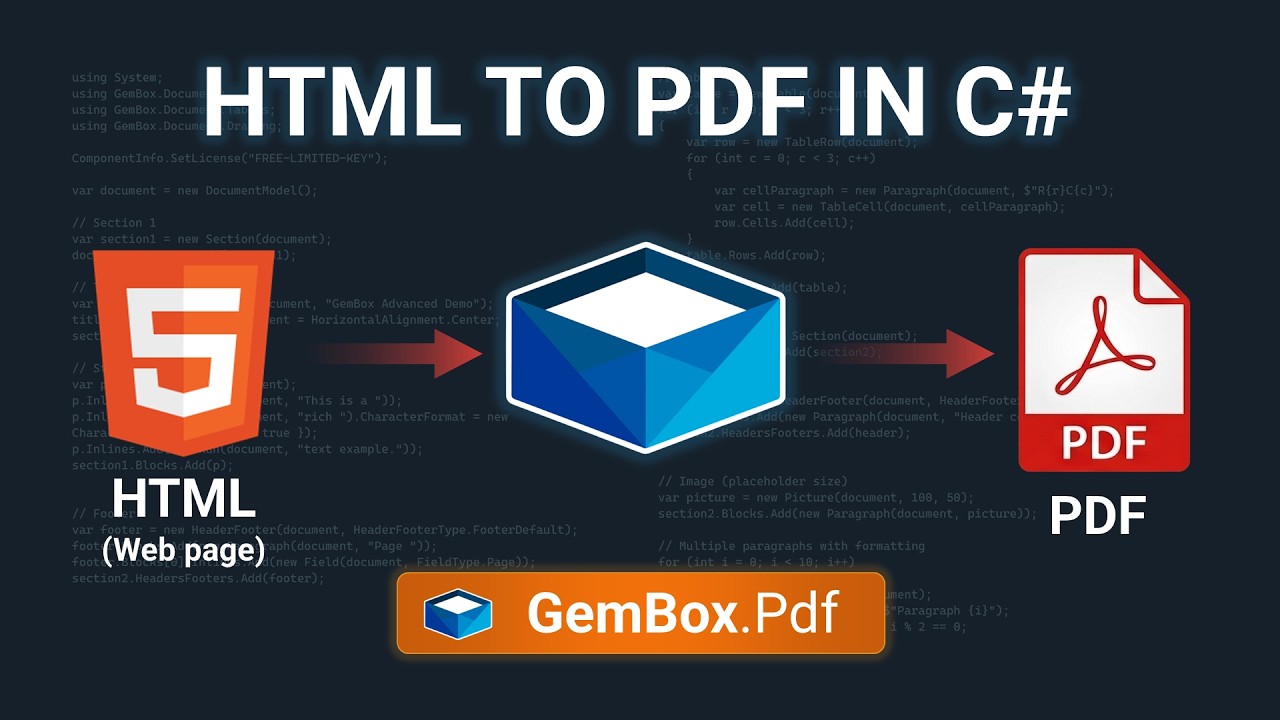
With the GemBox.Pdf library you can convert any HTML file or a live web page to a PDF with just a few lines of code. Behind the scenes, GemBox.Pdf relies on the Chromium engine to produce pixel-perfect results. Support for modern CSS and JavaScript execution ensures that even your most complicated web pages are converted to PDFs that look exactly as they do in a web browser.
| HTML to PDF | |
|---|---|
| Lines of code | 2–10 |
| Execution time | ~2s |
| Platform support | Cross-platform (Windows, Linux, Cloud, Docker) |
| Feature support | Pixel-perfect rendering, HTML5/CSS3 support, JavaScript execution, configuration options |
In this example you will learn how to implement HTML to PDF conversion and how to deploy it to a platform of your choice, including Windows, Linux, Azure services, and Docker.
Installation
To convert HTML to PDF, install GemBox.Pdf first. After that, depending on the operating system you're working on, in Visual Studio open the NuGet Package Manager Console (Tools -> NuGet Package Manager -> Package Manager Console) and run one of the following commands:
For Windows:
Install-Package GemBox.Pdf.Html.Windows
For Linux:
Install-Package GemBox.Pdf.Html.Linux
Important: On Linux, additional system dependencies are required. Please see the Linux section on this page for instructions on how to install them.
Both libraries are part of GemBox.Pdf and don’t require additional purchases or licensing.
Basic conversion
GemBox.Pdf provides several ways to convert HTML content to PDF, depending on where the HTML originates from. You can convert a local file, a web page URL, an HTML string, or any stream that contains HTML content.
How to convert a HTML file to PDF
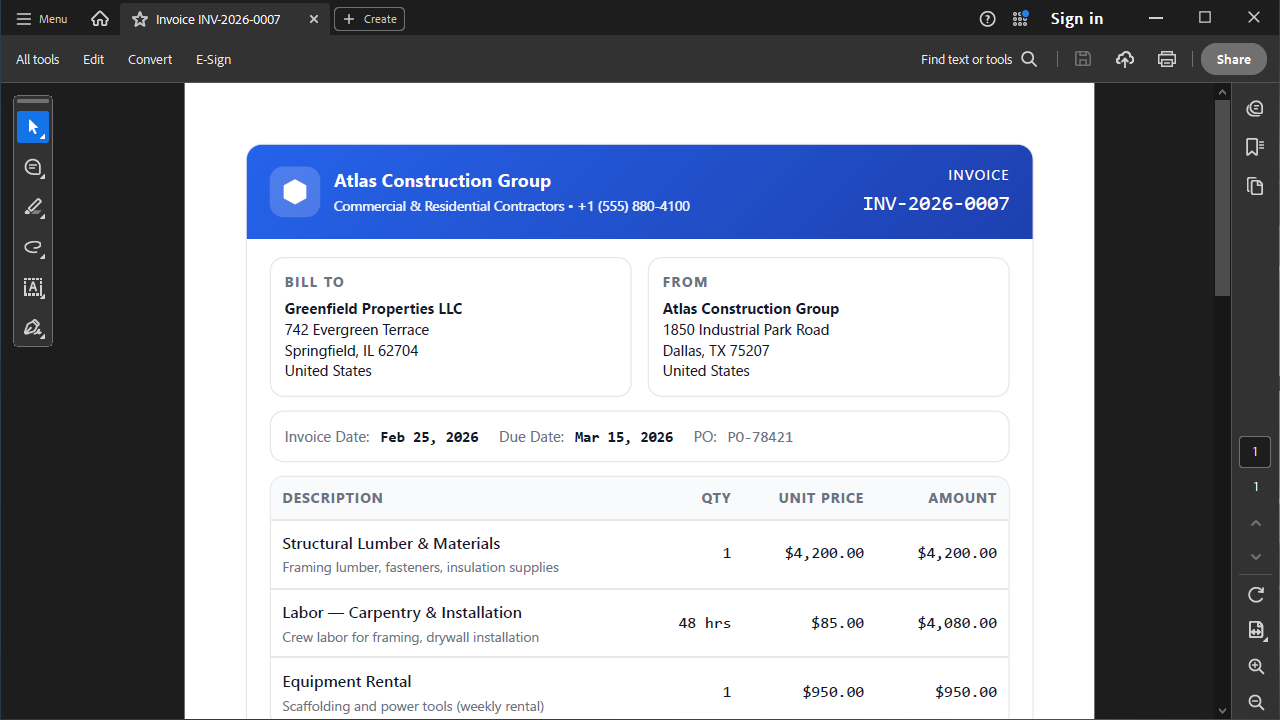
Use the ConvertFileToPdfAsync method to convert a local HTML file to PDF. This approach is ideal when generating documents from templates stored on disk. GemBox.Pdf automatically resolves and downloads external resources referenced in HTML such as images or CSS stylesheets.
var document = await HtmlConverter.ConvertFileToPdfAsync("%#Invoice.html%");
document.Save("Invoice.pdf");
Dim document = Await HtmlConverter.ConvertFileToPdfAsync("%#InputFileName%")
document.Save("Invoice.pdf")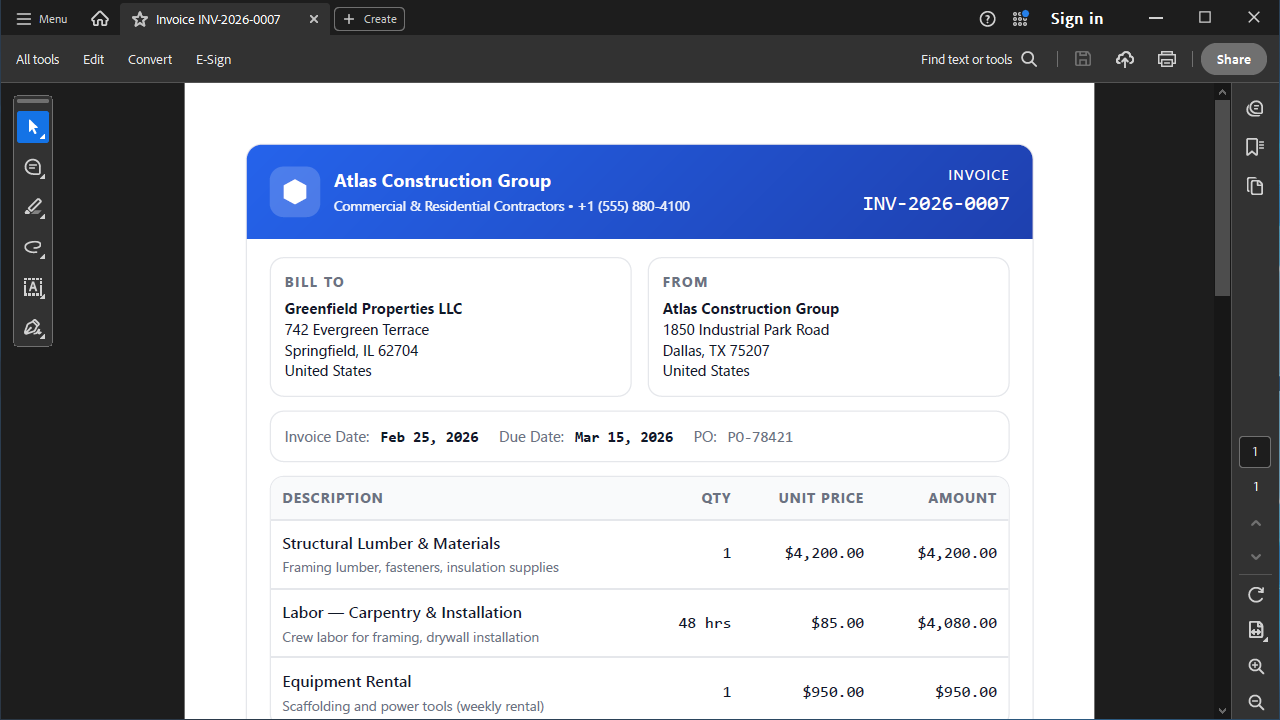
How to convert a web page (URL) to PDF
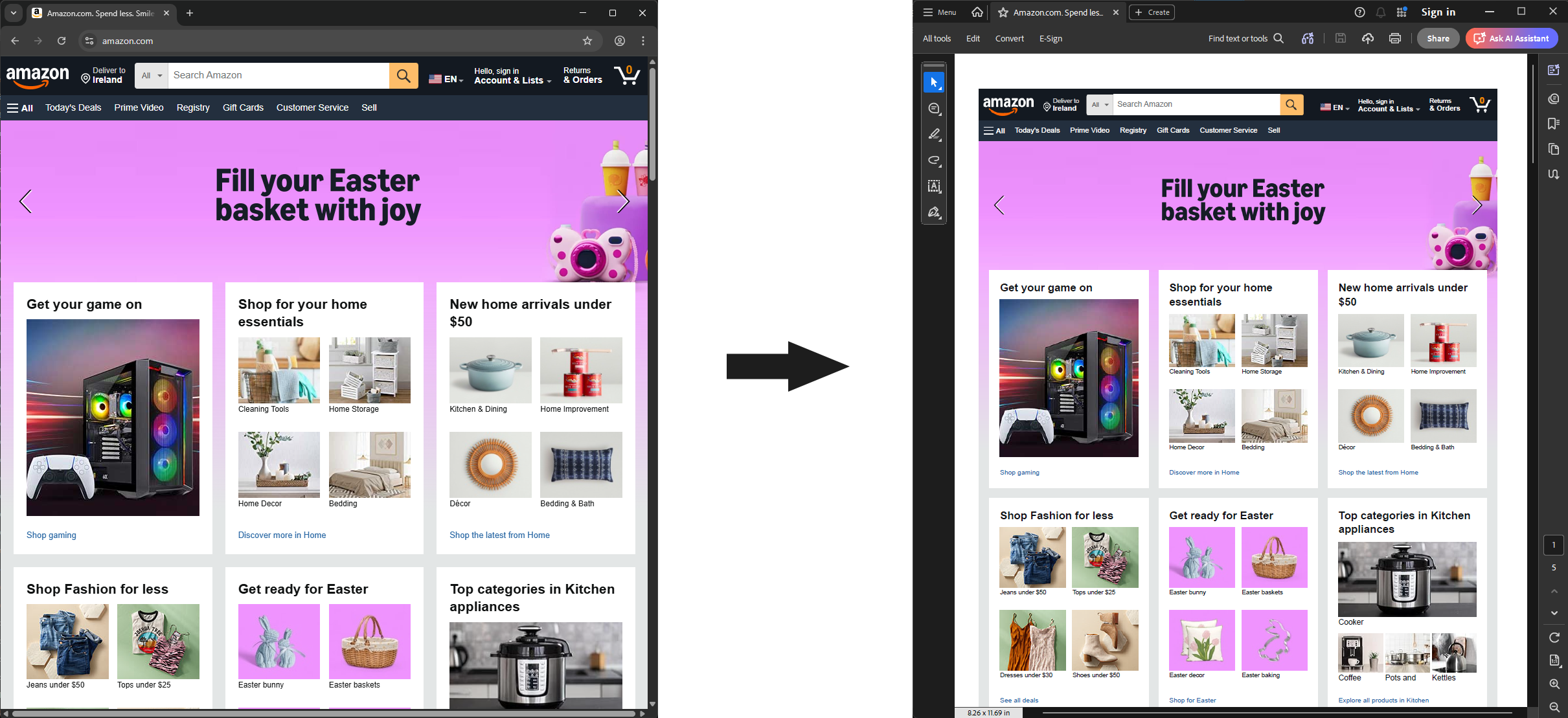
Use the ConvertUrlToPdfAsync method to convert a live web page directly to PDF. This is useful for archiving web content or generating reports from online dashboards. You just need to provide an URL to the web page that you want to convert to PDF.
var document = await HtmlConverter.ConvertUrlToPdfAsync("https://www.amazon.com/");
document.Save("Website.pdf");
Dim document = Await HtmlConverter.ConvertUrlToPdfAsync("https://www.amazon.com/")
document.Save("Website.pdf")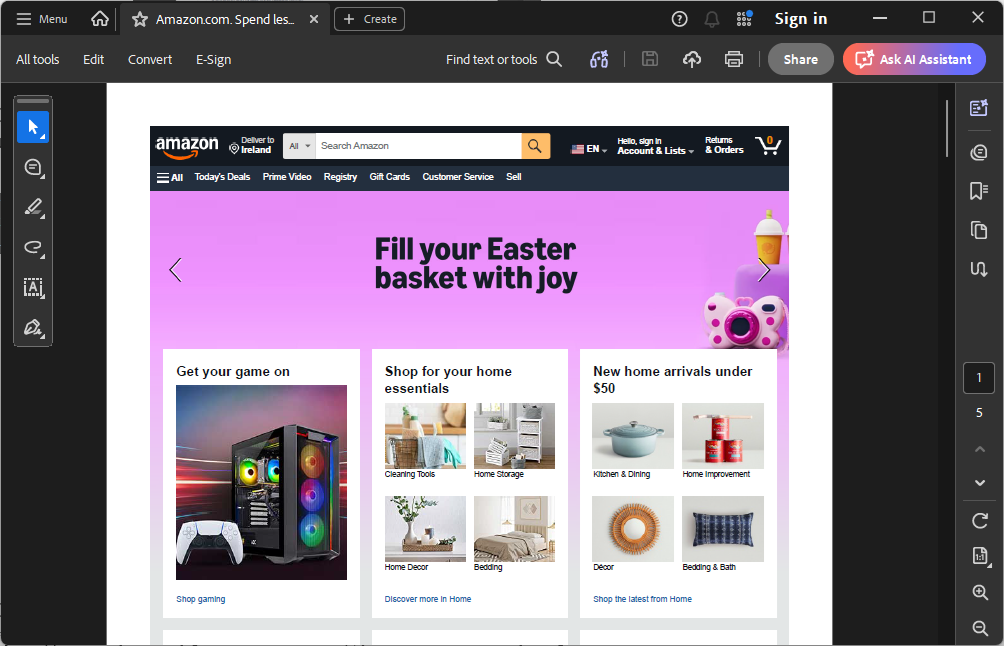
How to convert a HTML string to PDF
If your application dynamically generates HTML markup, you can convert it directly by using the ConvertHtmlToPdfAsync method.
var document = await HtmlConverter.ConvertHtmlToPdfAsync("<p style=\"color:red;font-size:40px;text-align:center\">Hello World!</p>");
document.Save("Document.pdf");
Dim document = Await HtmlConverter.ConvertHtmlToPdfAsync("<p style=""color:red;font-size:40px;text-align:center"">Hello World!</p>")
document.Save("Document.pdf")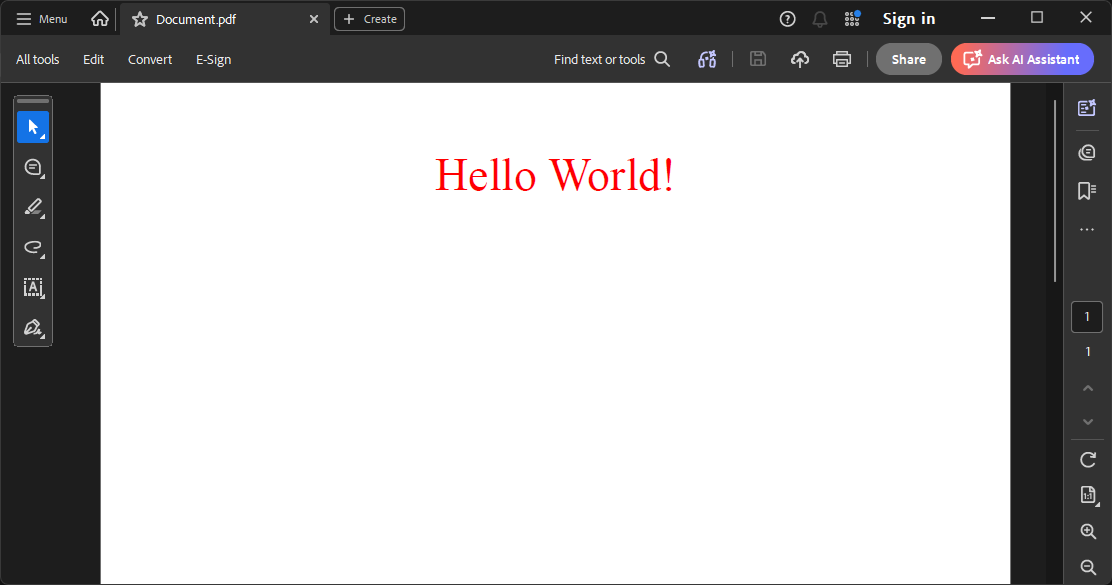
How to convert a HTML stream to PDF
To convert any stream that contains HTML to PDF, use the ConvertToPdfAsync method. The following code snippet shows how to convert FileStream to PDF:
using var fileStream = new FileStream("Invoice.html", FileMode.Open);
var document = await HtmlConverter.ConvertToPdfAsync(fileStream);
document.Save("Invoice.pdf");
Using fileStream As New FileStream("Invoice.html", FileMode.Open)
Dim document = Await HtmlConverter.ConvertToPdfAsync(fileStream)
document.Save("Invoice.pdf")
End UsingAdvanced conversion options
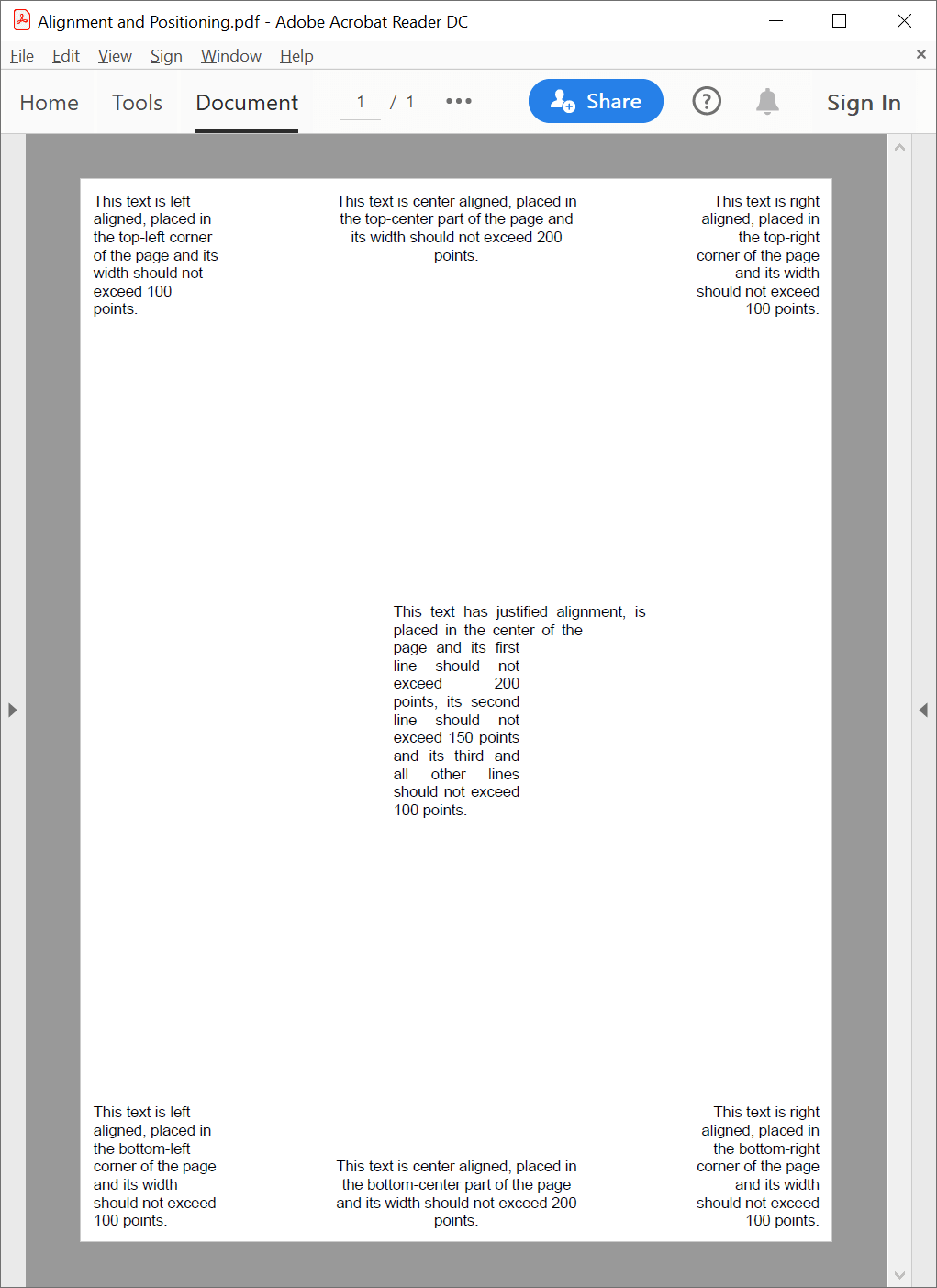
You can customize the conversion by using the ConversionOptions class. The following code demonstrates how to adjust the PDF's page size and margins:
var conversionOptions = new ConversionOptions()
{
    PageSize = new PdfSize(width: 500, height: 1000),
    PageMargins = new PdfPadding(left: 50, bottom: 100, right: 50, top: 100)
};
document = await HtmlConverter.ConvertFileToPdfAsync("Invoice.html", conversionOptions);
Dim conversionOptions As New ConversionOptions() With {
.PageSize = New PdfSize(width:=500, height:=1000),
.PageMargins = New PdfPadding(left:=50, bottom:=100, right:=50, top:=100)
}
document = Await HtmlConverter.ConvertFileToPdfAsync("Invoice.html", conversionOptions)The conversion methods accept a CancellationToken that allows you to cancel the operation. The following code shows how to cancel the conversion after five seconds:
using var cts = new CancellationTokenSource(TimeSpan.FromSeconds(5));
try
{
    document = await HtmlConverter.ConvertFileToPdfAsync("Invoice.html", cts.Token);
    // Successfully completed
}
catch (OperationCanceledException)
{
    // Operation timed out
}
Using cts As New CancellationTokenSource(TimeSpan.FromSeconds(5))
Try
document = Await HtmlConverter.ConvertFileToPdfAsync("Invoice.html", cts.Token)
' Successfully completed
Catch ex As OperationCanceledException
' Operation timed out
End Try
End UsingWindows
HTML to PDF conversion is supported on Windows 10 or later and Windows Server 2016 or later. No additional system dependencies are required.
The feature can be used with any supported .NET runtime, including .NET Framework, .NET, and .NET Core, and in all common application types such as ASP.NET, WPF, Windows Forms, console applications, and Windows services.
Linux
Chromium, which is used internally in the GemBox.Pdf.Html.Linux library, requires additional system dependencies to be installed. Use the following command to install all required dependencies on Debian-based distributions:
apt-get update && apt-get install -y libasound2t64 libatk1.0-0 libc6 libcairo2
libcups2 libdbus-1-3 libexpat1 libfontconfig1 libgcc-s1
libgdk-pixbuf2.0-0 libglib2.0-0 libgtk-3-0 libnspr4 libpango-1.0-0 libpangocairo-1.0-0
libstdc++6 libx11-6 libx11-xcb1 libxcb1 libxcursor1 libxdamage1 libxext6 libxfixes3
libxi6 libxrandr2 libxrender1 libxss1 libxtst6 libnss3 libgbm1
Note: The ALSA package name depends on your distribution version. On Ubuntu 24.04 or later (and Debian 13 or later) it is libasound2t64, renamed as part of the 64-bit time_t transition, as shown above. On Ubuntu releases before 24.04 (23.10 or earlier, and Debian 12 or earlier) use libasound2 instead.
Alternatively, you can use the following method that will install missing dependencies for you, automatically selecting the correct package names for your system:
Azure App Service
While GemBox.Pdf supports HTML to PDF conversion on Azure App Service, due to performance reasons the recommended approach for deploying to the cloud is using Docker containers.
As mentioned in the Linux section, HTML to PDF requires additional system packages in order to work on Linux. In the Azure App Service environment, the storage where the packages are installed is ephemeral and cleaned when the application is redeployed or restarted.
To use the HTML to PDF feature in Azure App Service, we recommend including the following code in Startup.cs or Program.cs:
We additionally recommend the app to be “Always On” which prevents it from being idled out due to inactivity.
To see an example that demonstrates how to create an Azure App Service, see the dedicated article.
Azure Functions
While GemBox.Pdf supports HTML to PDF conversion on Azure Functions, due to performance reasons the recommended approach for deploying to the cloud is using Docker containers.
To use Azure functions on Linux, you need to ensure that the required dependencies are installed. You can put the following line at the start of the function:
To see an example that demonstrates how to create an Azure Function, see the dedicated article.
Docker
You can convert HTML to PDF on Linux-based Docker images. As mentioned in the Linux section, HTML to PDF requires additional system packages in order to work on Linux. You can add the following line to your Dockerfile which will install all required dependencies:
RUN apt-get update && apt-get install -y --no-install-recommends libasound2t64 libatk1.0-0
libc6 libcairo2 libcups2 libdbus-1-3 libexpat1 libfontconfig1 libgcc-s1
libgdk-pixbuf2.0-0 libglib2.0-0 libgtk-3-0 libnspr4 libpango-1.0-0 libpangocairo-1.0-0
libstdc++6 libx11-6 libx11-xcb1 libxcb1 libxcursor1 libxdamage1 libxext6 libxfixes3 libxi6
libxrandr2 libxrender1 libxss1 libxtst6 libnss3 libgbm1 && rm -rf /var/lib/apt/lists/*
Note: The correct ALSA package depends on your base image. The .NET 8 and .NET 9 images default to Debian 12 (bookworm), which uses libasound2. The .NET 10 images default to Ubuntu 24.04 (noble) — where the package is libasound2t64 (as shown above).
Web application
You can use the following Dockerfile to build your web application into a Docker image:
FROM mcr.microsoft.com/dotnet/sdk:10.0 AS build

WORKDIR /app

COPY *.csproj ./
RUN dotnet restore

COPY . ./
RUN dotnet publish -c Release -o /app/publish --no-restore

FROM mcr.microsoft.com/dotnet/aspnet:10.0

RUN apt-get update && apt-get install -y --no-install-recommends libasound2t64 libatk1.0-0 libc6 libcairo2 libcups2 libdbus-1-3 libexpat1 libfontconfig1 libgcc-s1 libgdk-pixbuf2.0-0 libglib2.0-0 libgtk-3-0 libnspr4 libpango-1.0-0 libpangocairo-1.0-0 libstdc++6 libx11-6 libx11-xcb1 libxcb1 libxcursor1 libxdamage1 libxext6 libxfixes3 libxi6 libxrandr2 libxrender1 libxss1 libxtst6 libnss3 libgbm1 && rm -rf /var/lib/apt/lists/*

WORKDIR /app

COPY --from=build /app/publish .

ENTRYPOINT ["dotnet", "Web.dll"]
See our Docker example for detailed instructions that show how to use GemBox.Pdf in Docker container.
Azure function
You can use the following Dockerfile as a starting point for creating containerized function apps:
FROM mcr.microsoft.com/dotnet/sdk:10.0 AS build

WORKDIR /app

COPY *.csproj ./
RUN dotnet restore

COPY . ./
RUN dotnet publish -c Release -o /app/publish --no-restore

FROM mcr.microsoft.com/azure-functions/dotnet-isolated:4-dotnet-isolated10.0

RUN apt-get update && apt-get install -y --no-install-recommends libasound2t64 libatk1.0-0 libc6 libcairo2 libcups2 libdbus-1-3 libexpat1 libfontconfig1 libgcc-s1 libgdk-pixbuf2.0-0 libglib2.0-0 libgtk-3-0 libnspr4 libpango-1.0-0 libpangocairo-1.0-0 libstdc++6 libx11-6 libx11-xcb1 libxcb1 libxcursor1 libxdamage1 libxext6 libxfixes3 libxi6 libxrandr2 libxrender1 libxss1 libxtst6 libnss3 libgbm1 && rm -rf /var/lib/apt/lists/*

WORKDIR /home/site/wwwroot
COPY --from=build /app/publish .
ENV AzureWebJobsScriptRoot=/home/site/wwwroot \
   AzureFunctionsJobHost__Logging__Console__IsEnabled=true \
   FUNCTIONS_WORKER_RUNTIME=dotnet-isolated
See the official Microsoft article for more information about building and deploying containerized function apps.
Troubleshooting
"No usable sandbox" error on Linux
On Ubuntu 23.10 and later (and other Linux distributions that restrict unprivileged user namespaces with AppArmor), Chrome's default sandbox cannot start and the conversion fails with an error such as "No usable sandbox!" or "Chrome could not initialize a sandbox". This happens because the operating system blocks the unprivileged user namespace that Chrome relies on for sandboxing. There are two ways to resolve this.
Option 1: Configure the setuid sandbox
GemBox.Pdf ships an alternative sandbox helper named chrome_sandbox next to the Chrome binary in your application's output directory (under runtimes/linux-x64/native/). Configure it once, as root, so that it is owned by root and has the SUID bit set:
sudo chown root:root chrome_sandbox
sudo chmod 4755 chrome_sandbox
After this one-time setup, GemBox.Pdf automatically uses this sandbox, so HTML to PDF conversion keeps running with a sandbox enabled and no code changes are required. This is the recommended option because it preserves Chrome's sandboxing.
Option 2: Disable the sandbox
If you cannot perform the one-time root setup, you can disable Chrome's sandbox by setting the DisableChromeSandbox property to true:
var conversionOptions = new ConversionOptions() { DisableChromeSandbox = true };
var document = await HtmlConverter.ConvertHtmlToPdfAsync("<p>Hello World!</p>", conversionOptions);
Dim conversionOptions As New ConversionOptions() With {.DisableChromeSandbox = True}
Dim document = Await HtmlConverter.ConvertHtmlToPdfAsync("<p>Hello World!</p>", conversionOptions)
Running Chrome without a sandbox reduces security, so use this option only when the HTML content being converted is trusted. Disabling the sandbox is also required when running as the root user or on Azure App Service, where Chrome does not support sandboxing.