Add charts, barcodes, and slides to PDF files in C# and VB.NET
In the following examples, you will learn how to create and add the following PDF content by using the GemBox.Pdf library in C# and VB.NET:
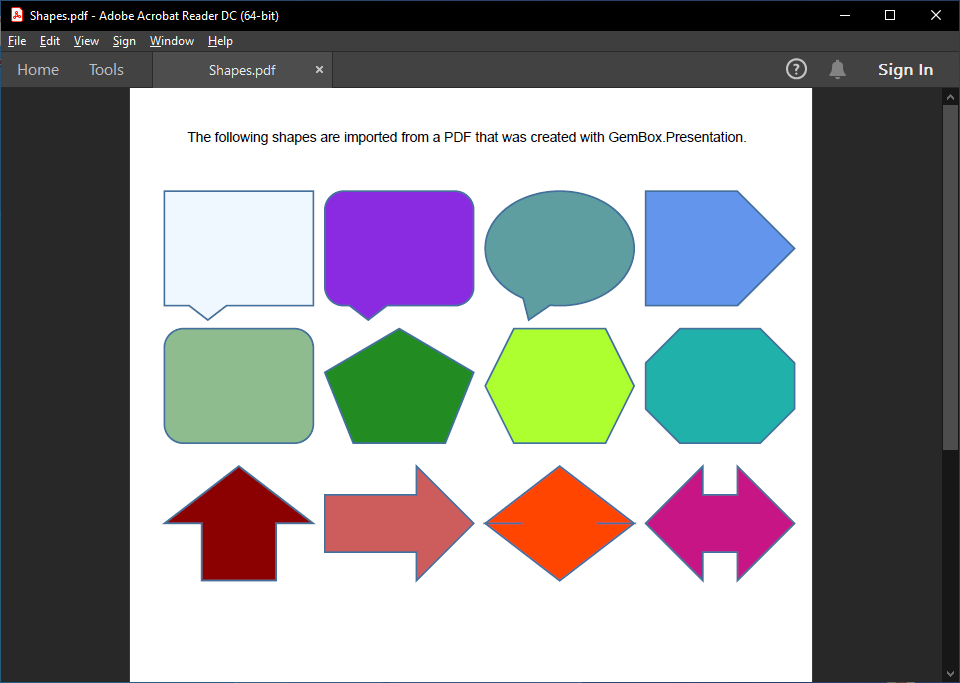
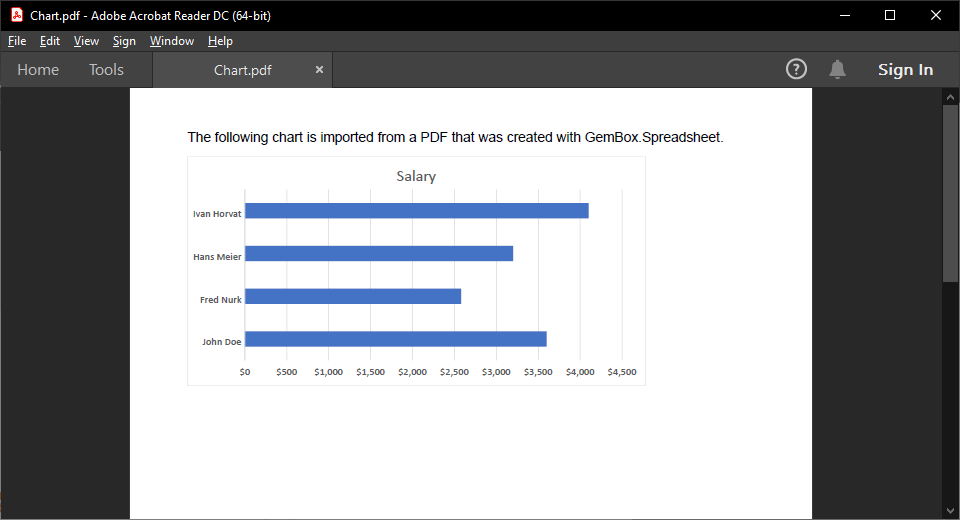
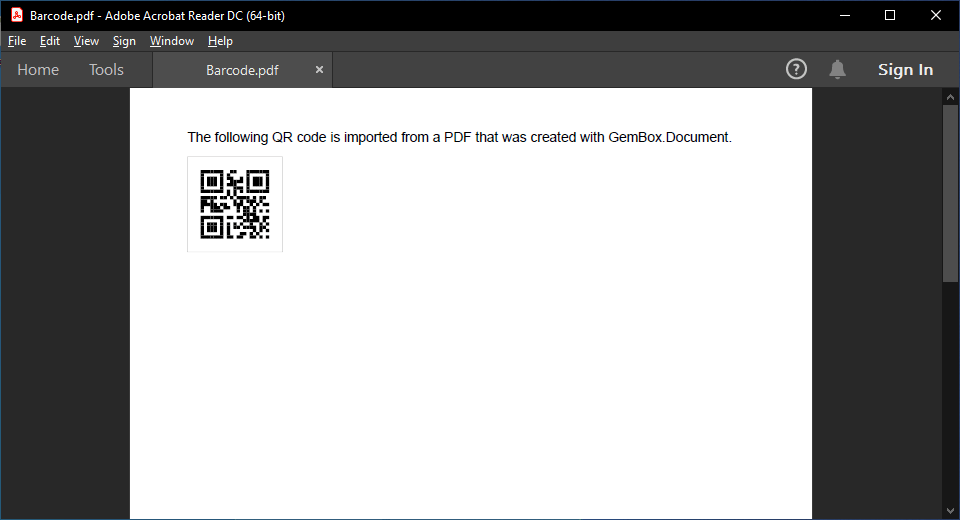
Note that it's necessary to use other components for creating different types of content, as you will see in each particular case. The following example shows how to create a PDF file with a chart using GemBox.Spreadsheet, and then attach that file's content to another PDF with GemBox.Pdf. The following example shows how to create a PDF file with a barcode using GemBox.Document, and then append that file's content to another PDF with GemBox.Pdf. The example below shows how to create a PDF file with a slide containing multiple shapes using GemBox.Presentation, and then append that file's content to another PDF with GemBox.Pdf.Charts
using GemBox.Pdf;
using GemBox.Pdf.Content;
using GemBox.Spreadsheet;
using GemBox.Spreadsheet.Charts;
using System.IO;

class Program
{
    static void Main()
    {
        // If using the Professional version, put your GemBox.Pdf serial key below.
        ComponentInfo.SetLicense("FREE-LIMITED-KEY");

        // If using the Professional version, put your GemBox.Spreadsheet serial key below.
        SpreadsheetInfo.SetLicense("FREE-LIMITED-KEY");

        using (var document = new PdfDocument())
        {
            var page = document.Pages.Add();
            double x = 50;
            double y = page.Size.Height;

            using (var formattedText = new PdfFormattedText())
            {
                formattedText.Append("The following chart is imported from a PDF that was created with GemBox.Spreadsheet.");
                page.Content.DrawText(formattedText, new PdfPoint(x, y - 50));
            }

            // Create chart and save it as PDF stream.
            var chart = CreateChart(400, 200);
            var chartAsPdf = new MemoryStream();
            chart.Format().Save(chartAsPdf, GemBox.Spreadsheet.SaveOptions.PdfDefault);

            // Add chart to PDF page.
            using (var chartDocument = PdfDocument.Load(chartAsPdf))
                document.AppendPage(chartDocument, 0, 0, new PdfPoint(x, y - chart.Position.Height - 60));

            document.Save("Chart.%OutputFileType%");
        }
    }

    static ExcelChart CreateChart(double width, double height)
    {
        var workbook = new ExcelFile();
        var worksheet = workbook.Worksheets.Add("Chart");

        worksheet.Cells["A1"].Value = "Name";
        worksheet.Cells["A2"].Value = "John Doe";
        worksheet.Cells["A3"].Value = "Fred Nurk";
        worksheet.Cells["A4"].Value = "Hans Meier";
        worksheet.Cells["A5"].Value = "Ivan Horvat";

        worksheet.Cells["B1"].Value = "Salary";
        worksheet.Cells["B2"].Value = 3600;
        worksheet.Cells["B3"].Value = 2580;
        worksheet.Cells["B4"].Value = 3200;
        worksheet.Cells["B5"].Value = 4100;

        worksheet.Columns[1].Style.NumberFormat = "\"$\"#,##0";

        var chart = worksheet.Charts.Add(ChartType.Bar,
            new AnchorCell(worksheet.Cells["A1"], true), width, height, LengthUnit.Point);

        chart.SelectData(worksheet.Cells.GetSubrangeAbsolute(0, 0, 4, 1), true);
        return chart;
    }
}

public static class PdfDocumentExtension
{
    public static PdfFormContent AppendPage(this PdfDocument destination, PdfDocument source,
        int sourcePageIndex, int destinationPageIndex, PdfPoint destinationBottomLeft)
    {
        var form = source.Pages[sourcePageIndex].ConvertToForm(destination);
        var group = destination.Pages[destinationPageIndex].Content.Elements.AddGroup();

        var formContent = group.Elements.AddForm(form);
        formContent.Transform = PdfMatrix.CreateTranslation(destinationBottomLeft.X, destinationBottomLeft.Y);
        return formContent;
    }
}
Imports GemBox.Pdf
Imports GemBox.Pdf.Content
Imports GemBox.Spreadsheet
Imports GemBox.Spreadsheet.Charts
Imports System.IO
Imports System.Runtime.CompilerServices

Module Program

    Sub Main()

        ' If using the Professional version, put your GemBox.Pdf serial key below.
        ComponentInfo.SetLicense("FREE-LIMITED-KEY")

        ' If using the Professional version, put your GemBox.Spreadsheet serial key below.
        SpreadsheetInfo.SetLicense("FREE-LIMITED-KEY")

        Using document = New PdfDocument()
            Dim page = document.Pages.Add()
            Dim x As Double = 50
            Dim y As Double = page.Size.Height

            Using formattedText = New PdfFormattedText()
                formattedText.Append("The following chart is imported from a PDF that was created with GemBox.Spreadsheet.")
                page.Content.DrawText(formattedText, New PdfPoint(x, y - 50))
            End Using

            ' Create chart and save it as PDF stream.
            Dim chart = CreateChart(400, 200)
            Dim chartAsPdf As New MemoryStream()
            chart.Format().Save(chartAsPdf, GemBox.Spreadsheet.SaveOptions.PdfDefault)

            ' Add chart to PDF page.
            Using chartDocument = PdfDocument.Load(chartAsPdf)
                document.AppendPage(chartDocument, 0, 0, New PdfPoint(x, y - chart.Position.Height - 60))
            End Using

            document.Save("Chart.%OutputFileType%")
        End Using

    End Sub

    Function CreateChart(width As Double, height As Double) As ExcelChart
        Dim workbook As New ExcelFile()
        Dim worksheet = workbook.Worksheets.Add("Chart")

        worksheet.Cells("A1").Value = "Name"
        worksheet.Cells("A2").Value = "John Doe"
        worksheet.Cells("A3").Value = "Fred Nurk"
        worksheet.Cells("A4").Value = "Hans Meier"
        worksheet.Cells("A5").Value = "Ivan Horvat"

        worksheet.Cells("B1").Value = "Salary"
        worksheet.Cells("B2").Value = 3600
        worksheet.Cells("B3").Value = 2580
        worksheet.Cells("B4").Value = 3200
        worksheet.Cells("B5").Value = 4100

        worksheet.Columns(1).Style.NumberFormat = """$""#,##0"

        Dim chart = worksheet.Charts.Add(ChartType.Bar,
            New AnchorCell(worksheet.Cells("A1"), True), width, height, LengthUnit.Point)

        chart.SelectData(worksheet.Cells.GetSubrangeAbsolute(0, 0, 4, 1), True)
        Return chart
    End Function
End Module

Module PdfDocumentExtension
    <Extension>
    Function AppendPage(destination As PdfDocument, source As PdfDocument,
        sourcePageIndex As Integer, destinationPageIndex As Integer, destinationBottomLeft As PdfPoint) As PdfFormContent

        Dim form = source.Pages(sourcePageIndex).ConvertToForm(destination)
        Dim group = destination.Pages(destinationPageIndex).Content.Elements.AddGroup()

        Dim formContent = group.Elements.AddForm(form)
        formContent.Transform = PdfMatrix.CreateTranslation(destinationBottomLeft.X, destinationBottomLeft.Y)
        Return formContent

    End Function
End Module
Barcodes
using GemBox.Document;
using GemBox.Pdf;
using GemBox.Pdf.Content;
using System.IO;

class Program
{
    static void Main()
    {
        // If using the Professional version, put your GemBox.Pdf serial key below.
        GemBox.Pdf.ComponentInfo.SetLicense("FREE-LIMITED-KEY");

        // If using the Professional version, put your GemBox.Document serial key below.
        GemBox.Document.ComponentInfo.SetLicense("FREE-LIMITED-KEY");

        using (var document = new PdfDocument())
        {
            var page = document.Pages.Add();
            double x = 50;
            double y = page.Size.Height;

            using (var formattedText = new PdfFormattedText())
            {
                formattedText.Append("The following QR code is imported from a PDF that was created with GemBox.Document.");
                page.Content.DrawText(formattedText, new PdfPoint(x, y - 50));
            }

            // Create barcode and save it as PDF stream.
            var barcode = CreateBarcode("1234567890");
            var barcodeAsPdf = new MemoryStream();
            barcode.FormatDrawing().Save(barcodeAsPdf, GemBox.Document.SaveOptions.PdfDefault);

            // Add barcode to PDF page.
            using (var barcodeDocument = PdfDocument.Load(barcodeAsPdf))
                document.AppendPage(barcodeDocument, 0, 0, new PdfPoint(x, y - barcode.Layout.Size.Height - 60));

            document.Save("Barcode.%OutputFileType%");
        }
    }

    static TextBox CreateBarcode(string qrCode)
    {
        var document = new DocumentModel();
        document.DefaultParagraphFormat.SpaceAfter = 0;
        document.DefaultParagraphFormat.LineSpacing = 1;

        var textBox = new TextBox(document, Layout.Inline(0, 0, LengthUnit.Point),
            new Paragraph(document,
                new Field(document, FieldType.DisplayBarcode, $"{qrCode} QR")));

        document.Sections.Add(
            new Section(document,
                new Paragraph(document, textBox)));

        textBox.TextBoxFormat.InternalMargin = new Padding(0);
        textBox.TextBoxFormat.AutoFit = TextAutoFit.ResizeShapeToFitText;
        document.GetPaginator(new PaginatorOptions() { UpdateTextBoxHeights = true });

        double size = textBox.Layout.Size.Height;
        textBox.Layout.Size = new Size(size, size);

        return textBox;
    }
}

public static class PdfDocumentExtension
{
    public static PdfFormContent AppendPage(this PdfDocument destination, PdfDocument source,
        int sourcePageIndex, int destinationPageIndex, PdfPoint destinationBottomLeft)
    {
        var form = source.Pages[sourcePageIndex].ConvertToForm(destination);
        var group = destination.Pages[destinationPageIndex].Content.Elements.AddGroup();

        var formContent = group.Elements.AddForm(form);
        formContent.Transform = PdfMatrix.CreateTranslation(destinationBottomLeft.X, destinationBottomLeft.Y);
        return formContent;
    }
}
Imports GemBox.Document
Imports GemBox.Pdf
Imports GemBox.Pdf.Content
Imports System.IO
Imports System.Runtime.CompilerServices

Module Program

    Sub Main()

        ' If using the Professional version, put your GemBox.Pdf serial key below.
        GemBox.Pdf.ComponentInfo.SetLicense("FREE-LIMITED-KEY")

        ' If using the Professional version, put your GemBox.Document serial key below.
        GemBox.Document.ComponentInfo.SetLicense("FREE-LIMITED-KEY")

        Using document = New PdfDocument()
            Dim page = document.Pages.Add()
            Dim x As Double = 50
            Dim y As Double = page.Size.Height

            Using formattedText = New PdfFormattedText()
                formattedText.Append("The following QR code is imported from a PDF that was created with GemBox.Document.")
                page.Content.DrawText(formattedText, New PdfPoint(x, y - 50))
            End Using

            ' Create barcode and save it as PDF stream.
            Dim barcode = CreateBarcode("1234567890")
            Dim barcodeAsPdf As New MemoryStream()
            barcode.FormatDrawing().Save(barcodeAsPdf, GemBox.Document.SaveOptions.PdfDefault)

            ' Add chart to PDF page.
            Using barcodeDocument = PdfDocument.Load(barcodeAsPdf)
                document.AppendPage(barcodeDocument, 0, 0, New PdfPoint(x, y - barcode.Layout.Size.Height - 60))
            End Using

            document.Save("Barcode.%OutputFileType%")
        End Using

    End Sub

    Function CreateBarcode(qrCode As String) As TextBox
        Dim document As New DocumentModel()
        document.DefaultParagraphFormat.SpaceAfter = 0
        document.DefaultParagraphFormat.LineSpacing = 1

        Dim textBox As New TextBox(document, Layout.Inline(0, 0, GemBox.Document.LengthUnit.Point),
            New Paragraph(document,
                New Field(document, FieldType.DisplayBarcode, $"{qrCode} QR")))

        document.Sections.Add(
            New Section(document,
                New Paragraph(document, textBox)))

        textBox.TextBoxFormat.InternalMargin = New Padding(0)
        textBox.TextBoxFormat.AutoFit = TextAutoFit.ResizeShapeToFitText
        document.GetPaginator(New GemBox.Document.PaginatorOptions() With {.UpdateTextBoxHeights = True})

        Dim size As Double = textBox.Layout.Size.Height
        textBox.Layout.Size = New Size(size, size)

        Return textBox
    End Function
End Module

Module PdfDocumentExtension
    <Extension>
    Function AppendPage(destination As PdfDocument, source As PdfDocument,
        sourcePageIndex As Integer, destinationPageIndex As Integer, destinationBottomLeft As PdfPoint) As PdfFormContent

        Dim form = source.Pages(sourcePageIndex).ConvertToForm(destination)
        Dim group = destination.Pages(destinationPageIndex).Content.Elements.AddGroup()

        Dim formContent = group.Elements.AddForm(form)
        formContent.Transform = PdfMatrix.CreateTranslation(destinationBottomLeft.X, destinationBottomLeft.Y)
        Return formContent

    End Function
End Module
Slides
using GemBox.Pdf;
using GemBox.Pdf.Content;
using GemBox.Presentation;
using System.IO;

class Program
{
    static void Main()
    {
        // If using the Professional version, put your GemBox.Pdf serial key below.
        GemBox.Pdf.ComponentInfo.SetLicense("FREE-LIMITED-KEY");

        // If using the Professional version, put your GemBox.Presentation serial key below.
        GemBox.Presentation.ComponentInfo.SetLicense("FREE-LIMITED-KEY");

        using (var document = new PdfDocument())
        {
            var page = document.Pages.Add();
            double x = 50;
            double y = page.Size.Height;

            using (var formattedText = new PdfFormattedText())
            {
                formattedText.Append("The following shapes are imported from a PDF that was created with GemBox.Presentation.");
                page.Content.DrawText(formattedText, new PdfPoint(x, y - 50));
            }

            // Create shapes and save them as PDF stream.
            var shapes = CreateShapes();
            var shapesAsPdf = new MemoryStream();
            shapes.Save(shapesAsPdf, GemBox.Presentation.SaveOptions.Pdf);

            // Add shapes to PDF page.
            using (var shapesDocument = PdfDocument.Load(shapesAsPdf))
                document.AppendPage(shapesDocument, 0, 0, new PdfPoint(0, y - shapes.SlideSize.Height - 60));

            document.Save("Shapes.%OutputFileType%");
        }
    }

    static PresentationDocument CreateShapes()
    {
        var presentation = new PresentationDocument();
        var slide = presentation.Slides.AddNew(SlideLayoutType.Custom);

        slide.Content.AddShape(ShapeGeometryType.RectangularCallout, 30, 30, 130, 100, LengthUnit.Point).Format.Fill.SetSolid(Color.FromName(ColorName.AliceBlue));
        slide.Content.AddShape(ShapeGeometryType.RoundedRectangularCallout, 170, 30, 130, 100, LengthUnit.Point).Format.Fill.SetSolid(Color.FromName(ColorName.BlueViolet));
        slide.Content.AddShape(ShapeGeometryType.OvalCallout, 310, 30, 130, 100, LengthUnit.Point).Format.Fill.SetSolid(Color.FromName(ColorName.CadetBlue));
        slide.Content.AddShape(ShapeGeometryType.Pentagon, 450, 30, 130, 100, LengthUnit.Point).Format.Fill.SetSolid(Color.FromName(ColorName.CornflowerBlue));

        slide.Content.AddShape(ShapeGeometryType.RoundedRectangle, 30, 150, 130, 100, LengthUnit.Point).Format.Fill.SetSolid(Color.FromName(ColorName.DarkSeaGreen));
        slide.Content.AddShape(ShapeGeometryType.RegularPentagon, 170, 150, 130, 100, LengthUnit.Point).Format.Fill.SetSolid(Color.FromName(ColorName.ForestGreen));
        slide.Content.AddShape(ShapeGeometryType.Hexagon, 310, 150, 130, 100, LengthUnit.Point).Format.Fill.SetSolid(Color.FromName(ColorName.GreenYellow));
        slide.Content.AddShape(ShapeGeometryType.Octagon, 450, 150, 130, 100, LengthUnit.Point).Format.Fill.SetSolid(Color.FromName(ColorName.LightSeaGreen));

        slide.Content.AddShape(ShapeGeometryType.UpArrow, 30, 270, 130, 100, LengthUnit.Point).Format.Fill.SetSolid(Color.FromName(ColorName.DarkRed));
        slide.Content.AddShape(ShapeGeometryType.RightArrow, 170, 270, 130, 100, LengthUnit.Point).Format.Fill.SetSolid(Color.FromName(ColorName.IndianRed));
        slide.Content.AddShape(ShapeGeometryType.UpDownArrow, 310, 270, 130, 100, LengthUnit.Point).Format.Fill.SetSolid(Color.FromName(ColorName.OrangeRed));
        slide.Content.AddShape(ShapeGeometryType.LeftRightArrow, 450, 270, 130, 100, LengthUnit.Point).Format.Fill.SetSolid(Color.FromName(ColorName.MediumVioletRed));

        return presentation;
    }
}

public static class PdfDocumentExtension
{
    public static PdfFormContent AppendPage(this PdfDocument destination, PdfDocument source,
        int sourcePageIndex, int destinationPageIndex, PdfPoint destinationBottomLeft)
    {
        var form = source.Pages[sourcePageIndex].ConvertToForm(destination);
        var group = destination.Pages[destinationPageIndex].Content.Elements.AddGroup();

        var formContent = group.Elements.AddForm(form);
        formContent.Transform = PdfMatrix.CreateTranslation(destinationBottomLeft.X, destinationBottomLeft.Y);
        return formContent;
    }
}
Imports GemBox.Pdf
Imports GemBox.Pdf.Content
Imports GemBox.Presentation
Imports System.IO
Imports System.Runtime.CompilerServices

Module Program

    Sub Main()

        ' If using the Professional version, put your GemBox.Pdf serial key below.
        GemBox.Pdf.ComponentInfo.SetLicense("FREE-LIMITED-KEY")

        ' If using the Professional version, put your GemBox.Presentation serial key below.
        GemBox.Presentation.ComponentInfo.SetLicense("FREE-LIMITED-KEY")

        Using document = New PdfDocument()
            Dim page = document.Pages.Add()
            Dim x As Double = 50
            Dim y As Double = page.Size.Height

            Using formattedText = New PdfFormattedText()
                formattedText.Append("The following shapes are imported from a PDF that was created with GemBox.Presentation.")
                page.Content.DrawText(formattedText, New PdfPoint(x, y - 50))
            End Using

            ' Create shapes and save them as PDF stream.
            Dim shapes = CreateShapes()
            Dim shapesAsPdf As New MemoryStream()
            shapes.Save(shapesAsPdf, GemBox.Presentation.SaveOptions.Pdf)

            ' Add shapes to PDF page.
            Using shapesDocument = PdfDocument.Load(shapesAsPdf)
                Dim slideHeight As Double = shapes.SlideSize.Height
                document.AppendPage(shapesDocument, 0, 0, New PdfPoint(0, y - slideHeight - 60))
            End Using

            document.Save("Shapes.%OutputFileType%")
        End Using

    End Sub

    Function CreateShapes() As PresentationDocument
        Dim presentation As New PresentationDocument()
        Dim slide = presentation.Slides.AddNew(SlideLayoutType.Custom)

        slide.Content.AddShape(ShapeGeometryType.RectangularCallout, 30, 30, 130, 100, LengthUnit.Point).Format.Fill.SetSolid(Color.FromName(ColorName.AliceBlue))
        slide.Content.AddShape(ShapeGeometryType.RoundedRectangularCallout, 170, 30, 130, 100, LengthUnit.Point).Format.Fill.SetSolid(Color.FromName(ColorName.BlueViolet))
        slide.Content.AddShape(ShapeGeometryType.OvalCallout, 310, 30, 130, 100, LengthUnit.Point).Format.Fill.SetSolid(Color.FromName(ColorName.CadetBlue))
        slide.Content.AddShape(ShapeGeometryType.CloudCallout, 450, 30, 130, 100, LengthUnit.Point).Format.Fill.SetSolid(Color.FromName(ColorName.CornflowerBlue))

        slide.Content.AddShape(ShapeGeometryType.ActionButtonEnd, 30, 150, 130, 100, LengthUnit.Point).Format.Fill.SetSolid(Color.FromName(ColorName.DarkSeaGreen))
        slide.Content.AddShape(ShapeGeometryType.ActionButtonForwardOrNext, 170, 150, 130, 100, LengthUnit.Point).Format.Fill.SetSolid(Color.FromName(ColorName.ForestGreen))
        slide.Content.AddShape(ShapeGeometryType.ActionButtonHelp, 310, 150, 130, 100, LengthUnit.Point).Format.Fill.SetSolid(Color.FromName(ColorName.GreenYellow))
        slide.Content.AddShape(ShapeGeometryType.ActionButtonHome, 450, 150, 130, 100, LengthUnit.Point).Format.Fill.SetSolid(Color.FromName(ColorName.LightSeaGreen))

        slide.Content.AddShape(ShapeGeometryType.UpArrow, 30, 270, 130, 100, LengthUnit.Point).Format.Fill.SetSolid(Color.FromName(ColorName.DarkRed))
        slide.Content.AddShape(ShapeGeometryType.UpArrowCallout, 170, 270, 130, 100, LengthUnit.Point).Format.Fill.SetSolid(Color.FromName(ColorName.IndianRed))
        slide.Content.AddShape(ShapeGeometryType.UpDownArrow, 310, 270, 130, 100, LengthUnit.Point).Format.Fill.SetSolid(Color.FromName(ColorName.OrangeRed))
        slide.Content.AddShape(ShapeGeometryType.UpDownArrowCallout, 450, 270, 130, 100, LengthUnit.Point).Format.Fill.SetSolid(Color.FromName(ColorName.MediumVioletRed))

        Return presentation
    End Function
End Module

Module PdfDocumentExtension
    <Extension>
    Function AppendPage(destination As PdfDocument, source As PdfDocument,
        sourcePageIndex As Integer, destinationPageIndex As Integer, destinationBottomLeft As PdfPoint) As PdfFormContent

        Dim form = source.Pages(sourcePageIndex).ConvertToForm(destination)
        Dim group = destination.Pages(destinationPageIndex).Content.Elements.AddGroup()

        Dim formContent = group.Elements.AddForm(form)
        formContent.Transform = PdfMatrix.CreateTranslation(destinationBottomLeft.X, destinationBottomLeft.Y)
        Return formContent

    End Function
End Module