Save emails in C# and VB.NET
The following example demonstrates how to create an email message and save it to EML, MSG, or MHTML format by using the GemBox.Email library in C# or VB.NET code.
using GemBox.Email;

// If using the Professional version, put your serial key below.
ComponentInfo.SetLicense("FREE-LIMITED-KEY");

// Create new message.
MailMessage message = new MailMessage(
    new MailAddress("sender@example.com", "Sender"),
    new MailAddress("receiver@example.com", "Receiver"));

// Add subject and body.
message.Subject = "Save Example by GemBox.Email";
message.BodyText = "Hi 👋,\n" +
    "This message was created and saved with GemBox.Email.\n" +
    "Read more about it on https://www.gemboxsoftware.com/email";

// Save message to email file.
message.Save("Save.eml");
Imports GemBox.Email
Module Program
Sub Main()
' If using the Professional version, put your serial key below.
ComponentInfo.SetLicense("FREE-LIMITED-KEY")
' Create new message.
Dim message As New MailMessage(
New MailAddress("sender@example.com", "Sender"),
New MailAddress("receiver@example.com", "Receiver"))
' Add subject and body.
message.Subject = "Save Example by GemBox.Email"
message.BodyText = "Hi 👋," & vbLf &
"This message was created and saved with GemBox.Email." & vbLf &
"Read more about it on https://www.gemboxsoftware.com/email"
' Save message to email file.
message.Save("Save.eml")
End Sub
End ModuleOutput
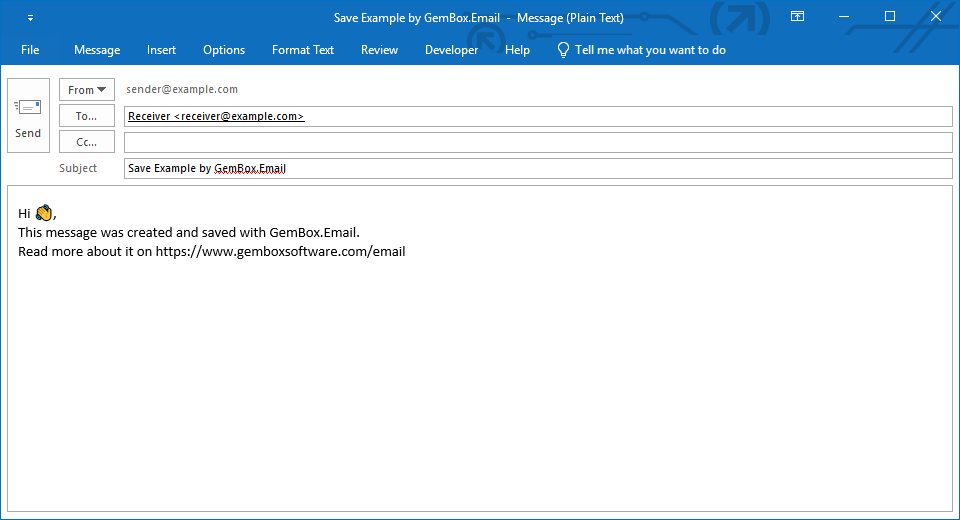
When using the MailMessage.Save(String) method, GemBox.Email will select the required MailMessageFormat based on the file's extension. So, for a file named Example.msg, it will use MailMessageFormat.Msg and for a file named Example.eml, it will use MailMessageFormat.Eml.
Also, note that you can save an email attachment to a file or a stream using the Attachment.Save methods.
Save multiple email attachments to a ZIP archive
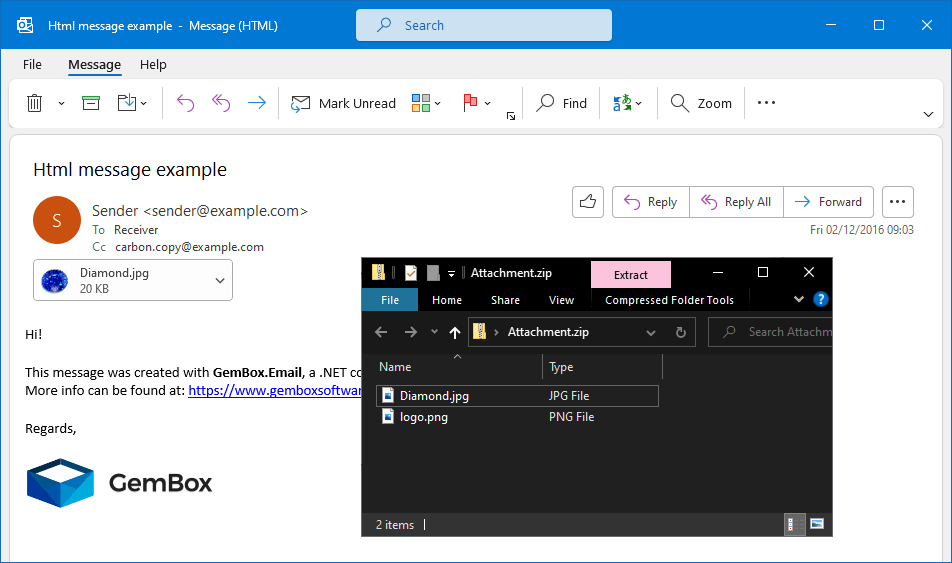
These next C# and VB.NET examples show how you can save all attachments from an email message into a ZIP file.
using GemBox.Email;
using System.IO;
using System.IO.Compression;

// If using the Professional version, put your serial key below.
ComponentInfo.SetLicense("FREE-LIMITED-KEY");

var message = MailMessage.Load("Attachment.eml");
string zipName = Path.ChangeExtension("Attachment.eml", ".zip");

using (var archiveStream = File.OpenWrite(zipName))
using (var archive = new ZipArchive(archiveStream, ZipArchiveMode.Create))
{
    foreach (var attachment in message.Attachments)
    {
        string attachmentName = attachment.FileName ?? Path.GetRandomFileName();
        var entry = archive.CreateEntry(attachmentName);

        using (var entryStream = entry.Open())
            attachment.Save(entryStream);
    }
}
Imports GemBox.Email
Imports System.IO
Imports System.IO.Compression
Module Program
Sub Main()
' If using the Professional version, put your serial key below.
ComponentInfo.SetLicense("FREE-LIMITED-KEY")
Dim message = MailMessage.Load("Attachment.eml")
Dim zipName As String = Path.ChangeExtension("Attachment.eml", ".zip")
Using archiveStream = File.OpenWrite(zipName)
Using archive = New ZipArchive(archiveStream, ZipArchiveMode.Create)
For Each attachment In message.Attachments
Dim attachmentName As String = If(attachment.FileName, Path.GetRandomFileName())
Dim entry = archive.CreateEntry(attachmentName)
Using entryStream = entry.Open()
attachment.Save(entryStream)
End Using
Next
End Using
End Using
End Sub
End ModuleOutput
If you need to work with MBOX files, please check our MBOX message collection example.