Add Headers and Footers in Word documents in C# and VB.NET
This article shows how to create and work with headers and footers with C# and VB.NET, using the GemBox.Document library. Headers and footers are represented with HeaderFooter elements that are defined per Section element, whose content can occupy one or more pages.
Table of contents:
Basic header and footer example
The following example shows how you can add a header with text and a footer with a page number to a Word document in C# and VB.NET.
using GemBox.Document;

// If using the Professional version, put your serial key below.
ComponentInfo.SetLicense("FREE-LIMITED-KEY");

var document = new DocumentModel();
document.DefaultCharacterFormat.Size = 48;

var section = new Section(document);
document.Sections.Add(section);

// Body content that spans two pages.
section.Blocks.Add(new Paragraph(document, "First page body."));
section.Blocks.Add(new Paragraph(document, new SpecialCharacter(document, SpecialCharacterType.PageBreak)));
section.Blocks.Add(new Paragraph(document, "Second page body."));

// A header shown at the top of every page.
section.HeadersFooters.Add(
    new HeaderFooter(document, HeaderFooterType.HeaderDefault,
        new Paragraph(document, "GemBox.Document")));

// A footer shown at the bottom of every page, with a page number.
section.HeadersFooters.Add(
    new HeaderFooter(document, HeaderFooterType.FooterDefault,
        new Paragraph(document,
            new Run(document, "Page "),
            new Field(document, FieldType.Page))
        {
            ParagraphFormat = { Alignment = HorizontalAlignment.Center }
        }));

document.Save("Headers and Footers.docx");
Imports GemBox.Document
Module Program
Sub Main()
' If using the Professional version, put your serial key below.
ComponentInfo.SetLicense("FREE-LIMITED-KEY")
Dim document As New DocumentModel()
document.DefaultCharacterFormat.Size = 48
Dim section As New Section(document)
document.Sections.Add(section)
' Body content that spans two pages.
section.Blocks.Add(New Paragraph(document, "First page body."))
section.Blocks.Add(New Paragraph(document, New SpecialCharacter(document, SpecialCharacterType.PageBreak)))
section.Blocks.Add(New Paragraph(document, "Second page body."))
' A header shown at the top of every page.
section.HeadersFooters.Add(
New HeaderFooter(document, HeaderFooterType.HeaderDefault,
New Paragraph(document, "GemBox.Document")))
' A footer shown at the bottom of every page, with a page number.
section.HeadersFooters.Add(
New HeaderFooter(document, HeaderFooterType.FooterDefault,
New Paragraph(document,
New Run(document, "Page "),
New Field(document, FieldType.Page)) With {
.ParagraphFormat = New ParagraphFormat() With {.Alignment = HorizontalAlignment.Center}
}))
document.Save("Headers and Footers.docx")
End Sub
End Module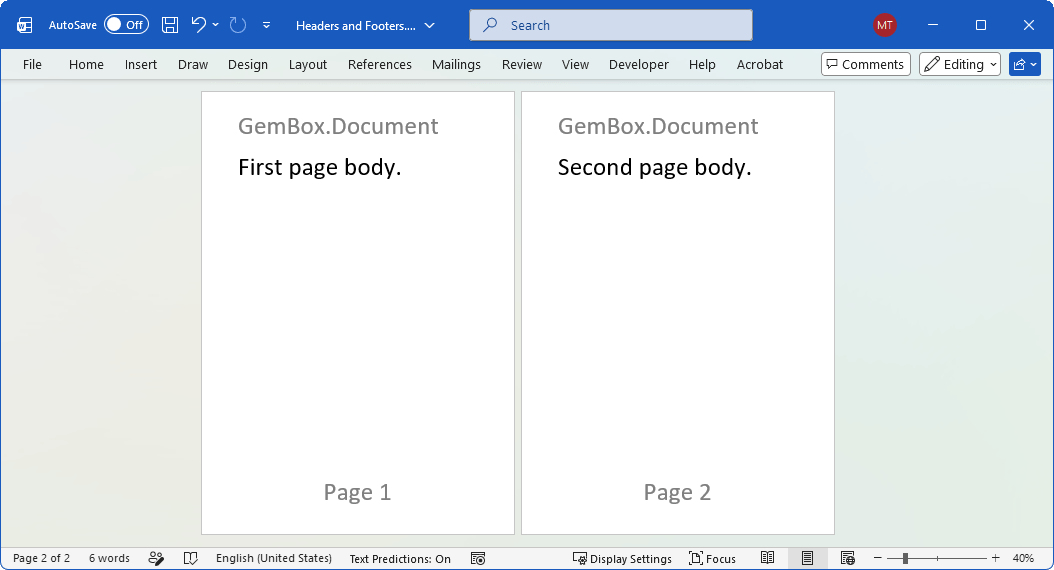
Different headers and footers for specific pages
Within a section there are exactly six header and footer types, one header and one footer for each of three page roles: default, first page, and even pages. There is no explicit "odd" type - the default header and footer are what odd pages get.
In Word you would tick "Different First Page" or "Different Odd & Even Pages" to turn these on. In GemBox.Document there is no such switch: you enable a mode simply by creating a HeaderFooter instance with a specific HeaderFooterType and adding it to the Section.HeadersFooters collection.
HeaderFooterType | Renders on | If the type is absent |
|---|---|---|
HeaderDefault / FooterDefault | every page | the page has an empty header / footer |
HeaderFirst / FooterFirst | the first page of the section | the first page falls back to the default |
HeaderEven / FooterEven | even pages of the section | even pages fall back to the default |
// A distinct header for the first (cover) page.
section.HeadersFooters.Add(
    new HeaderFooter(document, HeaderFooterType.HeaderFirst,
        new Paragraph(document, "Cover page")));

// The default header is used on the odd (and all remaining) pages.
section.HeadersFooters.Add(
    new HeaderFooter(document, HeaderFooterType.HeaderDefault,
        new Paragraph(document, "Odd page header")));

// Adding an even header turns on different odd and even pages.
section.HeadersFooters.Add(
    new HeaderFooter(document, HeaderFooterType.HeaderEven,
        new Paragraph(document, "Even page header")));
' A distinct header for the first (cover) page.
section.HeadersFooters.Add(
New HeaderFooter(document, HeaderFooterType.HeaderFirst,
New Paragraph(document, "Cover page")))
' The default header is used on the odd (and all remaining) pages.
section.HeadersFooters.Add(
New HeaderFooter(document, HeaderFooterType.HeaderDefault,
New Paragraph(document, "Odd page header")))
' Adding an even header turns on different odd and even pages.
section.HeadersFooters.Add(
New HeaderFooter(document, HeaderFooterType.HeaderEven,
New Paragraph(document, "Even page header")))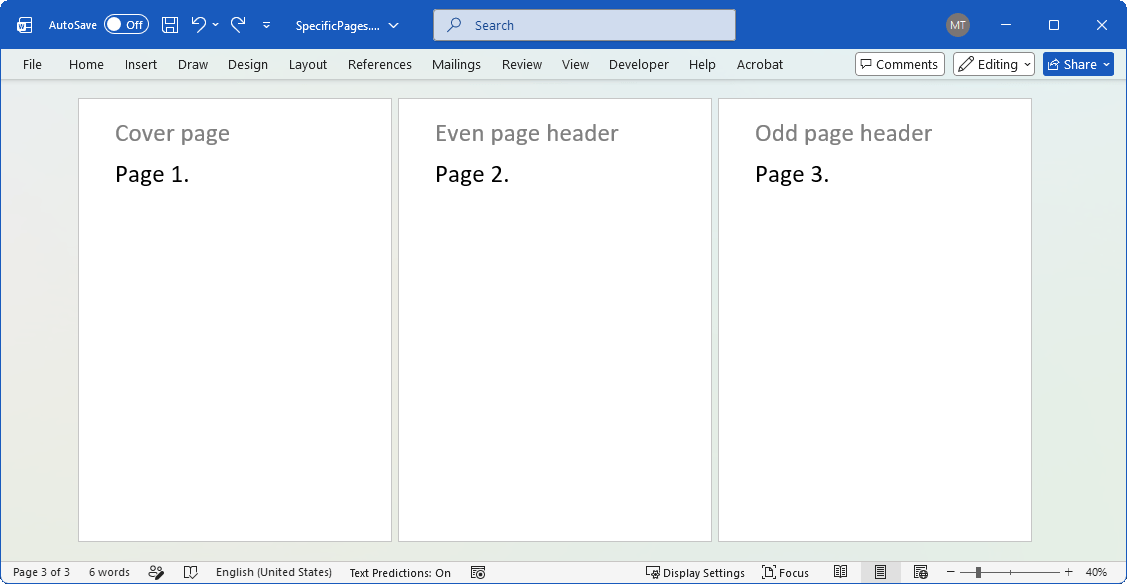
Page numbers in the footer
A page number is represented in the document by a Field element. Use FieldType.Page for the current page, and combine it with FieldType.NumPages for the "Page X of Y" pattern.
To control the first number, set PageSetup.PageStartingNumber on the section. If you omit it, numbering continues from the previous section. Note that FieldType.NumPages is the document's total page count and does not take the starting number into account; for a per-section total use FieldType.SectionPages instead.
// "Page X of Y" in the footer, right-aligned.
section.HeadersFooters.Add(
    new HeaderFooter(document, HeaderFooterType.FooterDefault,
        new Paragraph(document,
            new Run(document, "Page "),
            new Field(document, FieldType.Page),
            new Run(document, " of "),
            new Field(document, FieldType.NumPages))
        {
            ParagraphFormat = { Alignment = HorizontalAlignment.Right }
        }));

// Start the section's page numbering at a specific value.
section.PageSetup.PageStartingNumber = 1;
' "Page X of Y" in the footer, right-aligned.
section.HeadersFooters.Add(
New HeaderFooter(document, HeaderFooterType.FooterDefault,
New Paragraph(document,
New Run(document, "Page "),
New Field(document, FieldType.Page),
New Run(document, " of "),
New Field(document, FieldType.NumPages)) With {
.ParagraphFormat = New ParagraphFormat() With {.Alignment = HorizontalAlignment.Right}
}))
' Start the section's page numbering at a specific value.
section.PageSetup.PageStartingNumber = 1
Add an image or logo to a header
To put a logo in the header, add an inline Picture to a header paragraph.
var logo = new Picture(document, "logo.png");
logo.Layout = new InlineLayout(new Size(55, 40, LengthUnit.Point));

section.HeadersFooters.Add(
    new HeaderFooter(document, HeaderFooterType.HeaderDefault,
        new Paragraph(document, logo)));
Dim logo As New Picture(document, "logo.png")
logo.Layout = New InlineLayout(New Size(55, 40, LengthUnit.Point))
section.HeadersFooters.Add(
New HeaderFooter(document, HeaderFooterType.HeaderDefault,
New Paragraph(document, logo)))
Left, center, and right header content
A header often has three zones - for example a company logo on the left, the company name in the center, and the date on the right. The most reliable way to get them is a borderless Table with one row and three cells.
// A borderless 1x3 table gives left, center, and right zones in the header.
var table = new Table(document, 1, 3);
table.TableFormat.PreferredWidth = new TableWidth(100, TableWidthUnit.Percentage);
table.TableFormat.Borders.SetBorders(MultipleBorderTypes.All, BorderStyle.None, Color.Black, 0);

var cells = table.Rows[0].Cells;

// Same width for every cell.
cells[0].CellFormat.PreferredWidth = new TableWidth(33.3, TableWidthUnit.Percentage);
cells[1].CellFormat.PreferredWidth = new TableWidth(33.3, TableWidthUnit.Percentage);
cells[2].CellFormat.PreferredWidth = new TableWidth(33.3, TableWidthUnit.Percentage);

// Left: the company logo.
var logo = new Picture(document, "logo.png");
logo.Layout = new InlineLayout(new Size(55, 40, LengthUnit.Point));
cells[0].Blocks.Add(new Paragraph(document, logo)
{
    ParagraphFormat = { Alignment = HorizontalAlignment.Left }
});

// Center: the company name.
cells[1].Blocks.Add(new Paragraph(document, "GemBox")
{
    ParagraphFormat = { Alignment = HorizontalAlignment.Center }
});

// Right: the current date.
cells[2].Blocks.Add(new Paragraph(document, new Field(document, FieldType.Date))
{
    ParagraphFormat = { Alignment = HorizontalAlignment.Right }
});

section.HeadersFooters.Add( new HeaderFooter(document, HeaderFooterType.HeaderDefault, table));
' A borderless 1x3 table gives left, center, and right zones in the header.
Dim table As New Table(document, 1, 3)
table.TableFormat.PreferredWidth = New TableWidth(100, TableWidthUnit.Percentage)
table.TableFormat.Borders.SetBorders(MultipleBorderTypes.All, BorderStyle.None, Color.Black, 0)
Dim cells = table.Rows(0).Cells
' Same width for every cell.
cells(0).CellFormat.PreferredWidth = New TableWidth(33.3, TableWidthUnit.Percentage)
cells(1).CellFormat.PreferredWidth = New TableWidth(33.3, TableWidthUnit.Percentage)
cells(2).CellFormat.PreferredWidth = New TableWidth(33.3, TableWidthUnit.Percentage)
' Left: the company logo.
Dim logo As New Picture(document, "logo.png")
logo.Layout = New InlineLayout(New Size(55, 40, LengthUnit.Point))
cells(0).Blocks.Add(New Paragraph(document, logo) With {
.ParagraphFormat = New ParagraphFormat() With {.Alignment = HorizontalAlignment.Left}
})
' Center: the company name.
cells(1).Blocks.Add(New Paragraph(document, "GemBox") With {
.ParagraphFormat = New ParagraphFormat() With {.Alignment = HorizontalAlignment.Center}
})
' Right: the current date.
cells(2).Blocks.Add(New Paragraph(document, New Field(document, FieldType.Date)) With {
.ParagraphFormat = New ParagraphFormat() With {.Alignment = HorizontalAlignment.Right}
})
section.HeadersFooters.Add( New HeaderFooter(document, HeaderFooterType.HeaderDefault, table))
Edit headers and footers in an existing document
You can use the HeaderFooterCollection of a section to get headers and footers from an existing document. To edit a header or a footer, you can then append content to its Blocks, as shown in the following code snippet:
var section = document.Sections[0];

// Get the existing footer or create it if doesn't exist. Then append a paragraph.
var footer = section.HeadersFooters.GetOrAdd(HeaderFooterType.FooterDefault);
footer.Blocks.Add(new Paragraph(document, "Approved for release."));
Dim section = document.Sections(0)
' Get the existing footer or create it if doesn't exist. Then append a paragraph.
Dim footer = section.HeadersFooters.GetOrAdd(HeaderFooterType.FooterDefault)
footer.Blocks.Add(New Paragraph(document, "Approved for release."))Reading existing content works the same way - inspect the header you get back from the collection. For example, you can enumerate its runs to read the text:
// Read the text of the existing default header.
var header = document.Sections[0].HeadersFooters[HeaderFooterType.HeaderDefault];
if (header != null)
    foreach (var run in header.GetChildElements(true, ElementType.Run).Cast<Run>())
        Console.WriteLine(run.Text);
' Read the text of the existing default header.
Dim header = document.Sections(0).HeadersFooters(HeaderFooterType.HeaderDefault)
If header IsNot Nothing Then
For Each run As Run In header.GetChildElements(True, ElementType.Run)
Console.WriteLine(run.Text)
Next
End IfHeaders and footers across multiple sections
Because headers and footers belong to a section, a document with several sections can have several different headers. A freshly created section starts out independent, with its own (empty) headers and footers. To make a section reuse the previous section's header or footer instead, call HeaderFooterCollection.SetLinkedToPrevious for that type.
var document = new DocumentModel();

var section1 = new Section(document, new Paragraph(document, "First section"));
var section2 = new Section(document, new Paragraph(document, "Second section"));
document.Sections.Add(section1);
document.Sections.Add(section2);

// Define a header in the first section.
section1.HeadersFooters.Add(
    new HeaderFooter(document, HeaderFooterType.HeaderDefault,
        new Paragraph(document, "Shared header")));

// The second section reuses the first section's header instead of its own.
section2.HeadersFooters.SetLinkedToPrevious(HeaderFooterType.HeaderDefault, true);

// For a linked header, the indexer returns the header inherited from the previous section.
var header = section2.HeadersFooters[HeaderFooterType.HeaderDefault];
Dim document As New DocumentModel()
Dim section1 As New Section(document, New Paragraph(document, "First section"))
Dim section2 As New Section(document, New Paragraph(document, "Second section"))
document.Sections.Add(section1)
document.Sections.Add(section2)
' Define a header in the first section.
section1.HeadersFooters.Add(
New HeaderFooter(document, HeaderFooterType.HeaderDefault,
New Paragraph(document, "Shared header")))
' The second section reuses the first section's header instead of its own.
section2.HeadersFooters.SetLinkedToPrevious(HeaderFooterType.HeaderDefault, True)
' For a linked header, the indexer returns the header inherited from the previous section.
Dim header = section2.HeadersFooters(HeaderFooterType.HeaderDefault)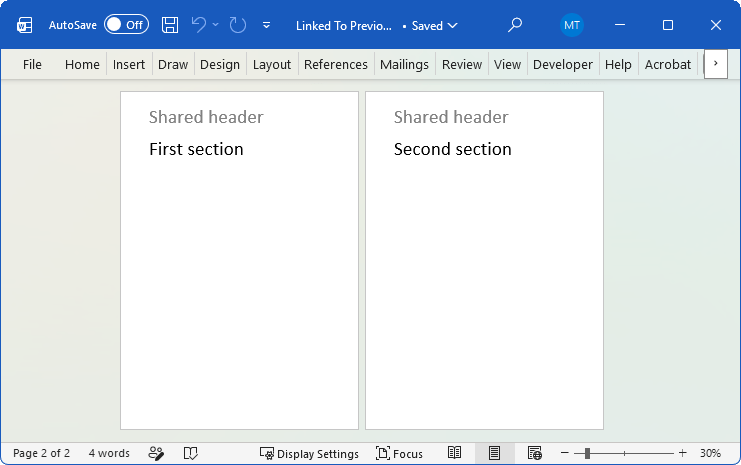
Header and footer distance from the page edge
You can change the distance between the header and the top edge, and the distance between the footer and the bottom edge, via the section's PageMargins.
var pageMargins = section.PageSetup.PageMargins;

// Distance from the top edge to the header and from the bottom edge to the footer.
pageMargins.Header = 20;
pageMargins.Footer = 20;
Dim pageMargins = section.PageSetup.PageMargins
' Distance from the top edge to the header and from the bottom edge to the footer.
pageMargins.Header = 20
pageMargins.Footer = 20Frequently asked questions
How do I keep the same header and footer across all sections?
How do I copy a header or footer from one document to another?
How do I add a page number to a document's footer?
Add a Field of type FieldType.Page to a footer paragraph in each section of the document.
// Iterate over all sections in the document.
foreach (var section in document.Sections)
{
    // Get or create default footer.
    var footer = section.HeadersFooters.GetOrAdd(HeaderFooterType.FooterDefault);

    // Append a paragraph with a page number.
    footer.Blocks.Add(new Paragraph(document, new Field(document, FieldType.Page)));

    // Optionally edit other HeaderFooterTypes of the section.
}
' Iterate over all sections in the document.
For Each section In document.Sections
' Get or create default footer.
Dim footer = section.HeadersFooters.GetOrAdd(HeaderFooterType.FooterDefault)
' Append a paragraph with a page number.
footer.Blocks.Add(New Paragraph(document, New Field(document, FieldType.Page)))
' Optionally edit other HeaderFooterTypes of the section.
NextHow do I start page numbering at a specific number?
Set PageSetup.PageStartingNumber on the section.
section.PageSetup.PageStartingNumber = 3;section.PageSetup.PageStartingNumber = 3How do I keep the same header and footer across all sections?
There are headers and footers per section, not per document, so a multi-section document does not share them automatically. Either define the header in each section, or link each later section to the previous one with SetLinkedToPrevious, as shown in the multiple sections section.
How do I put header/footer content on the last page only?
Word has no "last page" header or footer type. The way to do it is to move the last page into its own Section and give that section its own footer.
// Word has no "last page" footer, so put the last page in its own section and give that section its own footer.
var lastSection = new Section(document, new Paragraph(document, "Last page"));
document.Sections.Add(lastSection);

lastSection.HeadersFooters.Add(
    new HeaderFooter(document, HeaderFooterType.FooterDefault,
        new Paragraph(document, "End of document")));
' Word has no "last page" footer, so put the last page in its own section and give that section its own footer.
Dim lastSection As New Section(document, New Paragraph(document, "Last page"))
document.Sections.Add(lastSection)
lastSection.HeadersFooters.Add(
New HeaderFooter(document, HeaderFooterType.FooterDefault,
New Paragraph(document, "End of document")))If you have an existing document and you don't know which elements belong to the last page, you can find the start of the last page using the page extraction example.
How do I remove a header or footer?
Get the header or footer from the section's collection and remove it. Note that an empty header is not the same as no header - removing it is what brings back the default.
var footer = section.HeadersFooters[HeaderFooterType.FooterEven];
if (footer != null)
    section.HeadersFooters.Remove(footer);
Dim footer = section.HeadersFooters(HeaderFooterType.FooterEven)
If footer IsNot Nothing Then
section.HeadersFooters.Remove(footer)
End IfHow do I add a horizontal line under the header?
Set a bottom border on the header paragraph.
// Draw a rule under the header using the header paragraph's bottom border.
var headerParagraph = new Paragraph(document, "Header with a bottom line");
headerParagraph.ParagraphFormat.Borders.SetBorders(
    MultipleBorderTypes.Bottom, BorderStyle.Single, Color.Black, 1);

section.HeadersFooters.Add(new HeaderFooter(document, HeaderFooterType.HeaderDefault, headerParagraph));
' Draw a rule under the header using the header paragraph's bottom border.
Dim headerParagraph As New Paragraph(document, "Header with a bottom line")
headerParagraph.ParagraphFormat.Borders.SetBorders(
MultipleBorderTypes.Bottom, BorderStyle.Single, Color.Black, 1)
section.HeadersFooters.Add(New HeaderFooter(document, HeaderFooterType.HeaderDefault, headerParagraph))
Can I use merge fields in headers and footers?
Yes. Merge fields work in headers and footers just as they do in the body. For the full mechanism, see the mail merge example.
How do I copy a header or footer from one document to another?
Read the source header or footer from its section, import it into the destination document with DocumentModel.Import, and add the imported element to the destination section's collection.
var source = DocumentModel.Load("source.docx");
var sourceHeader = source.Sections[0].HeadersFooters[HeaderFooterType.HeaderDefault];

// Import the header into the destination document, then add it.
var header = document.Import(sourceHeader, true);
document.Sections[0].HeadersFooters.Add(header);
Dim source = DocumentModel.Load("source.docx")
Dim sourceHeader = source.Sections(0).HeadersFooters(HeaderFooterType.HeaderDefault)
' Import the header into the destination document, then add it.
Dim header = document.Import(sourceHeader, True)
document.Sections(0).HeadersFooters.Add(header)Can I build a header or footer from an HTML string?
Yes. Get or create the header, then load HTML into its Content with ContentRange.LoadText.
var header = section.HeadersFooters.GetOrAdd(HeaderFooterType.HeaderDefault);
header.Content.LoadText(
    "<p style='text-align:center'><strong>Sample header</strong></p>",
    new HtmlLoadOptions());
Dim header = section.HeadersFooters.GetOrAdd(HeaderFooterType.HeaderDefault)
header.Content.LoadText(
"<p style='text-align:center'><strong>Sample header</strong></p>",
New HtmlLoadOptions())