Create a table in Word (DOCX) using C# and VB.NET
The following example shows how you can create and populate a table in a Word document using the GemBox.Document API in C# and VB.NET.
using GemBox.Document;
using GemBox.Document.Tables;

class Program
{
    static void Main()
    {
        // If using the Professional version, put your serial key below.
        ComponentInfo.SetLicense("FREE-LIMITED-KEY");

        int rowCount = %RowCount%;
        int columnCount = %ColumnCount%;

        var document = new DocumentModel();

        var section = new Section(document);
        document.Sections.Add(section);

        // Create a table with 100% width.
        var table = new Table(document);
        table.TableFormat.PreferredWidth = new TableWidth(100, TableWidthUnit.Percentage);
        section.Blocks.Add(table);

        for (int r = 0; r < rowCount; r++)
        {
            // Create a row and add it to table.
            var row = new TableRow(document);
            table.Rows.Add(row);

            for (int c = 0; c < columnCount; c++)
            {
                // Create a cell and add it to row.
                var cell = new TableCell(document);
                row.Cells.Add(cell);

                // Create a paragraph and add it to cell.
                var paragraph = new Paragraph(document, $"Cell ({r + 1},{c + 1})");
                cell.Blocks.Add(paragraph);
            }
        }

        document.Save("Simple Table.%OutputFileType%");
    }
}
Imports GemBox.Document
Imports GemBox.Document.Tables

Module Program

    Sub Main()

        ' If using the Professional version, put your serial key below.
        ComponentInfo.SetLicense("FREE-LIMITED-KEY")

        Dim rowCount As Integer = %RowCount%
        Dim columnCount As Integer = %ColumnCount%

        Dim document As New DocumentModel()

        Dim section As New Section(document)
        document.Sections.Add(section)

        ' Create a table with 100% width.
        Dim table As New Table(document)
        table.TableFormat.PreferredWidth = New TableWidth(100, TableWidthUnit.Percentage)
        section.Blocks.Add(table)

        For r As Integer = 0 To rowCount - 1

            ' Create a row and add it to table.
            Dim row As New TableRow(document)
            table.Rows.Add(row)

            For c As Integer = 0 To columnCount - 1

                ' Create a cell and add it to row.
                Dim cell As New TableCell(document)
                row.Cells.Add(cell)

                ' Create a paragraph and add it to cell.
                Dim paragraph As New Paragraph(document, $"Cell ({r + 1},{c + 1})")
                cell.Blocks.Add(paragraph)

            Next

        Next

        document.Save("Simple Table.%OutputFileType%")

    End Sub
End Module
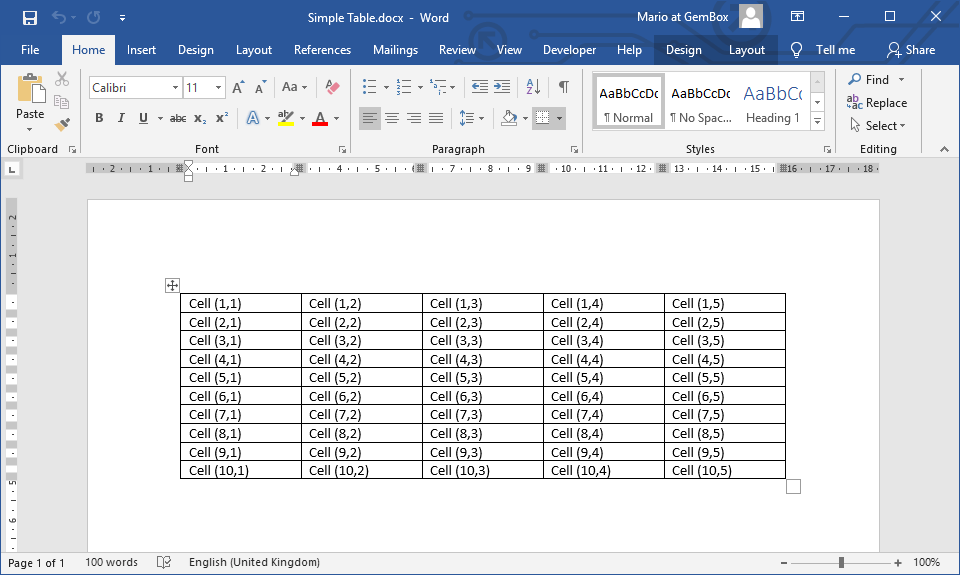
A Table is a Word document element used to arrange and display large amounts of data. It's composed of TableRow, TableColumn, and TableCell elements.
GemBox.Document also supports nested tables. You can create one by adding a new table into a cell's TableCell.Blocks collection.
Another way of creating a table with GemBox.Document is by using the Table constructor that takes a CreateTableCell delegate. This allows you to generate a table in a Word document from System.Data.DataTable, as demonstrated below.
using GemBox.Document;
using GemBox.Document.Tables;
using System.Data;
using System.Linq;

class Program
{
    static void Main()
    {
        // If using the Professional version, put your serial key below.
        ComponentInfo.SetLicense("FREE-LIMITED-KEY");

        int rowCount = %RowCount%;
        int columnCount = %ColumnCount%;

        // Create DataTable with some sample data.
        var dataTable = new DataTable();
        for (int c = 0; c < columnCount; c++)
            dataTable.Columns.Add($"Column {c + 1}");
        for (int r = 0; r < rowCount; r++)
            dataTable.Rows.Add(Enumerable.Range(0, columnCount).Select(c => $"Cell ({r + 1},{c + 1})").ToArray());

        // Create new document.
        var document = new DocumentModel();

        // Create Table element from DataTable object.
        Table table = new Table(document, rowCount, columnCount,
            (int r, int c) => new TableCell(document, new Paragraph(document, dataTable.Rows[r][c].ToString())));

        // Insert first row as Table's header.
        table.Rows.Insert(0, new TableRow(document, dataTable.Columns.Cast<DataColumn>().Select(
            dataColumn => new TableCell(document, new Paragraph(document, dataColumn.ColumnName)))));

        table.TableFormat.PreferredWidth = new TableWidth(100, TableWidthUnit.Percentage);

        document.Sections.Add(new Section(document, table));

        document.Save("Insert DataTable.%OutputFileType%");
    }
}
Imports GemBox.Document
Imports GemBox.Document.Tables
Imports System.Data
Imports System.Linq

Module Program

    Sub Main()

        ' If using the Professional version, put your serial key below.
        ComponentInfo.SetLicense("FREE-LIMITED-KEY")

        Dim rowCount As Integer = %RowCount%
        Dim columnCount As Integer = %ColumnCount%

        ' Create DataTable with some sample data.
        Dim dataTable As New DataTable()
        For c As Integer = 0 To columnCount - 1
            dataTable.Columns.Add($"Column {c + 1}")
        Next
        For i As Integer = 0 To rowCount - 1
            Dim r = i
            dataTable.Rows.Add(Enumerable.Range(0, columnCount).Select(Function(c) $"Cell ({r + 1},{c + 1})").ToArray())
        Next

        ' Create new document.
        Dim document As New DocumentModel()

        ' Create Table element from DataTable object.
        Dim table As New Table(document, rowCount, columnCount,
            Function(r, c) New TableCell(document, New Paragraph(document, dataTable.Rows(r)(c).ToString())))

        ' Insert first row as Table's header.
        table.Rows.Insert(0, New TableRow(document, dataTable.Columns.Cast(Of DataColumn)().Select(
            Function(dataColumn) New TableCell(document, New Paragraph(document, dataColumn.ColumnName)))))

        table.TableFormat.PreferredWidth = New TableWidth(100, TableWidthUnit.Percentage)

        document.Sections.Add(New Section(document, table))

        document.Save("Insert DataTable.%OutputFileType%")

    End Sub
End Module
You can also create a table from an HTML source (e.g. <table>, <tr>, <td> tags) by using the ContentRange.LoadText or ContentPosition.LoadText methods, like shown in the Manipulate content example.