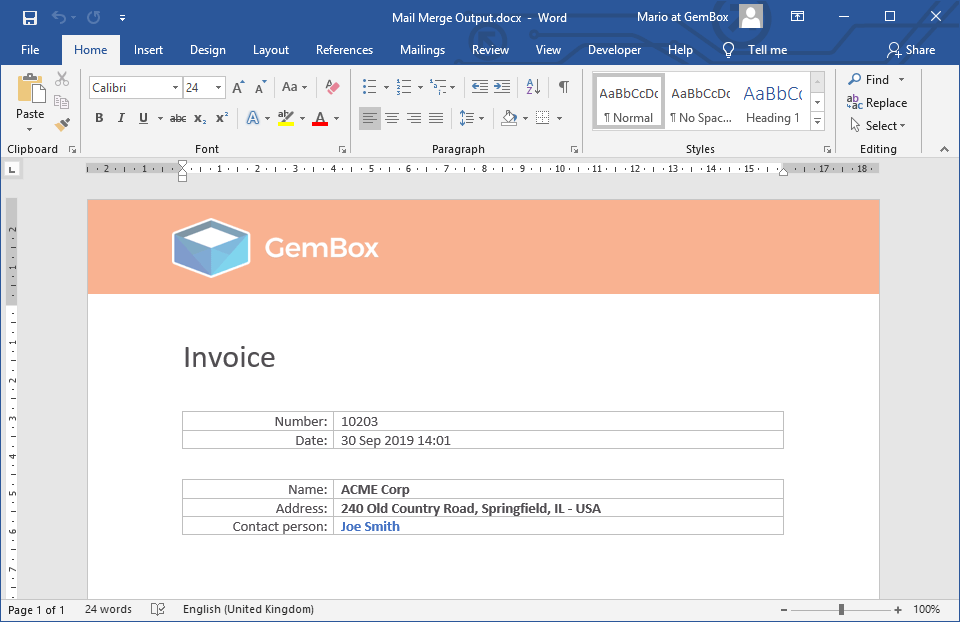
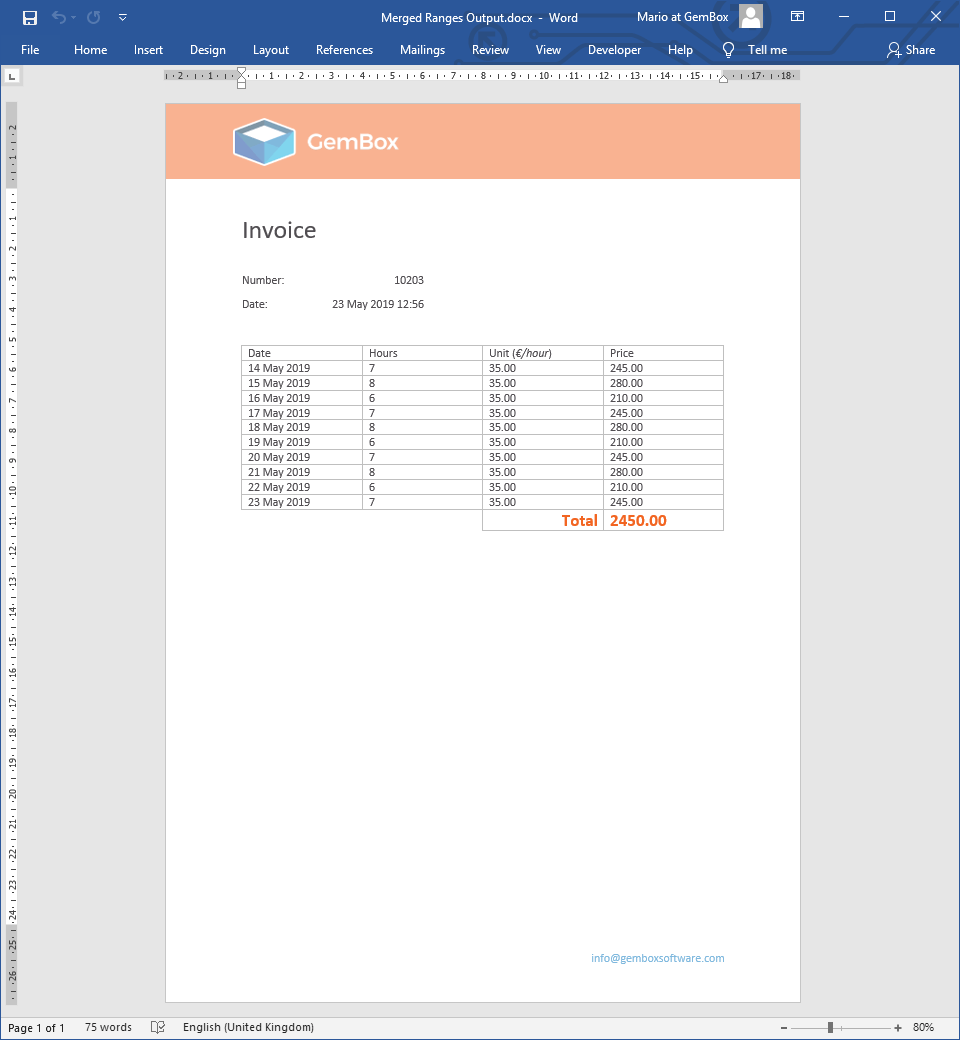
Customize Mail Merge in Word documents using C# and VB.NET
Mail merging in GemBox.Document is very flexible and customizable. It allows you to customize the MailMerge.FieldMerging event to suit your data importing requirements, when working with Word documents in your C# and VB.NET applications.
The event handler has access to a FieldMergingEventArgs object for each merging field. With it, you can change the value or the format of the data inserted or replace the Run element's insertion with something else, like Picture or Hyperlink elements.
See the Merge Pictures example for an easier way to import Picture elements in the mail merge process. Also, you can format the Date and Time or Numeric values by simply using formatting switches on the MERGEFIELD element itself (\@@ for dates and \# for numbers).
The following example shows how you can perform a customized mail merge.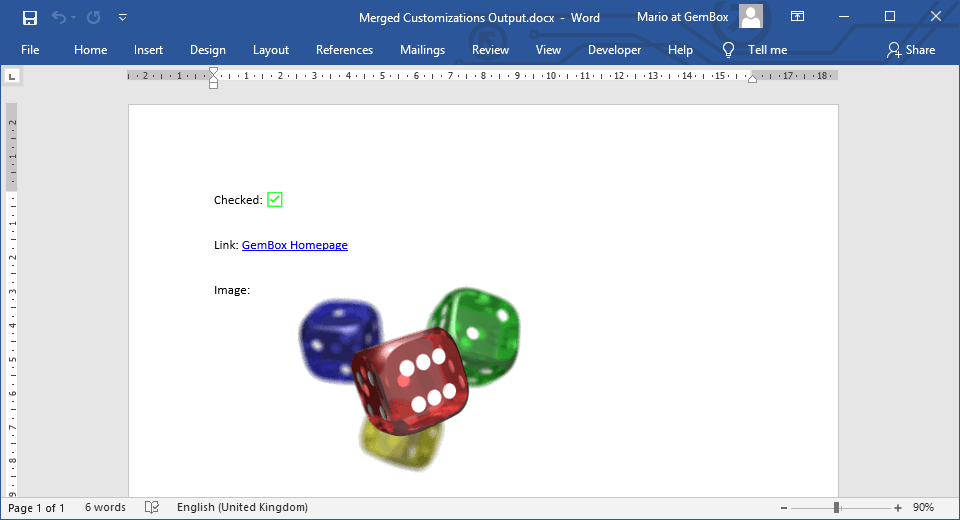
using GemBox.Document;

// If using the Professional version, put your serial key below.
ComponentInfo.SetLicense("FREE-LIMITED-KEY");

var document = DocumentModel.Load("MergeCustomizations.docx");

document.MailMerge.FieldMerging += (sender, e) =>
{
    if (e.IsValueFound && e.Value != null)
    {
        switch (e.FieldName)
        {
            case "CheckedField":
                bool checkedValue = (bool)e.Value;
                var run = (Run)e.Inline;
                run.CharacterFormat.FontColor = checkedValue ? Color.Green : Color.Red;
                run.Text = checkedValue ? "☑" : "☒";
                break;

            case "LinkField":
                var linkValue = ((string Address, string DisplayText))e.Value;
                e.Inline = new Hyperlink(e.Document, linkValue.Address, linkValue.DisplayText);
                break;

            case "ImageField":
                var imagePath = e.Value.ToString();
                e.Inline = new Picture(e.Document, imagePath);
                break;
        }
    }
};

document.MailMerge.Execute(
    new
    {
        CheckedField = true,
        LinkField = (Address: "https://www.gemboxsoftware.com/", DisplayText: "GemBox Homepage"),
        ImageField = "Dices.png"
    });

document.Save("Merged Customizations Output.docx");
Imports GemBox.Document
Module Program
Sub Main()
' If using the Professional version, put your serial key below.
ComponentInfo.SetLicense("FREE-LIMITED-KEY")
Dim document = DocumentModel.Load("MergeCustomizations.docx")
AddHandler document.MailMerge.FieldMerging,
Sub(sender, e)
If e.IsValueFound And e.Value IsNot Nothing Then
Select Case e.FieldName
Case "CheckedField"
Dim checkedValue As Boolean = DirectCast(e.Value, Boolean)
Dim run = DirectCast(e.Inline, Run)
run.CharacterFormat.FontColor = If(checkedValue, Color.Green, Color.Red)
run.Text = If(checkedValue, "☑", "☒")
Exit Select
Case "LinkField"
Dim linkValue = DirectCast(e.Value, (Address As String, DisplayText As String))
e.Inline = New Hyperlink(e.Document, linkValue.Address, linkValue.DisplayText)
Exit Select
Case "ImageField"
Dim imagePath = e.Value.ToString()
e.Inline = New Picture(e.Document, imagePath)
Exit Select
End Select
End If
End Sub
document.MailMerge.Execute(
New With
{
.CheckedField = True,
.LinkField = (Address:="https://www.gemboxsoftware.com/", DisplayText:="GemBox Homepage"),
.ImageField = "Dices.png"
})
document.Save("Merged Customizations Output.docx")
End Sub
End ModuleInsert HTML, RTF, and DOCX content with mail merge
GemBox.Document also provides a MailMerge.FieldMappings dictionary that allows you to define custom mappings of field names to data source names.
By combining the custom mapping and merging of the mail merge process, you can define your type of MERGEFIELD elements. For instance, you can use an arbitrary prefix in the names of your MERGEFIELD elements and then handle merging those fields as needed.
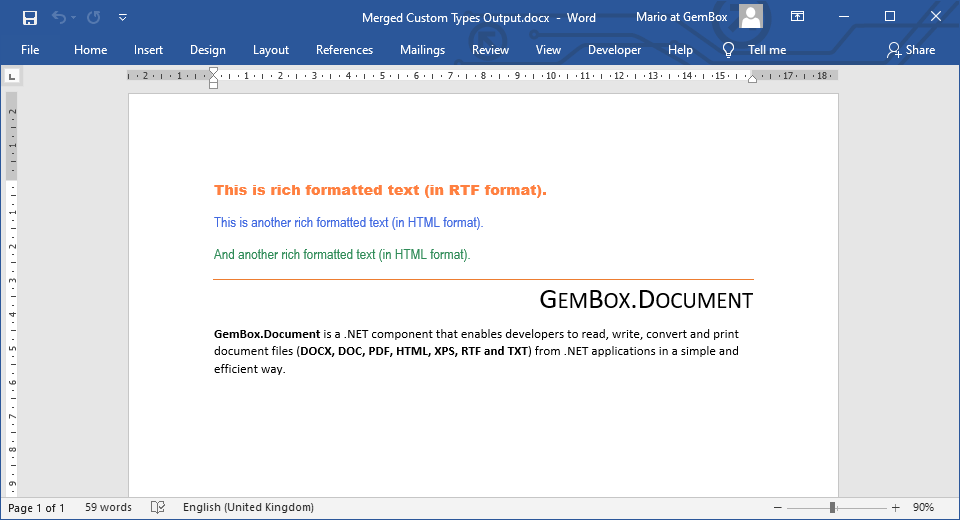
The following example shows how to define and use MERGEFIELD elements that insert HTML, RTF, or DOCX content in the mail merge process.
MERGEFIELDwith the "Html:" prefix will insert an HTML formatted text from the provided source.MERGEFIELDwith the "Rtf:" prefix will insert an RTF formatted text from the provided source.MERGEFIELDwith the "Docx:" prefix will insert a DOCX file's section from the provided source.
using GemBox.Document;

// If using the Professional version, put your serial key below.
ComponentInfo.SetLicense("FREE-LIMITED-KEY");

var document = DocumentModel.Load("MergeCustomTypes.docx");

// Map merge fields with prefix to data source without prefix.
// E.g. "Html:MyName" field's name to "MyName" data source name.
foreach (string fieldName in document.MailMerge.GetMergeFieldNames())
{
    int index = fieldName.IndexOf(':');
    if (index > 0 && !document.MailMerge.FieldMappings.ContainsKey(fieldName))
        document.MailMerge.FieldMappings.Add(fieldName, fieldName.Substring(index + 1));
}

// Customize mail merge to support our custom prefixes.
document.MailMerge.FieldMerging += (sender, e) =>
{
    if (!e.IsValueFound)
        return;

    bool customImport = true;

    if (e.FieldName.StartsWith("Html:"))
        e.Field.Content.End.LoadText((string)e.Value, new HtmlLoadOptions() { InheritCharacterFormat = true });
    else if (e.FieldName.StartsWith("Rtf:"))
        e.Field.Content.End.LoadText((string)e.Value, new RtfLoadOptions());
    else if (e.FieldName.StartsWith("Docx:"))
        e.Field.Content.End.InsertRange(DocumentModel.Load((string)e.Value).Sections[0].Blocks.Content);
    else
        customImport = false;

    if (customImport)
    {
        // Remove the default import.
        e.Inline = null;

        // Check if the content is inserted into the same parent paragraph or added after it.
        // This depends on whether the data source contains inline-level or block-level elements.
        // If it's added after, then remove the empty parent which used to contain merge field.
        if (e.Field.ParentCollection.Count == 1)
            e.Field.Parent.Content.Delete();
    }
};

document.MailMerge.Execute(
    new
    {
        Field1 = @"{\rtf1\ansi\deff0{\fonttbl{\f0 Arial Black;}}{\colortbl ;\red255\green128\blue64;}\f0\cf1 This is rich formatted text (in RTF format).}",
        Field2 = "<p style='font-family:Arial Narrow;color:royalblue;'>This is another rich formatted text (in HTML format).</p>",
        Field3 = "<p style='font-family:Arial Narrow;color:seagreen;'>And another rich formatted text (in HTML format).</p>",
        Field4 = "Reading.docx"
    });

document.Save("Merged Custom Types Output.docx");
Imports GemBox.Document
Module Program
Sub Main()
' If using the Professional version, put your serial key below.
ComponentInfo.SetLicense("FREE-LIMITED-KEY")
Dim document = DocumentModel.Load("MergeCustomTypes.docx")
' Map merge fields with prefix to data source without prefix.
' E.g. "Html:MyName" field's name to "MyName" data source name.
For Each fieldName As String In document.MailMerge.GetMergeFieldNames()
Dim index As Integer = fieldName.IndexOf(":"c)
If index > 0 AndAlso Not document.MailMerge.FieldMappings.ContainsKey(fieldName) Then
document.MailMerge.FieldMappings.Add(fieldName, fieldName.Substring(index + 1))
End If
Next
' Customize mail merge to support our custom prefixes.
AddHandler document.MailMerge.FieldMerging,
Sub(sender, e)
If Not e.IsValueFound Then Return
Dim customImport As Boolean = True
If e.FieldName.StartsWith("Html:") Then
e.Field.Content.End.LoadText(CStr(e.Value), New HtmlLoadOptions() With {.InheritCharacterFormat = True})
ElseIf e.FieldName.StartsWith("Rtf:") Then
e.Field.Content.End.LoadText(CStr(e.Value), New RtfLoadOptions())
ElseIf e.FieldName.StartsWith("Docx:") Then
e.Field.Content.End.InsertRange(DocumentModel.Load(CStr(e.Value)).Sections(0).Blocks.Content)
Else
customImport = False
End If
If customImport Then
' Remove the default import.
e.Inline = Nothing
' Check if the content is inserted into the same parent paragraph or added after it.
' This depends on whether the data source contains inline-level or block-level elements.
' If it's added after, then remove the empty parent which used to contain merge field.
If e.Field.ParentCollection.Count = 1 Then e.Field.Parent.Content.Delete()
End If
End Sub
document.MailMerge.Execute(
New With
{
.Field1 = "{\rtf1\ansi\deff0{\fonttbl{\f0 Arial Black;}}{\colortbl ;\red255\green128\blue64;}\f0\cf1 This is rich formatted text (in RTF format).}",
.Field2 = "<p style='font-family:Arial Narrow;color:royalblue;'>This is another rich formatted text (in HTML format).</p>",
.Field3 = "<p style='font-family:Arial Narrow;color:seagreen;'>And another rich formatted text (in HTML format).</p>",
.Field4 = "Reading.docx"
})
document.Save("Merged Custom Types Output.docx")
End Sub
End Module