Creating Charts in Word documents using C# and VB.NET
To work with charts in Word documents, the GemBox.Document C#/VB.NET component uses help from the GemBox.Spreadsheet component:
- With GemBox.Document and GemBox.Spreadsheet combined, you can create and update charts in Word documents. You can also export documents with graphs to PDF, XPS, or image formats.
- By using only GemBox.Document, you can preserve charts in Word documents.
Create a chart
To enable GemBox.Document's chart support and work with Chart objects, you'll need to add a reference to GemBox.Spreadsheet library and call its SpreadsheetInfo.SetLicense method.
Note, if you don't have a GemBox.Spreadsheet license, you can use its Free mode.
You can choose to create charts from the following types:
- Area
- Bar
- Column
- Combo
- Doughnut
- Line
- Pie
- Radar
- Scatter
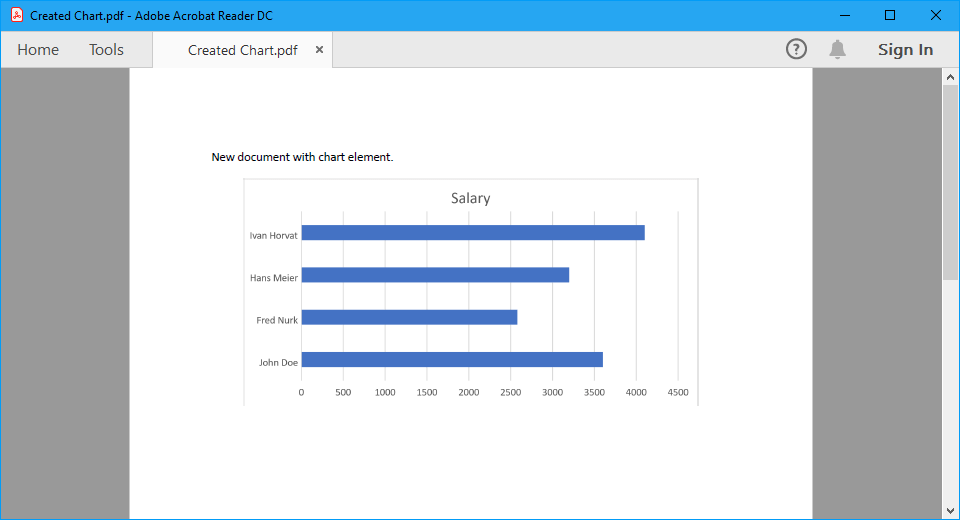
The following example shows how to create a document with a bar chart using C# and VB.NET.
using GemBox.Document;
using GemBox.Spreadsheet;
using GemBox.Spreadsheet.Charts;

class Program
{
    static void Main()
    {
        // If using the Professional version, put your GemBox.Document serial key below.
        ComponentInfo.SetLicense("FREE-LIMITED-KEY");

        // If using the Professional version, put your GemBox.Spreadsheet serial key below.
        SpreadsheetInfo.SetLicense("FREE-LIMITED-KEY");

        var document = new DocumentModel();

        // Create Word chart and add it to document.
        var chart = new Chart(document, GemBox.Document.ChartType.Bar,
            new FloatingLayout(
                new HorizontalPosition(HorizontalPositionType.Center, HorizontalPositionAnchor.Margin),
                new VerticalPosition(VerticalPositionType.Top, VerticalPositionAnchor.Paragraph),
                new Size(14, 7, GemBox.Document.LengthUnit.Centimeter)));

        document.Sections.Add(
            new Section(document,
                new Paragraph(document, "New document with chart element."),
                new Paragraph(document, chart)));

        // Get underlying Excel chart.
        ExcelChart excelChart = (ExcelChart)chart.ExcelChart;
        ExcelWorksheet worksheet = excelChart.Worksheet;

        // Add data for Excel chart.
        worksheet.Cells["A1"].Value = "Name";
        worksheet.Cells["A2"].Value = "John Doe";
        worksheet.Cells["A3"].Value = "Fred Nurk";
        worksheet.Cells["A4"].Value = "Hans Meier";
        worksheet.Cells["A5"].Value = "Ivan Horvat";

        worksheet.Cells["B1"].Value = "Salary";
        worksheet.Cells["B2"].Value = 3600;
        worksheet.Cells["B3"].Value = 2580;
        worksheet.Cells["B4"].Value = 3200;
        worksheet.Cells["B5"].Value = 4100;

        // Select data.
        excelChart.SelectData(worksheet.Cells.GetSubrange("A1:B5"), true);

        document.Save("Created Chart.%OutputFileType%");
    }
}
Imports GemBox.Document
Imports GemBox.Spreadsheet
Imports GemBox.Spreadsheet.Charts

Module Program

    Sub Main()

        ' If using the Professional version, put your GemBox.Document serial key below.
        ComponentInfo.SetLicense("FREE-LIMITED-KEY")

        ' If using the Professional version, put your GemBox.Spreadsheet serial key below.
        SpreadsheetInfo.SetLicense("FREE-LIMITED-KEY")

        Dim document As New DocumentModel()

        ' Create Word chart and add it to document.
        Dim chart As New Chart(document, GemBox.Document.ChartType.Bar,
            New FloatingLayout(
                New HorizontalPosition(HorizontalPositionType.Center, HorizontalPositionAnchor.Margin),
                New VerticalPosition(VerticalPositionType.Top, VerticalPositionAnchor.Paragraph),
                New Size(14, 7, GemBox.Document.LengthUnit.Centimeter)))

        document.Sections.Add(
            New Section(document,
                New Paragraph(document, "New document with chart element."),
                New Paragraph(document, chart)))

        ' Get underlying Excel chart.
        Dim excelChart As ExcelChart = DirectCast(chart.ExcelChart, ExcelChart)
        Dim worksheet As ExcelWorksheet = excelChart.Worksheet

        ' Add data for Excel chart.
        worksheet.Cells("A1").Value = "Name"
        worksheet.Cells("A2").Value = "John Doe"
        worksheet.Cells("A3").Value = "Fred Nurk"
        worksheet.Cells("A4").Value = "Hans Meier"
        worksheet.Cells("A5").Value = "Ivan Horvat"

        worksheet.Cells("B1").Value = "Salary"
        worksheet.Cells("B2").Value = 3600
        worksheet.Cells("B3").Value = 2580
        worksheet.Cells("B4").Value = 3200
        worksheet.Cells("B5").Value = 4100

        ' Select data.
        excelChart.SelectData(worksheet.Cells.GetSubrange("A1:B5"), True)

        document.Save("Created Chart.%OutputFileType%")

    End Sub
End Module
For more information about charts, visit the Chart Components and Chart Formatting examples.
Update a chart
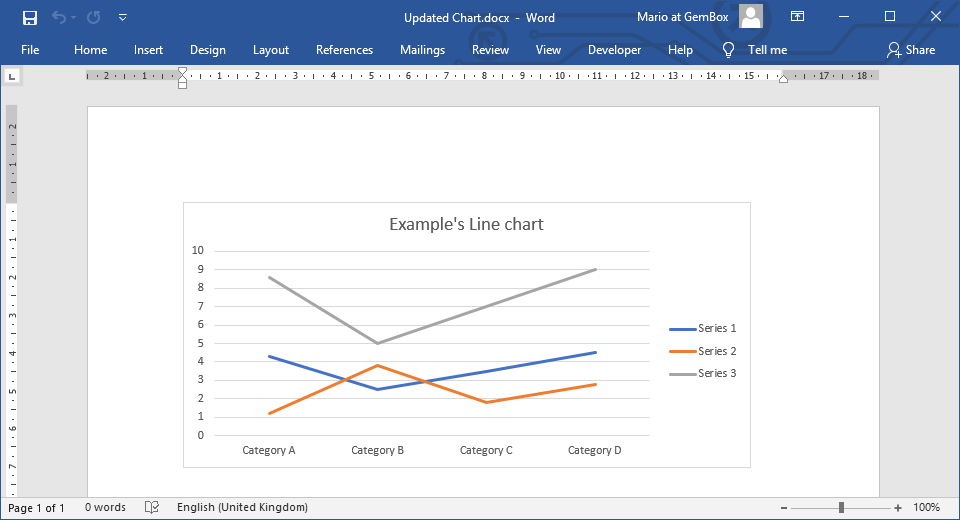
The following example shows how you can update line chart data in a Word document.
using GemBox.Document;
using GemBox.Spreadsheet;
using GemBox.Spreadsheet.Charts;
using System.Linq;

class Program
{
    static void Main()
    {
        // If using the Professional version, put your GemBox.Document serial key below.
        ComponentInfo.SetLicense("FREE-LIMITED-KEY");

        // If using the Professional version, put your GemBox.Spreadsheet serial key below.
        SpreadsheetInfo.SetLicense("FREE-LIMITED-KEY");

        var document = DocumentModel.Load("%#Chart.docx%");

        // Get Word chart.
        var chart = (Chart)document.GetChildElements(true, ElementType.Chart).First();

        // Get underlying Excel chart and cast it as LineChart.
        var lineChart = (LineChart)chart.ExcelChart;

        // Get underlying Excel sheet and add new cell values.
        var sheet = lineChart.Worksheet;
        sheet.Cells["D1"].Value = "Series 3";
        sheet.Cells["D2"].Value = 8.6;
        sheet.Cells["D3"].Value = 5;
        sheet.Cells["D4"].Value = 7;
        sheet.Cells["D5"].Value = 9;

        // Add new line series to the LineChart.
        lineChart.Series.Add(sheet.Cells["D1"].StringValue, "Sheet1!D2:D5");

        lineChart.RefreshCache();

        document.Save("Updated Chart.%OutputFileType%");
    }
}
Imports GemBox.Document
Imports GemBox.Spreadsheet
Imports GemBox.Spreadsheet.Charts
Imports System.Linq

Module Program

    Sub Main()

        ' If using the Professional version, put your GemBox.Document serial key below.
        ComponentInfo.SetLicense("FREE-LIMITED-KEY")

        ' If using the Professional version, put your GemBox.Spreadsheet serial key below.
        SpreadsheetInfo.SetLicense("FREE-LIMITED-KEY")

        Dim document = DocumentModel.Load("%#Chart.docx%")

        ' Get Word chart.
        Dim chart = DirectCast(document.GetChildElements(True, ElementType.Chart).First(), Chart)

        ' Get underlying Excel chart and cast it as LineChart.
        Dim lineChart = DirectCast(chart.ExcelChart, LineChart)

        ' Get underlying Excel sheet and add new cell values.
        Dim sheet = lineChart.Worksheet
        sheet.Cells("D1").Value = "Series 3"
        sheet.Cells("D2").Value = 8.6
        sheet.Cells("D3").Value = 5
        sheet.Cells("D4").Value = 7
        sheet.Cells("D5").Value = 9

        ' Add new line series to the LineChart.
        lineChart.Series.Add(sheet.Cells("D1").StringValue, "Sheet1!D2:D5")

        lineChart.RefreshCache()

        document.Save("Updated Chart.%OutputFileType%")

    End Sub
End Module
Some chart types are not supported through an API (like 3D charts) and won't be represented with Chart object.
You can find a list of supported chart types on GemBox.Spreadsheet's Charts help page.
Create a chart from array data
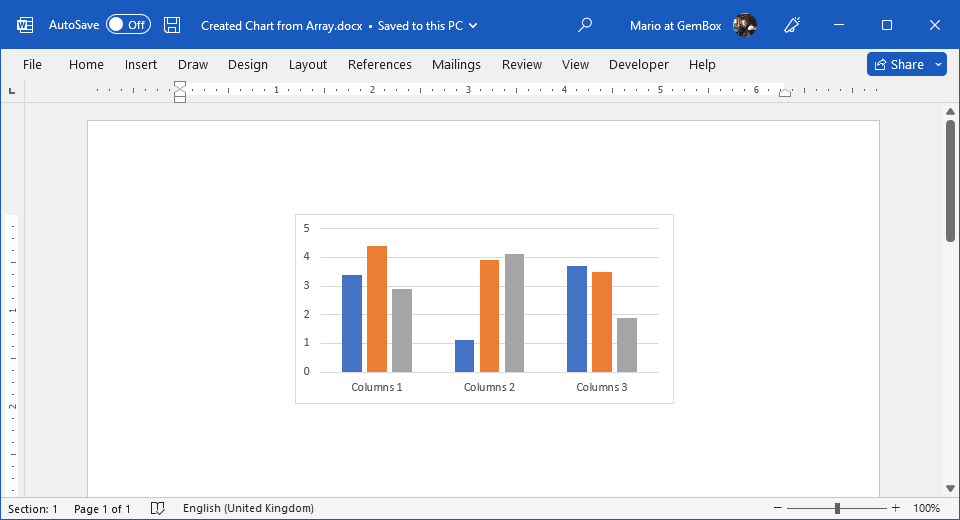
Usually, the chart's data is provided as a reference to a worksheet's cell range or a named range. But you can also directly assign an array of numeric values that you want to plot.
Using array data may in some cases be an easier and more convenient way to work with charts. Such charts are independent of their parent worksheet. However, note that you cannot add or modify such series with Microsoft Word.
The following example shows how to create chart series using array values directly.
using GemBox.Document;
using GemBox.Spreadsheet;
using GemBox.Spreadsheet.Charts;

class Program
{
    static void Main()
    {
        // If using the Professional version, put your GemBox.Document serial key below.
        ComponentInfo.SetLicense("FREE-LIMITED-KEY");

        // If using the Professional version, put your GemBox.Spreadsheet serial key below.
        SpreadsheetInfo.SetLicense("FREE-LIMITED-KEY");

        var document = new DocumentModel();

        var chart = new Chart(document, GemBox.Document.ChartType.Column,
            new FloatingLayout(
                new HorizontalPosition(HorizontalPositionType.Center, HorizontalPositionAnchor.Margin),
                new VerticalPosition(VerticalPositionType.Top, VerticalPositionAnchor.Paragraph),
                new Size(10, 5, GemBox.Document.LengthUnit.Centimeter)));

        document.Sections.Add(
            new Section(document,
                new Paragraph(document, chart)));

        // Get underlying Excel chart.
        var columnChart = (ColumnChart)chart.ExcelChart;

        // Set chart's category labels from array.
        columnChart.SetCategoryLabels(new string[] { "Columns 1", "Columns 2", "Columns 3" });

        // Add chart's series from arrays.
        columnChart.Series.Add("Values 1", new double[] { 3.4, 1.1, 3.7 });
        columnChart.Series.Add("Values 2", new double[] { 4.4, 3.9, 3.5 });
        columnChart.Series.Add("Values 3", new double[] { 2.9, 4.1, 1.9 });

        document.Save("Created Chart from Array.%OutputFileType%");
    }
}
Imports GemBox.Document
Imports GemBox.Spreadsheet
Imports GemBox.Spreadsheet.Charts

Module Program

    Sub Main()

        ' If using the Professional version, put your GemBox.Document serial key below.
        ComponentInfo.SetLicense("FREE-LIMITED-KEY")

        ' If using the Professional version, put your GemBox.Spreadsheet serial key below.
        SpreadsheetInfo.SetLicense("FREE-LIMITED-KEY")

        Dim document As New DocumentModel()

        Dim chart As New Chart(document, GemBox.Document.ChartType.Column,
            New FloatingLayout(
                New HorizontalPosition(HorizontalPositionType.Center, HorizontalPositionAnchor.Margin),
                New VerticalPosition(VerticalPositionType.Top, VerticalPositionAnchor.Paragraph),
                New Size(10, 5, GemBox.Document.LengthUnit.Centimeter)))

        document.Sections.Add(
            New Section(document,
                New Paragraph(document, chart)))

        ' Get underlying Excel chart.
        Dim columnChart = DirectCast(chart.ExcelChart, ColumnChart)

        ' Set chart's category labels from array.
        columnChart.SetCategoryLabels(New String() {"Columns 1", "Columns 2", "Columns 3"})

        ' Add chart's series from arrays.
        columnChart.Series.Add("Values 1", New Double() {3.4, 1.1, 3.7})
        columnChart.Series.Add("Values 2", New Double() {4.4, 3.9, 3.5})
        columnChart.Series.Add("Values 3", New Double() {2.9, 4.1, 1.9})

        document.Save("Created Chart from Array.%OutputFileType%")

    End Sub
End Module