Character formatting in Word documents with C# and VB.NET
This article shows how to use GemBox.Document to apply character formatting to text in Word documents with C# and VB.NET. You can apply character formatting on various Inline elements such as a Run, a Field, or a SpecialCharacter.
Table of contents:
- Basic character formatting example
- Character formatting options
- Read character formatting
- Apply character formatting to existing text
- Character formatting resolution and the default document format
- Related examples
- Frequently asked questions
Basic character formatting example
The following example shows how to apply basic character formatting to text (a Run element).
using GemBox.Document;

class Program
{
    static void Main()
    {
        // If using the Professional version, put your serial key below.
        ComponentInfo.SetLicense("FREE-LIMITED-KEY");

        var document = new DocumentModel();

        var section = new Section(document);
        document.Sections.Add(section);

        var paragraph = new Paragraph(document);
        section.Blocks.Add(paragraph);

        var run = new Run(document, "Text formatted with GemBox.Document.")
        {
            CharacterFormat =
            {
                FontName = "Arial",
                Size = 22,
                FontColor = Color.Blue,
                Bold = true,
                Italic = true,
            }
        };

        paragraph.Inlines.Add(run);

        document.Save("Character Formatting.docx");
    }
}
Imports GemBox.Document

Module Program

    Sub Main()

        ' If using the Professional version, put your serial key below.
        ComponentInfo.SetLicense("FREE-LIMITED-KEY")

        Dim document As New DocumentModel()

        Dim section As New Section(document)
        document.Sections.Add(section)

        Dim paragraph As New Paragraph(document)
        section.Blocks.Add(paragraph)

        Dim run As New Run(document, "Text formatted with GemBox.Document.")
        With run.CharacterFormat
            .FontName = "Arial"
            .Size = 22
            .FontColor = Color.Blue
            .Bold = True
            .Italic = True
        End With

        paragraph.Inlines.Add(run)

        document.Save("Character Formatting.docx")

    End Sub
End Module
Character formatting options
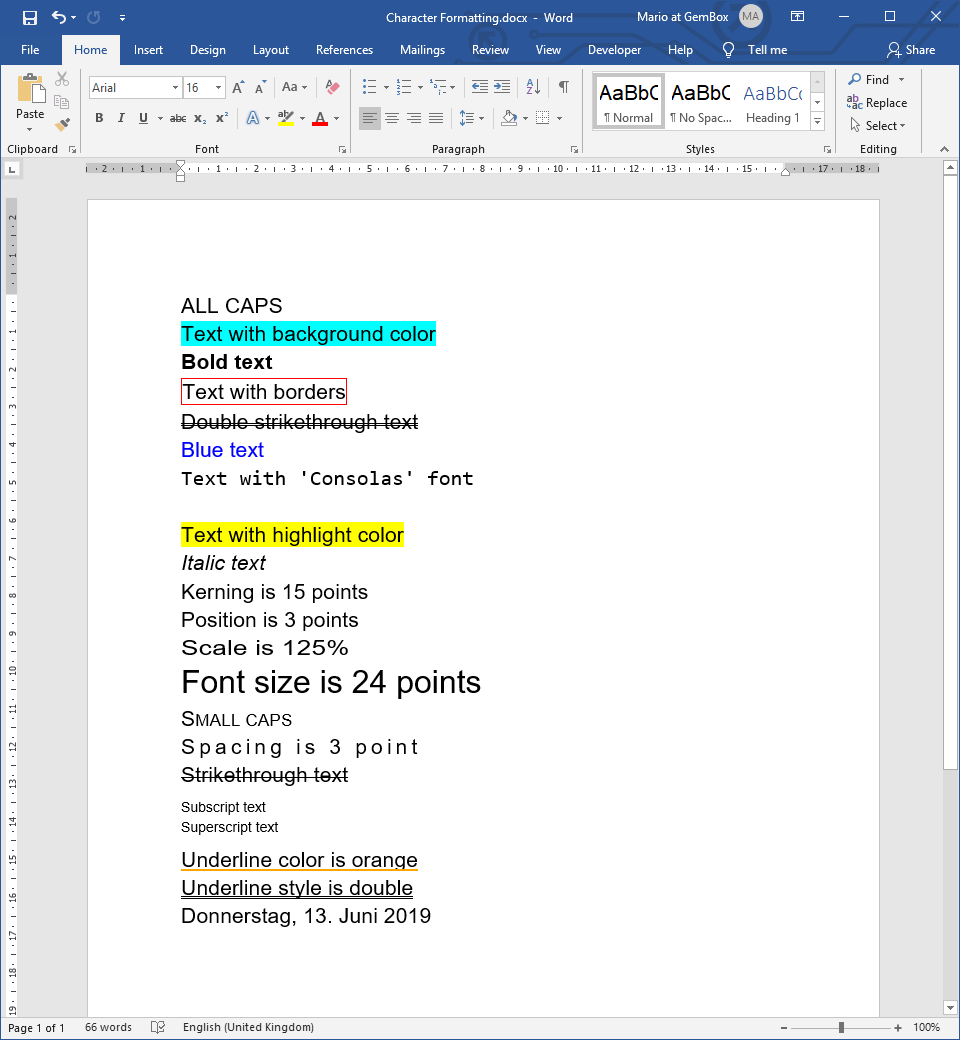
GemBox.Document supports character-formatting options through the CharacterFormat class. In the following sections, the examples show how to set character formatting on plain text (a Run element), but you can also apply the formatting to other Inline elements such as a SpecialCharacter or a Field.
Font name, size, and color
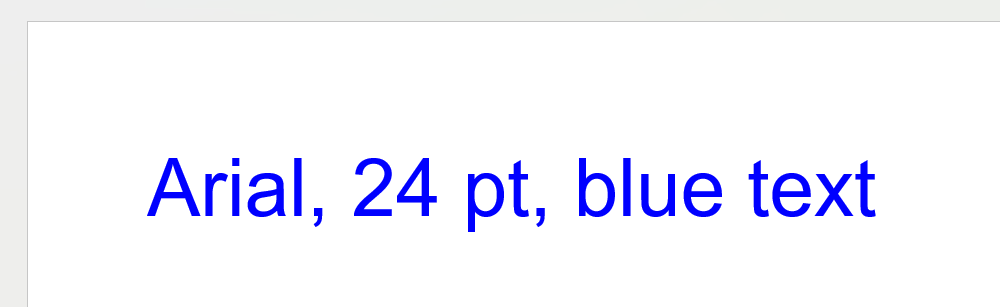
The most common formatting is the font itself. Set CharacterFormat.FontName, CharacterFormat.Size (in points), and CharacterFormat.FontColor on a run's character format.
paragraph.Inlines.Add(new Run(document, "Arial, 24 pt, blue text")
{
    CharacterFormat =
    {
        FontName = "Arial",
        Size = 24,
        FontColor = Color.Blue,
    }
});
paragraph.Inlines.Add(New Run(document, "Arial, 24 pt, blue text") With {
    .CharacterFormat = New CharacterFormat() With {
        .FontName = "Arial",
        .Size = 24,
        .FontColor = Color.Blue
    }
})
Bold and italic
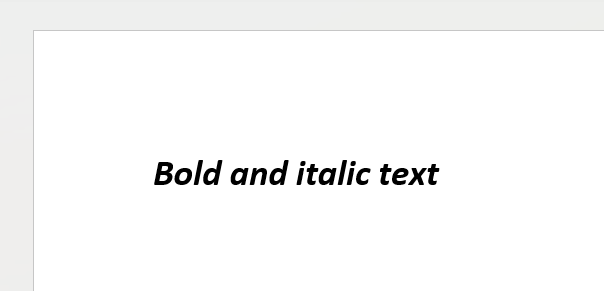
Use CharacterFormat.Bold and CharacterFormat.Italic as simple boolean properties.
paragraph.Inlines.Add(new Run(document, "Bold and italic text")
{
    CharacterFormat =
    {
        Bold = true,
        Italic = true
    }
});
paragraph.Inlines.Add(New Run(document, "Bold and italic text") With {
    .CharacterFormat = New CharacterFormat() With {.Bold = True, .Italic = True}})
Underline and strikethrough
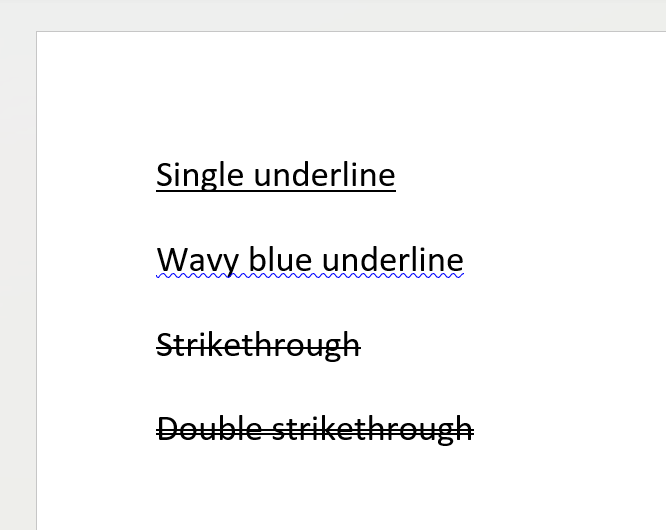
CharacterFormat.UnderlineStyle draws an underline using one of the UnderlineType patterns, and you can color it with the CharacterFormat.UnderlineColor property. CharacterFormat.Strikethrough and CharacterFormat.DoubleStrikethrough draw one or two lines through the text.
paragraph.Inlines.Add(new Run(document, "Single underline")
    { CharacterFormat = { UnderlineStyle = UnderlineType.Single } });
paragraph.Inlines.Add(new SpecialCharacter(document, SpecialCharacterType.LineBreak));

paragraph.Inlines.Add(new Run(document, "Wavy blue underline")
    { CharacterFormat = { UnderlineStyle = UnderlineType.Wave, UnderlineColor = Color.Blue } });
paragraph.Inlines.Add(new SpecialCharacter(document, SpecialCharacterType.LineBreak));

paragraph.Inlines.Add(new Run(document, "Strikethrough")
    { CharacterFormat = { Strikethrough = true } });
paragraph.Inlines.Add(new SpecialCharacter(document, SpecialCharacterType.LineBreak));

paragraph.Inlines.Add(new Run(document, "Double strikethrough")
    { CharacterFormat = { DoubleStrikethrough = true } });
paragraph.Inlines.Add(New Run(document, "Single underline") With {
    .CharacterFormat = New CharacterFormat() With {.UnderlineStyle = UnderlineType.Single}})
paragraph.Inlines.Add(New SpecialCharacter(document, SpecialCharacterType.LineBreak))

paragraph.Inlines.Add(New Run(document, "Wavy blue underline") With {
    .CharacterFormat = New CharacterFormat() With {.UnderlineStyle = UnderlineType.Wave, .UnderlineColor = Color.Blue}})
paragraph.Inlines.Add(New SpecialCharacter(document, SpecialCharacterType.LineBreak))

paragraph.Inlines.Add(New Run(document, "Strikethrough") With {
    .CharacterFormat = New CharacterFormat() With {.Strikethrough = True}})
paragraph.Inlines.Add(New SpecialCharacter(document, SpecialCharacterType.LineBreak))

paragraph.Inlines.Add(New Run(document, "Double strikethrough") With {
    .CharacterFormat = New CharacterFormat() With {.DoubleStrikethrough = True}})
Highlight and background color
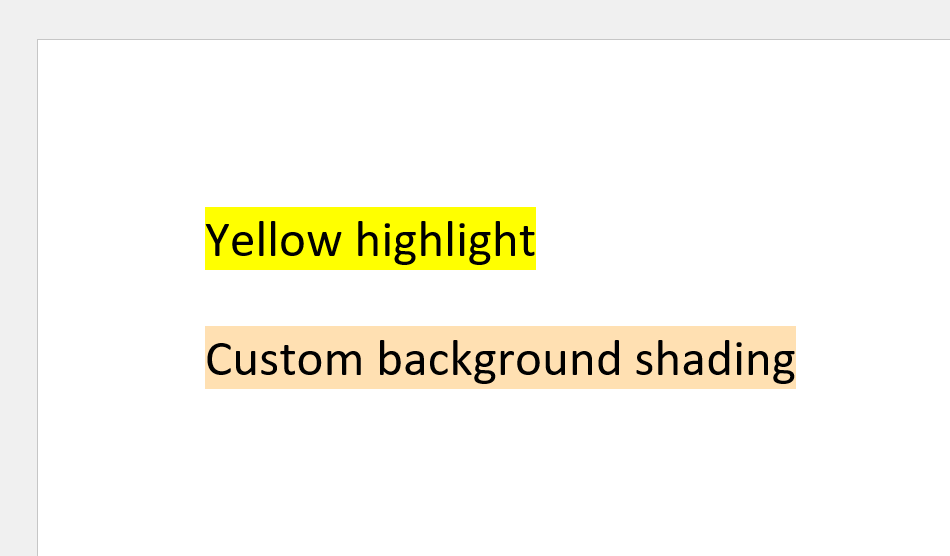
You can put color behind text in two ways:
- By using the
CharacterFormat.HighlightColorproperty, which is the Word text highlighter that accepts only a fixed set of colors. - By using the
CharacterFormat.BackgroundColorproperty, which is text shading that accepts any color - here a custom one built with theColorconstructor.
// HighlightColor is the Word text highlighter (a fixed palette of colors).
paragraph.Inlines.Add(new Run(document, "Yellow highlight")
    { CharacterFormat = { HighlightColor = Color.Yellow } });

paragraph.Inlines.Add(new SpecialCharacter(document, SpecialCharacterType.LineBreak));

// BackgroundColor is text shading and accepts any color.
paragraph.Inlines.Add(new Run(document, "Custom background shading")
    { CharacterFormat = { BackgroundColor = new Color(0xFFE0B2) } });
' HighlightColor is the Word text highlighter (a fixed palette of colors).
paragraph.Inlines.Add(New Run(document, "Yellow highlight") With {
    .CharacterFormat = New CharacterFormat() With {.HighlightColor = Color.Yellow}})

paragraph.Inlines.Add(New SpecialCharacter(document, SpecialCharacterType.LineBreak))

' BackgroundColor is text shading and accepts any color.
paragraph.Inlines.Add(New Run(document, "Custom background shading") With {
    .CharacterFormat = New CharacterFormat() With {.BackgroundColor = New Color(&HFFE0B2)}})
Subscript and superscript
The CharacterFormat.Subscript and CharacterFormat.Superscript properties reposition text below or above the baseline.
paragraph.Inlines.Add(new Run(document, "H"));
paragraph.Inlines.Add(new Run(document, "2") { CharacterFormat = { Subscript = true } });
paragraph.Inlines.Add(new Run(document, "O"));
paragraph.Inlines.Add(new SpecialCharacter(document, SpecialCharacterType.LineBreak));
paragraph.Inlines.Add(new Run(document, "E = mc"));
paragraph.Inlines.Add(new Run(document, "2") { CharacterFormat = { Superscript = true } });
paragraph.Inlines.Add(New Run(document, "H"))
paragraph.Inlines.Add(New Run(document, "2") With { .CharacterFormat = New CharacterFormat() With { .Subscript = True } })
paragraph.Inlines.Add(New Run(document, "O"))
paragraph.Inlines.Add(New SpecialCharacter(document, SpecialCharacterType.LineBreak))
paragraph.Inlines.Add(New Run(document, "E = mc"))
paragraph.Inlines.Add(New Run(document, "2") With { .CharacterFormat = New CharacterFormat() With { .Superscript = True } })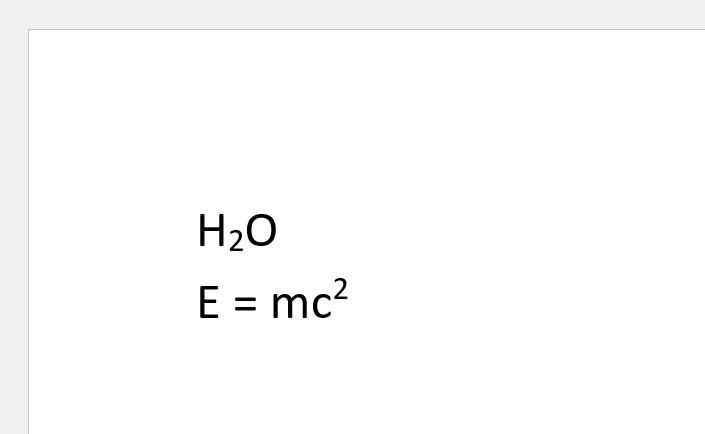
All caps, small caps, and hidden text
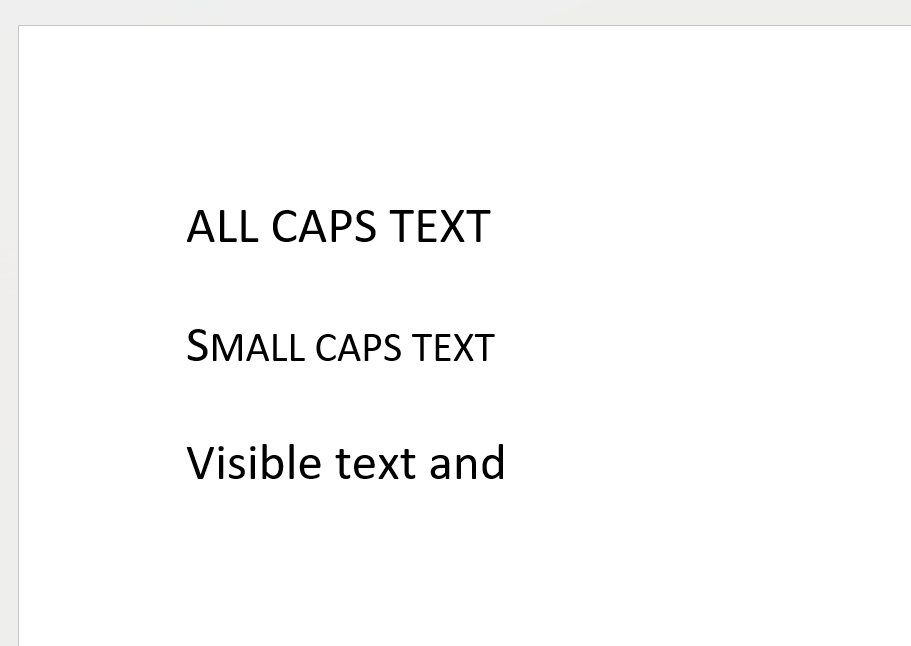
CharacterFormat.AllCaps and CharacterFormat.SmallCaps change how letters are displayed. CharacterFormat.Hidden keeps text in the document but hides it from view. Note that these are display effects only - the run's Text still returns the original, lower-case characters.
paragraph.Inlines.Add(new Run(document, "All caps text") { CharacterFormat = { AllCaps = true } });
paragraph.Inlines.Add(new SpecialCharacter(document, SpecialCharacterType.LineBreak));

paragraph.Inlines.Add(new Run(document, "Small caps text") { CharacterFormat = { SmallCaps = true } });
paragraph.Inlines.Add(new SpecialCharacter(document, SpecialCharacterType.LineBreak));

paragraph.Inlines.Add(new Run(document, "Visible text and "));
paragraph.Inlines.Add(new Run(document, "hidden text") { CharacterFormat = { Hidden = true } });
paragraph.Inlines.Add(New Run(document, "All caps text") With {
    .CharacterFormat = New CharacterFormat() With {.AllCaps = True}})
paragraph.Inlines.Add(New SpecialCharacter(document, SpecialCharacterType.LineBreak))

paragraph.Inlines.Add(New Run(document, "Small caps text") With {
    .CharacterFormat = New CharacterFormat() With {.SmallCaps = True}})
paragraph.Inlines.Add(New SpecialCharacter(document, SpecialCharacterType.LineBreak))

paragraph.Inlines.Add(New Run(document, "Visible text and "))
paragraph.Inlines.Add(New Run(document, "hidden text") With {
    .CharacterFormat = New CharacterFormat() With {.Hidden = True}})
Character spacing, scaling, and borders
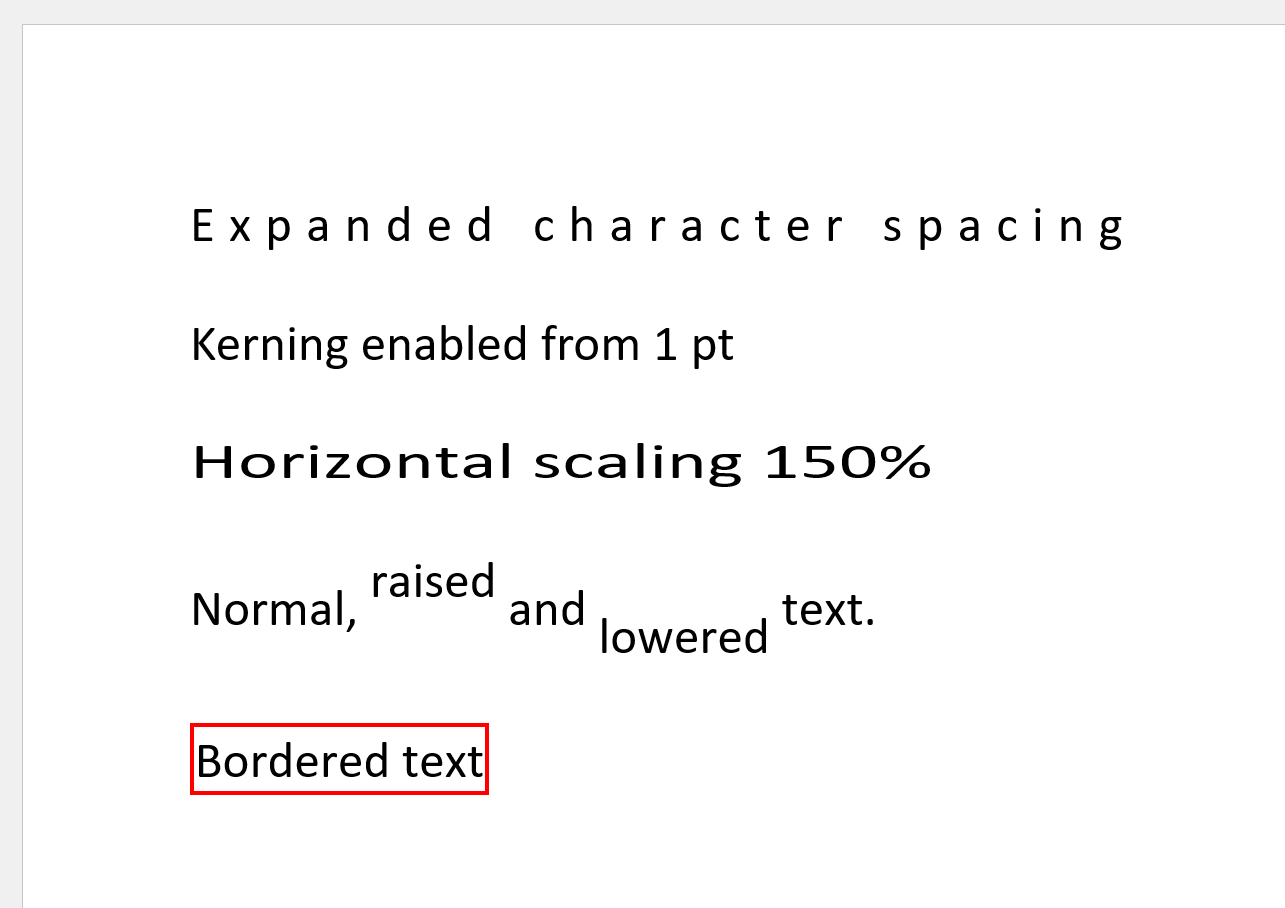
The following code snippet shows how to apply advanced font-formatting properties.
// Spacing expands or condenses the gap between characters.
paragraph.Inlines.Add(new Run(document, "Expanded character spacing")
    { CharacterFormat = { Spacing = 3 } });
paragraph.Inlines.Add(new SpecialCharacter(document, SpecialCharacterType.LineBreak));

// Kerning is the smallest font size for which auto-kerning is applied.
paragraph.Inlines.Add(new Run(document, "Kerning enabled from 1 pt")
    { CharacterFormat = { Kerning = 1 } });
paragraph.Inlines.Add(new SpecialCharacter(document, SpecialCharacterType.LineBreak));

// Scaling stretches characters horizontally.
paragraph.Inlines.Add(new Run(document, "Horizontal scaling 150%")
    { CharacterFormat = { Scaling = 150 } });
paragraph.Inlines.Add(new SpecialCharacter(document, SpecialCharacterType.LineBreak));

// Position raises (positive) or lowers (negative) text from the baseline.
paragraph.Inlines.Add(new Run(document, "Normal, "));
paragraph.Inlines.Add(new Run(document, "raised") { CharacterFormat = { Position = 6 } });
paragraph.Inlines.Add(new Run(document, " and "));
paragraph.Inlines.Add(new Run(document, "lowered") { CharacterFormat = { Position = -6 } });
paragraph.Inlines.Add(new Run(document, " text."));
paragraph.Inlines.Add(new SpecialCharacter(document, SpecialCharacterType.LineBreak));

// Border draws a box around the run.
paragraph.Inlines.Add(new Run(document, "Bordered text")
    { CharacterFormat = { Border = new SingleBorder(BorderStyle.Single, Color.Red, 1) } });
' Spacing expands or condenses the gap between characters.
paragraph.Inlines.Add(New Run(document, "Expanded character spacing") With {
    .CharacterFormat = New CharacterFormat() With {.Spacing = 3}})
paragraph.Inlines.Add(New SpecialCharacter(document, SpecialCharacterType.LineBreak))

' Kerning is the smallest font size for which auto-kerning is applied.
paragraph.Inlines.Add(New Run(document, "Kerning enabled from 1 pt") With {
    .CharacterFormat = New CharacterFormat() With {.Kerning = 1}})
paragraph.Inlines.Add(New SpecialCharacter(document, SpecialCharacterType.LineBreak))

' Scaling stretches characters horizontally.
paragraph.Inlines.Add(New Run(document, "Horizontal scaling 150%") With {
    .CharacterFormat = New CharacterFormat() With {.Scaling = 150}})
paragraph.Inlines.Add(New SpecialCharacter(document, SpecialCharacterType.LineBreak))

' Position raises (positive) or lowers (negative) text from the baseline.
paragraph.Inlines.Add(New Run(document, "Normal, "))
paragraph.Inlines.Add(New Run(document, "raised") With {.CharacterFormat = New CharacterFormat() With {.Position = 6}})
paragraph.Inlines.Add(New Run(document, " and "))
paragraph.Inlines.Add(New Run(document, "lowered") With {.CharacterFormat = New CharacterFormat() With {.Position = -6}})
paragraph.Inlines.Add(New Run(document, " text."))
paragraph.Inlines.Add(New SpecialCharacter(document, SpecialCharacterType.LineBreak))

' Border draws a box around the run.
paragraph.Inlines.Add(New Run(document, "Bordered text") With {
    .CharacterFormat = New CharacterFormat() With {.Border = New SingleBorder(BorderStyle.Single, Color.Red, 1)}})
Read character formatting
You read formatting the same way you set it - by inspecting a run's CharacterFormat.
foreach (Run run in document.GetChildElements(true, ElementType.Run).Cast<Run>())
{
    var format = run.CharacterFormat;
    Console.WriteLine("Font name: " + format.FontName);
    Console.WriteLine("Font size: " + format.Size);
}
For Each run As Run In document.GetChildElements(True, ElementType.Run).Cast(Of Run)()
    Dim format As CharacterFormat = run.CharacterFormat
    Console.WriteLine("Font name: " + format.FontName)
    Console.WriteLine("Font size: " + format.Size)
Next
Note that when a property was never set directly on the run, reading it returns the resolved value - for example the document's default font and size - rather than a blank. The resolution section explains how that works.
Apply character formatting to existing text
There are two ways to format existing text using GemBox.Document:
- To format run elements, find them in the document and set the properties you want directly.
- To format specific words, find them and apply a
CharacterFormatin the same call withContentRange.Replace.
// Load an existing document.
var document = DocumentModel.Load("input.docx");

// Iterate the runs and change their formatting directly.
foreach (Run run in document.GetChildElements(true, ElementType.Run).Cast<Run>())
    run.CharacterFormat.Italic = true;

// Find every occurrence of "GemBox" and make it bold and red.
document.Content.Replace("GemBox", "GemBox",
    new CharacterFormat() { Bold = true, FontColor = Color.Red });

document.Save("output.docx");
' Load an existing document.
Dim document As DocumentModel = DocumentModel.Load("input.docx")

' Iterate the runs and change their formatting directly.
For Each run As Run In document.GetChildElements(True, ElementType.Run).Cast(Of Run)()
    run.CharacterFormat.Italic = True
Next

' Find every occurrence of "GemBox" and make it bold and red.
document.Content.Replace("GemBox", "GemBox",
    New CharacterFormat() With {.Bold = True, .FontColor = Color.Red})

document.Save("output.docx")
Character formatting resolution and the default document format
When GemBox.Document renders or reads a character formatting property of an element, it resolves it in priority order: direct formatting on the element, the character style, ancestor formatting, the ancestor style, and finally the document's default - DocumentModel.DefaultCharacterFormat.
// The document default has the lowest priority - it's used when nothing else sets a property.
document.DefaultCharacterFormat.FontColor = Color.Red;
document.DefaultCharacterFormat.HighlightColor = Color.Yellow;
document.DefaultCharacterFormat.UnderlineStyle = UnderlineType.Single;

// A character style overrides the default.
var emphasis = new CharacterStyle("Emphasis")
{
    CharacterFormat =
    {
        FontColor = Color.Blue,
        UnderlineStyle = UnderlineType.Double
    }
};
document.Styles.Add(emphasis);

var paragraph = new Paragraph(document,
    new Run(document, "Highlight color, underline, and font color from the document default."),
    new SpecialCharacter(document, SpecialCharacterType.LineBreak),
    new Run(document, "Highlight color from the document default, underline and font color from the style.")
    {
        CharacterFormat =
        {
            Style = emphasis
        }
    },
    new SpecialCharacter(document, SpecialCharacterType.LineBreak),
    new Run(document, "Highlight color from the document default, underline from the style, font color from direct formatting.")
    {
        CharacterFormat =
        {
            Style = emphasis,
            // Direct formatting has the highest priority - it wins over the style and the default.
            FontColor = Color.Green
        }
    });
document.Sections.Add(new Section(document, paragraph));
' The document default has the lowest priority - it's used when nothing else sets a property.
document.DefaultCharacterFormat.FontColor = Color.Red
document.DefaultCharacterFormat.HighlightColor = Color.Yellow
document.DefaultCharacterFormat.UnderlineStyle = UnderlineType.Single
' A character style overrides the default.
Dim emphasis As New CharacterStyle("Emphasis")
With emphasis.CharacterFormat
.FontColor = Color.Blue
.UnderlineStyle = UnderlineType.Double
End With
document.Styles.Add(emphasis)
Dim run1 As New Run(document, "Highlight color, underline, and font color from the document default.")
Dim run2 As New Run(document, "Highlight color from the document default, underline and font color from the style.")
run2.CharacterFormat.Style = emphasis
Dim run3 As New Run(document, "Highlight color from the document default, underline from the style, font color from direct formatting.")
With run3.CharacterFormat
.Style = emphasis
' Direct formatting has the highest priority - it wins over the style and the default.
.FontColor = Color.Green
End With
Dim paragraph As New Paragraph(document,
run1,
New SpecialCharacter(document, SpecialCharacterType.LineBreak),
run2,
New SpecialCharacter(document, SpecialCharacterType.LineBreak),
run3)
document.Sections.Add(New Section(document, paragraph))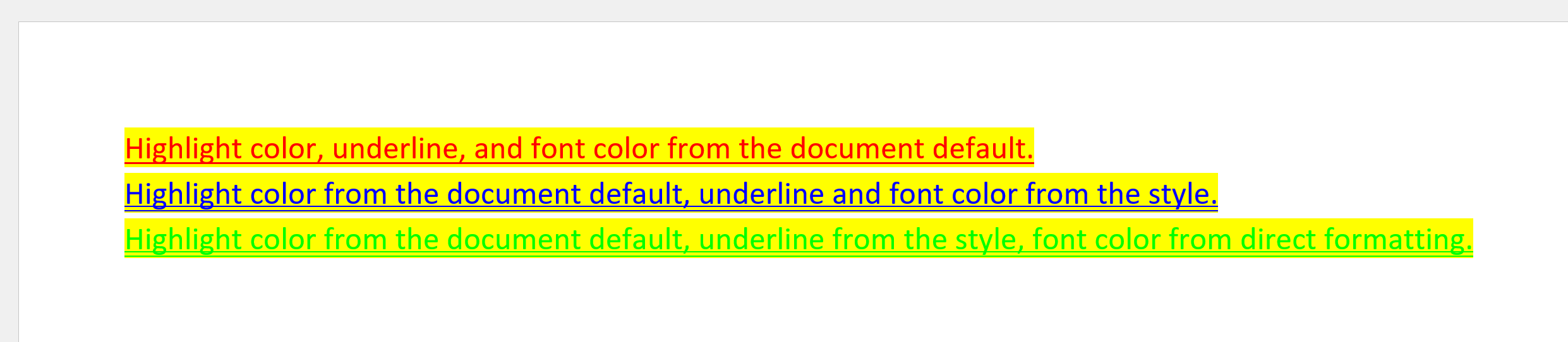
Frequently asked questions
- How do I use a custom color (a hex code or RGB value)?
- How do I change one formatting property without losing the others?
- How do I copy formatting from one run to another?
- Why doesn't setting DefaultCharacterFormat change my text's font?
- How do I set a hyperlink's color or remove its blue underline?
How do I use a custom color (a hex code or RGB value)?
GemBox.Document.Color has named colors such as Color.Red, but for any other color use a constructor - either RGB components or a hex value in 0xRRGGBB form.
// A named color, an RGB color, or a hex value - all are GemBox.Document.Color.
Color named = Color.Red;
Color fromRgb = new Color(66, 133, 244);
Color fromHex = new Color(0x4285F4);
' A named color, an RGB color, or a hex value - all are GemBox.Document.Color.
Dim named As Color = Color.Red
Dim fromRgb As New Color(66, 133, 244)
Dim fromHex As New Color(&H4285F4)
How do I change one formatting property without losing the others?
Assigning a brand-new CharacterFormat resets every property. To change just one thing on existing text, set that single property on the run's existing format.
// Assigning a CharacterFormat object replaces all existing formatting with default values.
run.CharacterFormat = new CharacterFormat()
{
    Bold = true
};

// Changing individual properties keeps its other formatting (font, size, ...).
run.CharacterFormat.Bold = true;
' Assigning a CharacterFormat object replaces all existing formatting with default values.
run.CharacterFormat = New CharacterFormat() With {
.Bold = True
}
' Changing individual properties keeps its other formatting (font, size, ...).
run.CharacterFormat.Bold = TrueHow do I copy formatting from one run to another?
Clone the character format of a run with the CharacterFormat.Clone method and assign it to another run.
targetRun.CharacterFormat = sourceRun.CharacterFormat.Clone();targetRun.CharacterFormat = sourceRun.CharacterFormat.Clone()Why doesn't setting DefaultCharacterFormat change my text's font?
The default format is the lowest priority in resolution; it is used only when a property isn't set on the run or its style. If your runs or styles already specify a font or size, the default never wins. See the resolution section for a full example.
How do I set a hyperlink's color or remove its blue underline?
A hyperlink's display text is a Run you can format like any other. The familiar blue underline comes from the built-in "Hyperlink" character style, so formatting the display run directly - setting FontColor and UnderlineStyle to None - overrides it.
// A hyperlink's display text is a Run you can format. Setting the color and removing the
// underline directly overrides the built-in "Hyperlink" style (the blue underline).
var hyperlink = new Hyperlink(document, "https://www.gemboxsoftware.com/",
    new Run(document, "GemBox")
    {
        CharacterFormat =
        {
            FontColor = Color.Red,
            UnderlineStyle = UnderlineType.None
        }
    });

paragraph.Inlines.Add(hyperlink);
' A hyperlink's display text is a Run you can format. Setting the color and removing the
' underline directly overrides the built-in "Hyperlink" style (the blue underline).
Dim hyperlink As New Hyperlink(document, "https://www.gemboxsoftware.com/",
    New Run(document, "GemBox") With {
        .CharacterFormat = New CharacterFormat() With {
            .FontColor = Color.Red,
            .UnderlineStyle = UnderlineType.None
        }
    })

paragraph.Inlines.Add(hyperlink)