Restrict editing of Word documents in C# and VB.NET
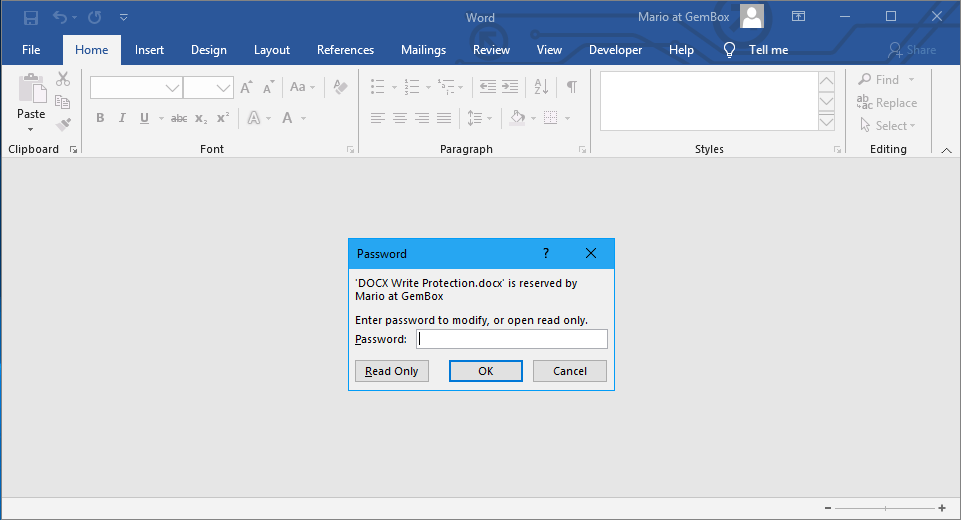
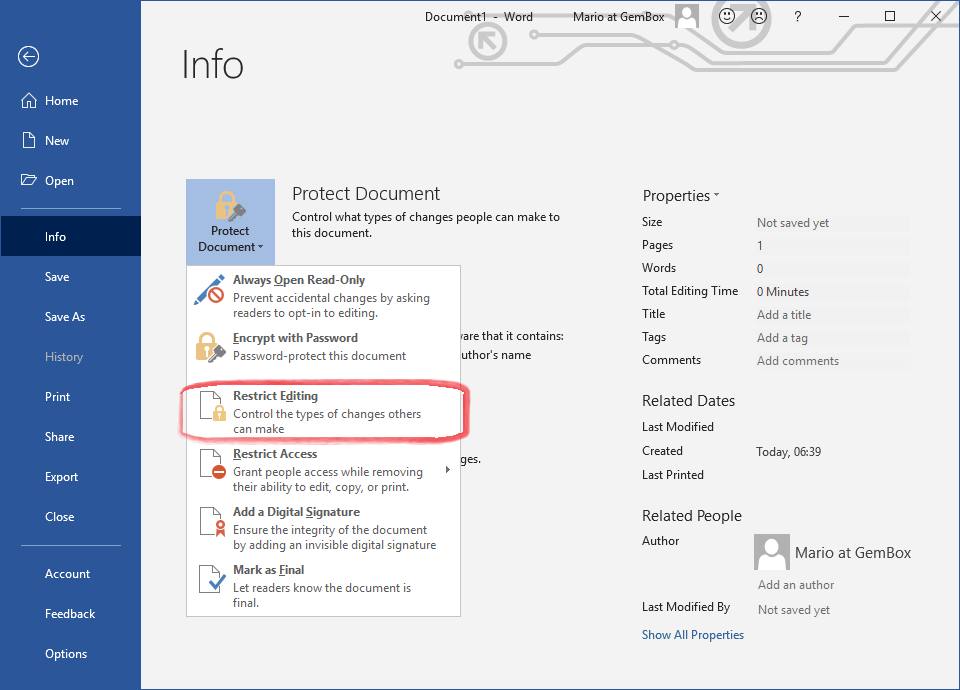
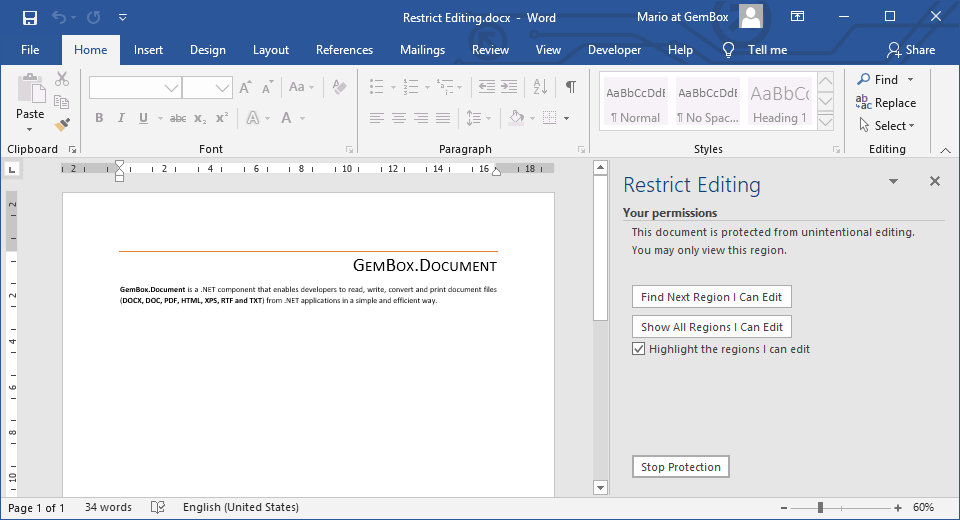
Restrict editing enables you to fully or partially protect a Word document from unintentional changes with an optional password. If the password is not specified, any user can stop enforcing the protection from the Word application.
Note, with GemBox.Document you can modify a whole Word file even if it allows changes to just parts of a protected document.
The following example shows how you can start enforcing editing restriction protection using the DocumentProtection class in C# and VB.NET.
using GemBox.Document;

class Program
{
    static void Main()
    {
        // If using the Professional version, put your serial key below.
        ComponentInfo.SetLicense("FREE-LIMITED-KEY");

        var document = DocumentModel.Load("%InputFileName%");

        EditingRestrictionType restriction = %EditingRestrictionType%;
        string password = "%Password%";
        document.Protection.StartEnforcingProtection(restriction, password);

        document.Save("Restrict Editing.docx");
    }
}
Imports GemBox.Document

Module Program

    Sub Main()

        ' If using the Professional version, put your serial key below.
        ComponentInfo.SetLicense("FREE-LIMITED-KEY")

        Dim document = DocumentModel.Load("%InputFileName%")

        Dim restriction As EditingRestrictionType = %EditingRestrictionType%
        Dim password As String = "%Password%"
        document.Protection.StartEnforcingProtection(restriction, password)

        document.Save("Restrict Editing.docx")

    End Sub
End Module
Allow editing specific parts of a protected document
When restricting editing of a protected document, you can still allow specific users or groups to edit certain parts by using the EditableRangeStart and EditableRangeEnd inline elements.
These elements form a pair (matched by their Id) that marks a region which the specified user or group is allowed to edit.
paragraph.Inlines.Add(new EditableRangeStart(document, "1"));
paragraph.Inlines.Add(new Run(document, "This text can be edited."));
paragraph.Inlines.Add(new EditableRangeEnd(document, "1"));
paragraph.Inlines.Add(New EditableRangeStart(document, "1"))
paragraph.Inlines.Add(New Run(document, "This text can be edited."))
paragraph.Inlines.Add(New EditableRangeEnd(document, "1"))
Use the Editor property to grant access to a single user, or the EditorGroup property with an EditingGroup value to grant access to a predefined group.