Merge Pictures in Word documents using C# and VB.NET
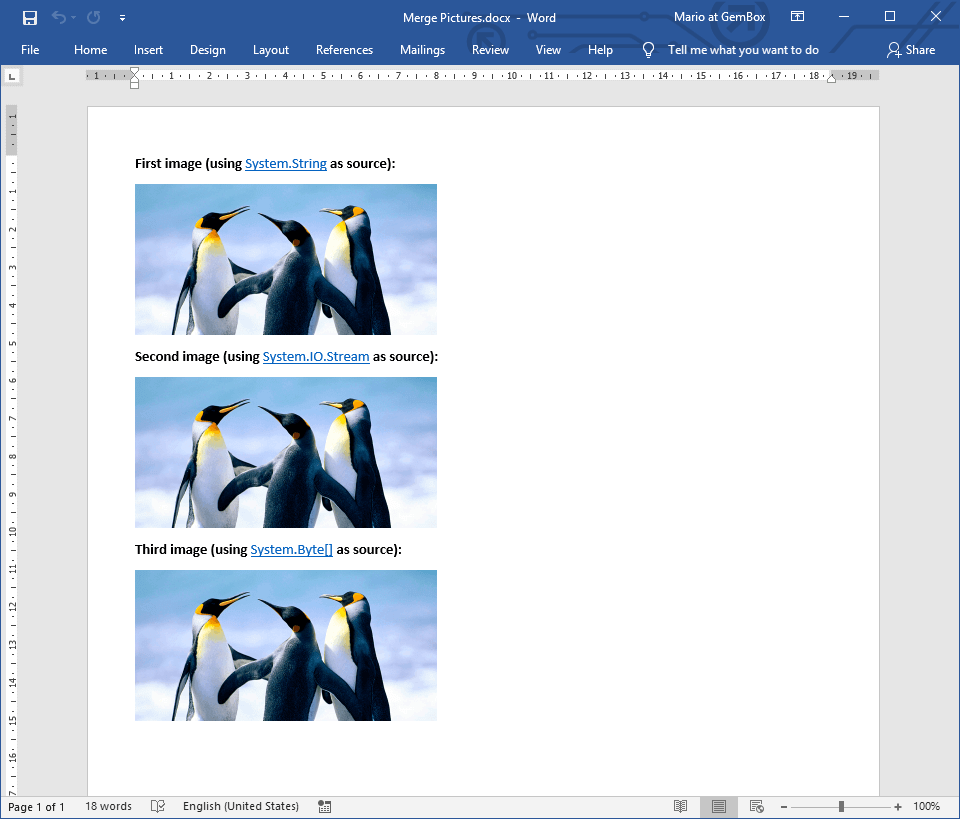
GemBox.Document offers three ways to merge pictures in Word documents programmatically:
- using
MERGEFIELDwith a specialMailMerge.PicturePrefixprefix in its name, - using
INCLUDEPICTUREwith a nestedMERGEFIELD, - using
FieldMergingevent as shown in Customize Merge example.
The example below shows how to merge pictures using MERGEFIELD elements with a default "Picture:" prefix.
using GemBox.Document;
using System;
using System.IO;

class Program
{
    static void Main()
    {
        // If using the Professional version, put your serial key below.
        ComponentInfo.SetLicense("FREE-LIMITED-KEY");

        var document = DocumentModel.Load("%InputFileName%");

        // Using picture's path, stream and byte array as a data source.
        var dataSource = new
        {
            Img1 = "%#Penguins.png%",
            Img2 = File.OpenRead("%#Penguins.png%"),
            Img3 = File.ReadAllBytes("%#Penguins.png%"),
        };

        document.MailMerge.Execute(dataSource);

        document.Save("Merge Pictures.%OutputFileType%");
    }
}
Imports GemBox.Document
Imports System
Imports System.IO

Module Program

    Sub Main()

        ' If using the Professional version, put your serial key below.
        ComponentInfo.SetLicense("FREE-LIMITED-KEY")

        Dim document = DocumentModel.Load("%InputFileName%")

        ' Using picture's path, stream and byte array as a data source.
        Dim dataSource = New With
        {
            .Img1 = "%#Penguins.png%",
            .Img2 = File.OpenRead("%#Penguins.png%"),
            .Img3 = File.ReadAllBytes("%#Penguins.png%")
        }

        document.MailMerge.Execute(dataSource)

        document.Save("Merge Pictures.%OutputFileType%")

    End Sub
End Module
Picture field with template
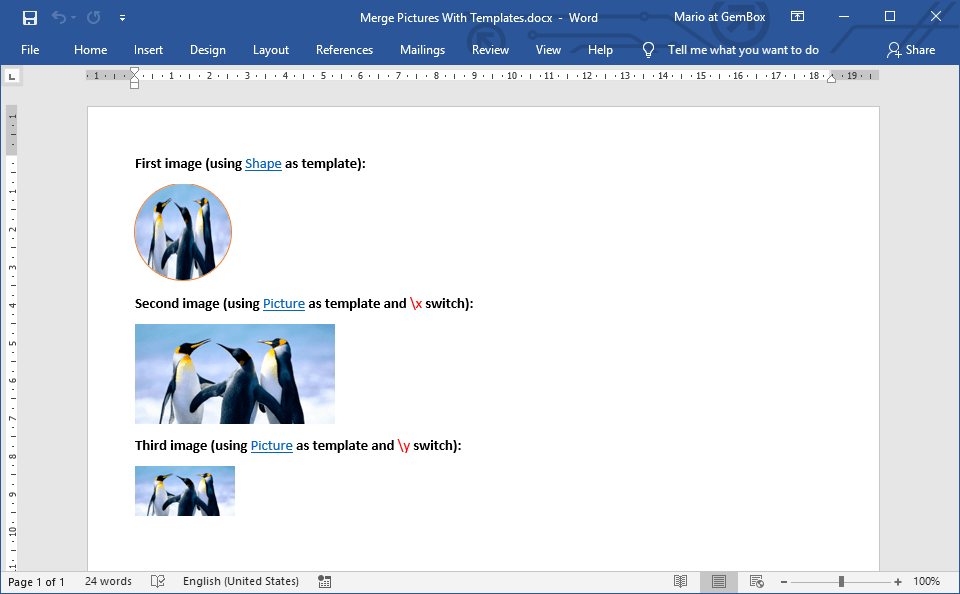
GemBox.Document supports Picture, TextBox and Shape as templates for a merged picture. Properties specified in a template shape, like size and position, are copied to a merged picture.
Also, you can keep the aspect ratio of the picture that's being merged, by using the picture field switches.
\x- resize the resulting picture horizontally, keeping the template shape's height.\y- resize the resulting picture vertically, keeping the template shape's width.\x \y- resize the resulting picture either horizontally or vertically.
The following example shows how to merge pictures using template shapes and picture field switches.
using GemBox.Document;
using System;
using System.IO;

class Program
{
    static void Main()
    {
        // If using the Professional version, put your serial key below.
        ComponentInfo.SetLicense("FREE-LIMITED-KEY");

        var document = DocumentModel.Load("%InputFileName%");

        var dataSource = new
        {
            Pic1 = "%#Penguins.png%",
            Pic2 = "%#Penguins.png%",
            Pic3 = "%#Penguins.png%"
        };

        // You can use FieldMerging event to set picture properties
        // that were not specified in template placeholder.
        document.MailMerge.FieldMerging += (sender, e) =>
        {
            if (e.Inline is Picture picture)
                picture.Metadata.Description = "Three dancing penguins.";
        };

        document.MailMerge.Execute(dataSource);

        document.Save("Merge Pictures With Templates.%OutputFileType%");
    }
}
Imports GemBox.Document
Imports System
Imports System.IO

Module Program

    Sub Main()

        ' If using the Professional version, put your serial key below.
        ComponentInfo.SetLicense("FREE-LIMITED-KEY")

        Dim document = DocumentModel.Load("%InputFileName%")

        Dim dataSource = New With
        {
            .Pic1 = "%#Penguins.png%",
            .Pic2 = "%#Penguins.png%",
            .Pic3 = "%#Penguins.png%"
        }

        ' You can use FieldMerging event to set picture properties
        ' that were not specified in template placeholder.
        AddHandler document.MailMerge.FieldMerging,
            Sub(sender, e)
                If TypeOf e.Inline Is Picture Then
                    DirectCast(e.Inline, Picture).Metadata.Description = "Three dancing penguins."
                End If
            End Sub

        document.MailMerge.Execute(dataSource)

        document.Save("Merge Pictures With Templates.%OutputFileType%")

    End Sub
End Module
Visit the Mail Merge - Picture mail merge to read more about picture merging.