Find and Replace text in a Word file with C# and VB.NET
GemBox.Document offers several ways in which you can manipulate a Word document's content to import new or replace existing data using C# or VB.NET code. For instance, you can use Mail Merge, Update Form, Content Controls Mapping, Modify Word Bookmarks, or the following find and replace approach.
In this article you will learn how to find all the parts of a Word document that contain the specified text or match the specified regular expression and replace them with desired text by using one of the ContentRange.Replace methods.
Table of contents:
- Basic find and replace example
- Replace text with plain text
- Find and replace with regular expressions
- Format the replacement or highlight matches
- Find text and process each match
- Replace a placeholder with an image, table, or HTML content
- Limit the search to part of the document
- Frequently asked questions
Basic find and replace example
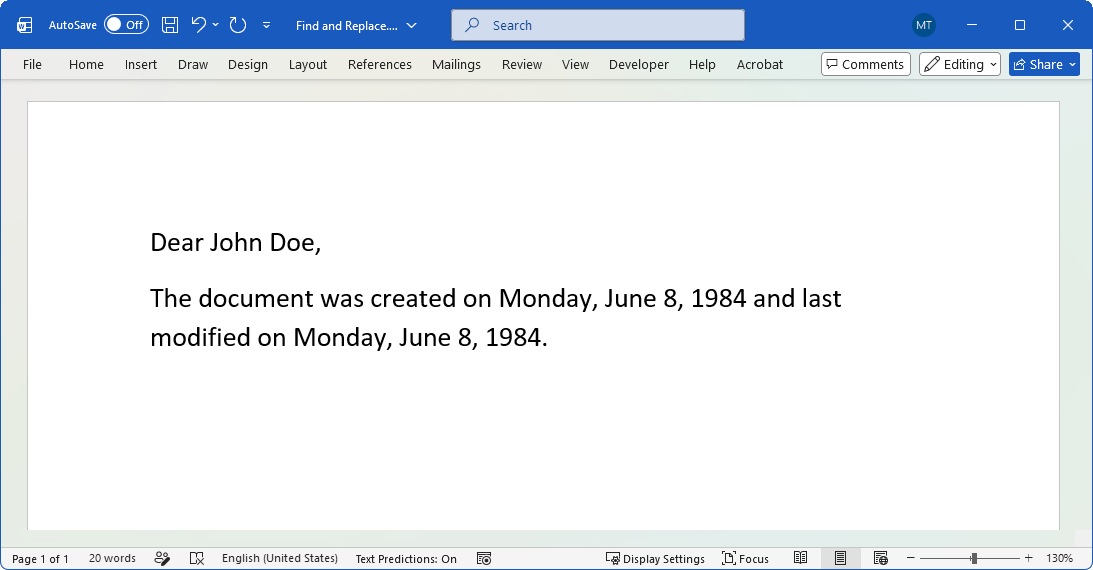
The following example shows how to replace a text using a string and a regular expression.
using GemBox.Document;
using System;
using System.Text.RegularExpressions;

class Program
{
    static void Main()
    {
        // If using the Professional version, put your serial key below.
        ComponentInfo.SetLicense("FREE-LIMITED-KEY");

        var document = new DocumentModel();
        document.Sections.Add(
            new Section(document,
                new Paragraph(document, "Dear %Name%,"),
                new Paragraph(document, "The document was created on %DateCreated% and last modified on %DateModified%.")));

        // Replace a placeholder with plain text.
        document.Content.Replace("%Name%", "John Doe");

        // Use regular expression to match and replace placeholders.
        document.Content.Replace(new Regex("%Date[a-zA-Z]+%"), DateTime.Today.ToLongDateString());

        document.Save("Find and Replace.docx");
    }
}
Imports GemBox.Document
Imports System
Imports System.Text.RegularExpressions

Module Program

    Sub Main()
        ' If using the Professional version, put your serial key below.
        ComponentInfo.SetLicense("FREE-LIMITED-KEY")

        ' Here we build a small one so the example is self-contained.
        Dim document = New DocumentModel()
        document.Sections.Add(
            New Section(document,
                        New Paragraph(document, "Dear %Name%,"),
                        New Paragraph(document, "The document was created on %DateCreated% and last modified on %DateModified%.")))

        ' Replace a placeholder with plain text.
        document.Content.Replace("%Name%", "John Doe")

        ' Use regular expression to match and replace placeholders.
        document.Content.Replace(New Regex("%Date[a-zA-Z]+%"), DateTime.Today.ToLongDateString())

        document.Save("Find and Replace.docx")
    End Sub

End Module
Replace text with plain text
The simplest case is replacing a placeholder with a text. The Replace method changes every occurrence in the content you call it on, including text inside tables, headers, and footers. Note that the string overload is case-sensitive and matches the exact substring, so %Name% and %name% are different searches.
// Replace every occurrence of a placeholder with plain text.
// The string overload is case-sensitive and matches the exact text.
document.Content.Replace("%FirstName%", "John");
document.Content.Replace("%LastName%", "Doe");
' Replace every occurrence of a placeholder with plain text.
' The string overload is case-sensitive and matches the exact text.
document.Content.Replace("%FirstName%", "John")
document.Content.Replace("%LastName%", "Doe")
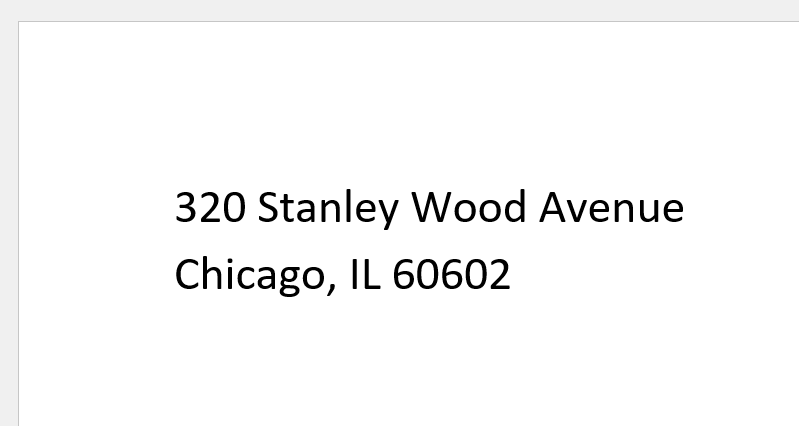
The replacement value isn't limited to plain text - GemBox.Document interprets a few special characters in it. Use "\v" for a line break and "\n" for a new paragraph.
document.Content.Replace("%Address%", "320 Stanley Wood Avenue\vChicago, IL 60602");
' The replacement value can contain special characters: vbVerticalTab inserts a line break
' and vbLf starts a new paragraph.
document.Content.Replace("%Address%", "320 Stanley Wood Avenue" & vbVerticalTab & "Chicago, IL 60602")
Find and replace with regular expressions
When you need more than an exact match, pass a Regex to Replace (or Find). A regular expression is how you get case-insensitive matching (RegexOptions.IgnoreCase), whole-word matching (the \b word boundary), and general pattern matching.
The table below lists some commonly used regular expressions you might want to find or replace.
| Regular expression | What it matches |
|---|---|
[\w.\-]+@[\w.\-]+\.\w+ | An email address, such as john.doe@example.com. |
\d{1,2}/\d{1,2}/\d{4} | A date in M/D/YYYY format, such as 12/31/2026. |
\d{1,2}:\d{2} | A time in H:MM format, such as 09:30. |
https?://[\w.\-]+(/\S*)? | A web address, such as https://www.example.com/page. |
\d{5}(-\d{4})? | A US ZIP code, such as 60602 or 60602-1234. |
\{\{\w+\}\} | A templating placeholder, such as {{Name}} or {{Date}}. |
Note that if your search text contains characters with a special meaning in a regex, such as [, ], or ., you need to escape them with Regex.Escape.
// Case-insensitive match (matches %date%, %DATE%, %Date%, ...).
document.Content.Replace(new Regex("%date%", RegexOptions.IgnoreCase), DateTime.Today.ToLongDateString());

// Whole word only - replaces "Code" but not "Codename".
document.Content.Replace(new Regex(@"\bCode\b"), "Reference");

// Escape characters that have a special meaning in a regex (here the brackets).
document.Content.Replace(new Regex(Regex.Escape("[Amount]")), "$100.00");
' Case-insensitive match (matches %date%, %DATE%, %Date%, ...).
document.Content.Replace(New Regex("%date%", RegexOptions.IgnoreCase), DateTime.Today.ToLongDateString())

' Whole word only - replaces "Code" but not "Codename".
document.Content.Replace(New Regex("\bCode\b"), "Reference")

' Escape characters that have a special meaning in a regex (here the brackets).
document.Content.Replace(New Regex(Regex.Escape("[Amount]")), "$100.00")
Format the replacement or highlight matches
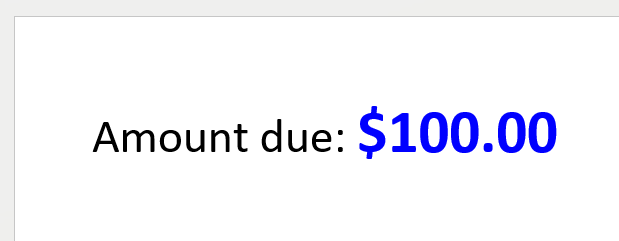
By default the replacement text takes the formatting of the matched text. To force a specific look, pass a CharacterFormat to the Replace method.
// Pass a CharacterFormat to style the replacement text.
document.Content.Replace("%Total%", "$100.00",
    new CharacterFormat() { Bold = true, FontColor = Color.Blue, Size = 14 });
' Pass a CharacterFormat to style the replacement text.
document.Content.Replace("%Total%", "$100.00",
    New CharacterFormat() With {.Bold = True, .FontColor = Color.Blue, .Size = 14})
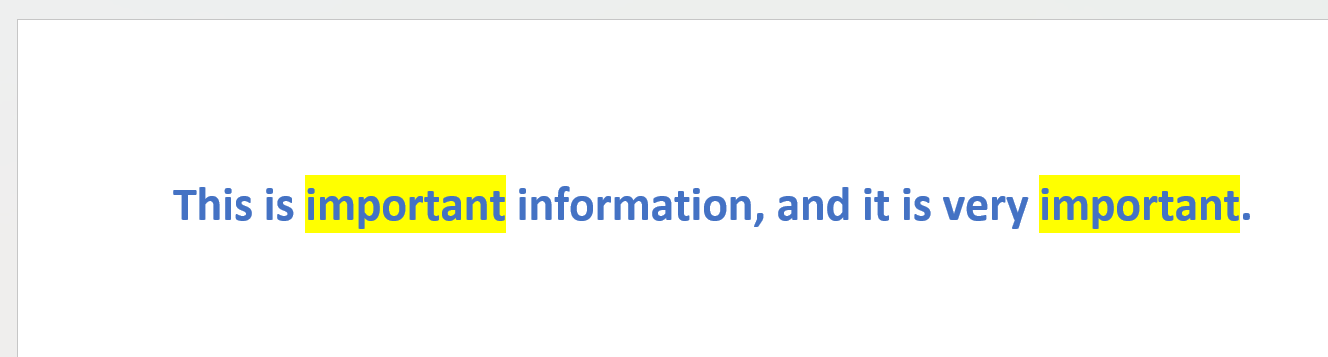
A common variation is to find a term and highlight it rather than change the text. Build the replacement Run with the matched text, clone the existing format so you keep its look, set HighlightColor, and replace the found term with Set.
// Find a term and highlight every occurrence.
// Reverse() is used because we edit the document while iterating the matches.
foreach (ContentRange found in document.Content.Find("important").Reverse())
{
    var run = new Run(document, found.ToString());
    run.CharacterFormat = ((Run)found.Start.Parent).CharacterFormat.Clone();
    run.CharacterFormat.HighlightColor = Color.Yellow;
    found.Set(run.Content);
}
' Find a term and highlight every occurrence.
' Reverse() is used because we edit the document while iterating the matches.
For Each found As ContentRange In document.Content.Find("important").Reverse()
    Dim run As New Run(document, found.ToString())
    run.CharacterFormat = DirectCast(found.Start.Parent, Run).CharacterFormat.Clone()
    run.CharacterFormat.HighlightColor = Color.Yellow
    found.Set(run.Content)
Next
Find text and process each match
When Replace isn't enough, use Find, which returns every match as a ContentRange you can inspect or edit.
// Take the first match.
ContentRange firstMatch = document.Content.Find("%Item%").First();

// Read the matched text and the paragraph that contains it.
string text = firstMatch.ToString();
Paragraph paragraph = (Paragraph)firstMatch.Start.Parent.Parent;

// Replace just that one match.
firstMatch.LoadText("First item only");
' Take the first match.
Dim firstMatch As ContentRange = document.Content.Find("%Item%").First()

' Read the matched text and the paragraph that contains it.
Dim text As String = firstMatch.ToString()
Dim paragraph As Paragraph = DirectCast(firstMatch.Start.Parent.Parent, Paragraph)

' Replace just that one match.
firstMatch.LoadText("First item only")
Note: editing the document invalidates the other ranges that Find already returned, so iterating the results and editing as you go can throw an exception or skip matches. You can use Replace (which handles this internally), iterate the results back-to-front with Reverse(), or loop with FirstOrDefault() and re-search after each edit.
Replace a placeholder with an image, table, or HTML content
You aren't limited to replacing text with text. To swap a placeholder for another element, set the found range to that element's content with Set. For example, replace a placeholder with a Picture or a Hyperlink:
// Replace a placeholder with an image.
ContentRange imagePlaceholder = document.Content.Find("%Photo%").First();
imagePlaceholder.Set(new Picture(document, "avatar.png").Content);

// Replace a placeholder with a hyperlink.
ContentRange linkPlaceholder = document.Content.Find("%Email%").First();
var hyperlink = new Hyperlink(document, "mailto:john.doe@example.com", "john.doe@example.com");
linkPlaceholder.Set(hyperlink.Content);
' Replace a placeholder with an image.
Dim imagePlaceholder As ContentRange = document.Content.Find("%Photo%").First()
imagePlaceholder.Set(New Picture(document, "avatar.png").Content)
' Replace a placeholder with a hyperlink.
Dim linkPlaceholder As ContentRange = document.Content.Find("%Email%").First()
Dim hyperlink = New Hyperlink(document, "mailto:john.doe@example.com", "john.doe@example.com")
linkPlaceholder.Set(hyperlink.Content)For a Table, delete the placeholder text and insert the table before it.
var table = new Table(document,
    new TableRow(document,
        new TableCell(document, new Paragraph(document, "Year")),
        new TableCell(document, new Paragraph(document, "Role"))),
    new TableRow(document,
        new TableCell(document, new Paragraph(document, "2021 - 2026")),
        new TableCell(document, new Paragraph(document, "Senior Developer"))));

ContentRange placeholder = document.Content.Find("%JobHistory%").First();
placeholder = placeholder.LoadText(string.Empty);
placeholder.Start.InsertRange(table.Content);
Dim table As New Table(document,
New TableRow(document,
New TableCell(document, New Paragraph(document, "Year")),
New TableCell(document, New Paragraph(document, "Role"))),
New TableRow(document,
New TableCell(document, New Paragraph(document, "2021 - 2026")),
New TableCell(document, New Paragraph(document, "Senior Developer"))))
Dim placeholder As ContentRange = document.Content.Find("%JobHistory%").First()
placeholder = placeholder.LoadText(string.Empty)
placeholder.Start.InsertRange(table.Content)If your replacement is HTML (or RTF or Markdown), load it directly into the found range with LoadText and the matching load options.
// Replace a placeholder with HTML-formatted content.
ContentRange found = document.Content.Find("%AboutMe%").First();
found.LoadText(
    "<ul><li><b>Team</b> player</li><li>Detail oriented</li></ul>",
    new HtmlLoadOptions());
' Replace a placeholder with HTML-formatted content.
Dim found As ContentRange = document.Content.Find("%AboutMe%").First()
found.LoadText(
    "<ul><li><b>Team</b> player</li><li>Detail oriented</li></ul>",
    New HtmlLoadOptions())
Limit the search to part of the document
You don't have to search the whole document. Because every element exposes a Content property, calling Find or Replace on a specific paragraph, table, or bookmark content scopes the operation to just that part.
// Scope search to a table.
Table firstTable = document.Sections[0].Blocks.OfType<Table>().First();
firstTable.Content.Replace("%Status%", "Approved");

// You can also scope to a named bookmark.
document.Bookmarks["Summary"].GetContent(false).Replace("%Year%", "2026");
' Scope search to a table.
Dim firstTable As Table = document.Sections(0).Blocks.OfType(Of Table)().First()
firstTable.Content.Replace("%Status%", "Approved")

' You can also scope to a named bookmark.
document.Bookmarks("Summary").GetContent(False).Replace("%Year%", "2026")
Frequently asked questions
- Why isn't my text being replaced?
- How do I replace only the first occurrence?
- How do I match a whole word only?
- Does find and replace also work in headers, footers, and tables?
- How do I keep the original formatting of the text I replace?
- Should I use find and replace or Mail Merge?
Why isn't my text being replaced?
The most common cause is casing. The string overload of Replace matches the exact, case-sensitive text, so if your document contains "%Date%" but you search for "%DATE%" nothing happens. To match regardless of casing, use a Regex with RegexOptions.IgnoreCase.
// String matching is case-sensitive; use a Regex with RegexOptions.IgnoreCase to match regardless of casing.
document.Content.Replace(new Regex("%date%", RegexOptions.IgnoreCase), "January 1, 1984");
' String matching is case-sensitive; use a Regex with RegexOptions.IgnoreCase to match regardless of casing.
document.Content.Replace(New Regex("%date%", RegexOptions.IgnoreCase), "January 1, 1984")
How do I replace only the first occurrence?
Find returns all matches, so use LINQ's First (or Last, or ElementAt) to pick the one you want and edit just that range.
// Find returns all matches; LINQ's First (or Last, ElementAt) picks one.
document.Content.Find("%Name%").First().LoadText("John Doe");
' Find returns all matches; LINQ's First (or Last, ElementAt) picks one.
document.Content.Find("%Name%").First().LoadText("John Doe")
How do I match a whole word only?
Use a Regex with word boundaries (\b) so that, for example, replacing "Field1" doesn't also change "Field11".
// Word boundaries (\b) match a whole word only.
document.Content.Replace(new Regex(@"\bField1\b"), "Value");
' Word boundaries (\b) match a whole word only.
document.Content.Replace(New Regex("\bField1\b"), "Value")
Does find and replace also work in headers, footers, and tables?
Yes. document.Content reaches the headers, footers, and tables in the document body, so a single Replace call covers them.
How do I keep the original formatting of the text I replace?
Both Replace(old, new) and LoadText(text) keep the matched text's formatting. To change one property while preserving the rest, clone the matched run's CharacterFormat rather than assigning a new one (a fresh format would reset every property).
ContentRange found = document.Content.Find("%Name%").First();
CharacterFormat format = ((Run)found.Start.Parent).CharacterFormat.Clone();
format.Bold = true;
found.LoadText("John Doe", format);
Dim found As ContentRange = document.Content.Find("%Name%").First()
Dim format As CharacterFormat = DirectCast(found.Start.Parent, Run).CharacterFormat.Clone()
format.Bold = True
found.LoadText("John Doe", format)Should I use find and replace or Mail Merge?
Use find and replace for simple, one-off placeholder substitution. For structured data - repeating rows, conditional sections, or filling one template per record - Mail Merge is the better fit, because it is built exactly for that.